AI image upscaler
Enlarge a photo, illustration, product image, or generated artwork. The workflow focuses on resolution enhancement, so you can prepare a larger file without writing a prompt or rebuilding the composition.
Open Image HD →The page could not load. Please refresh to try again.
This is taking longer than expected. You can keep waiting or refresh the page.
AI IMAGE & VIDEO UPSCALER
Enhance image or video resolution with MagicCanvas. Choose your media type, upload the best source you have, and open the matching HD workflow in Create.
Each button opens the corresponding Image HD or Video HD tab. Review the output settings and cost before generating.
 SOURCEHD
CHOOSE YOUR SOURCE
Images and videos need different processing. Start with the file you already have; MagicCanvas sends you to the correct HD tab instead of asking you to find the tool again.
Enlarge a photo, illustration, product image, or generated artwork. The workflow focuses on resolution enhancement, so you can prepare a larger file without writing a prompt or rebuilding the composition.
Open Image HD →Improve a source clip for a higher-resolution delivery. Upload your video, choose an available 1080p or 2K setting, and inspect movement, faces, text, and fine edges in the completed result.
Open Video HD →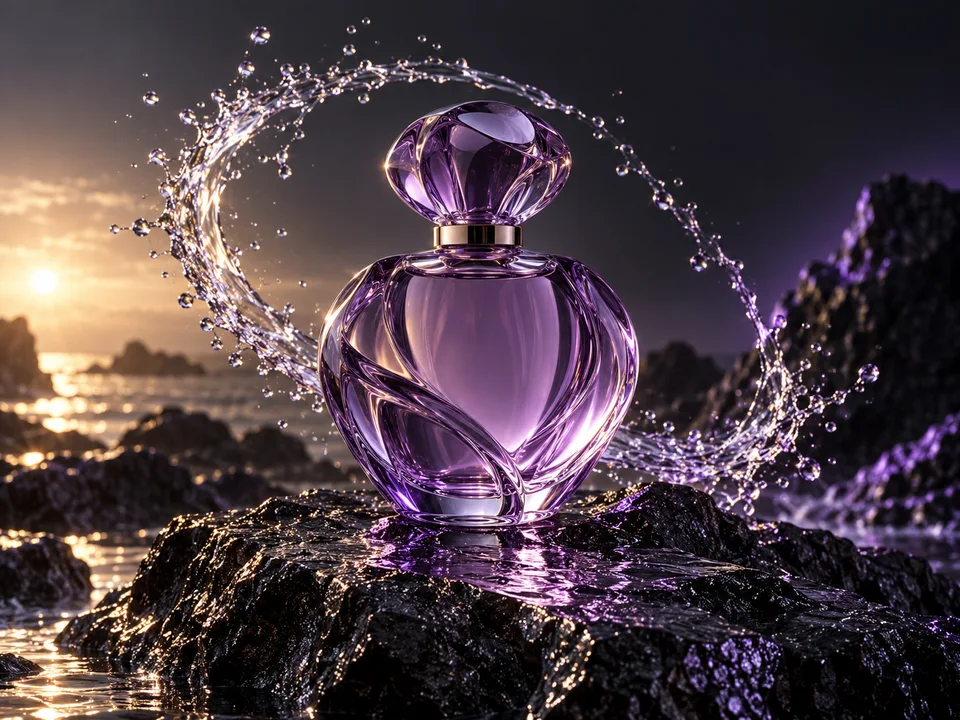 SOURCEHD
MORE THAN STRETCHING PIXELS
A basic resize makes every existing pixel larger. AI upscaling analyzes the image and reconstructs a higher-resolution version, aiming to keep edges, texture, and recognizable features coherent at the new size.
That does not make every source perfect. If a face is only a few pixels wide, a label is unreadable, or a clip contains strong motion blur, the missing information cannot be verified. Treat the result as an enhanced interpretation and compare it with the original before publishing.
Enhance an image →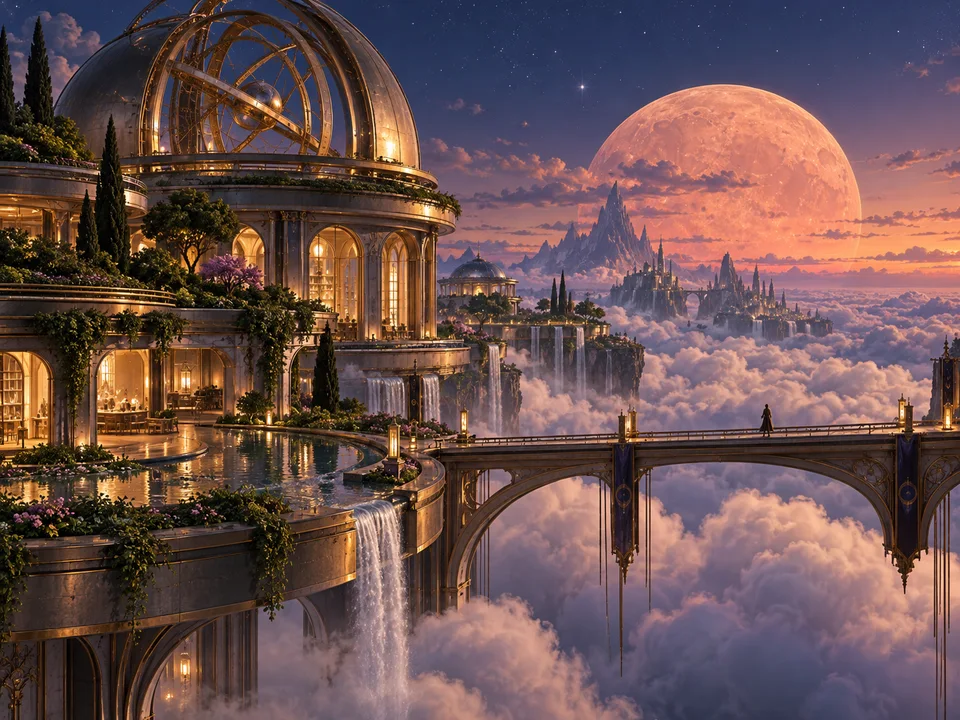 SOURCEHD
HD FOR MOVING SCENES
Video enhancement has an extra challenge: detail must remain stable from one frame to the next. Use the cleanest export you have, then watch the full result rather than judging one poster frame.
MagicCanvas currently exposes 1080p and 2K options for Video HD. The right choice depends on your source and delivery. A higher setting creates more pixels, but it cannot guarantee sharper content when the original is heavily compressed or out of focus.
Enhance a video →The workflow is simple; the quality check after generation matters just as much as the upload.
Use the matching button on this page. Create opens with the correct media tab and Upscale mode selected.
Choose the original file when possible. Avoid a screenshot, social-media download, or repeatedly compressed copy.
For video, choose an available resolution. Check the displayed cost and any current file requirements before generating.
Compare both versions at full size. Check faces, text, edges, textures, and—on video—detail stability across the full clip.
PRACTICAL USE CASES
Upscaling is most useful when the composition already works and you need a larger, cleaner version for the next step.
Prepare a cleaner, larger product image for a storefront, marketplace listing, presentation, or campaign layout. Check labels and small product features after enhancement.
Improve the viewing size of a portrait or scanned photo. Faces can be sensitive to reconstruction, so compare eyes, hair, skin texture, and accessories with the source.
Upgrade a clip before reframing, captioning, or publishing it. Video HD is useful when the final platform or edit calls for a higher output resolution.
Create a larger working file for posters, menus, presentations, and other designs. Confirm the final pixel dimensions and inspect at print size before sending the job.
SOURCE QUALITY FIRST
An upscaler works with what is present in the file. A cleaner source gives the enhancement process more useful information.
Use a focused tool when your real goal is to change the composition, remove something, or create motion.
An AI upscaler creates a higher-resolution version of an image or video. It analyzes the source, enlarges it, and reconstructs visual detail instead of only stretching the existing pixels.
Yes. MagicCanvas has separate HD workflows for images and videos. Choose the matching button on this page and Create opens on the correct media tab.
The current Video HD workflow is configured with 1080p and 2K output options. Availability can change, so confirm the resolution shown in Create before generating.
No. Upscaling can improve clarity and make a file more useful at a larger size, but it cannot reliably recover information that was never captured. Heavy motion blur, severe compression, clipped highlights, and tiny faces may still be visible.
The Image HD workflow is intended to enhance the source rather than redesign it. Always compare the result with the original and check faces, text, logos, fine patterns, and product details before publishing.
Use the cleanest original you have. Avoid screenshots of a file when the original is available, and do not repeatedly re-save a compressed image or video before uploading it.
Check the displayed cost in Create before you generate. Cost and access depend on the media type, output settings, and your account.
A higher-resolution file can be useful for print and commercial layouts, but suitability depends on the source, final dimensions, viewing distance, and your rights to the media. Inspect the exported file at its intended size before production.
READY FOR A CLOSER LOOK?
Choose your source type and open the matching HD workflow.