A useful prompt is specific, not complicated
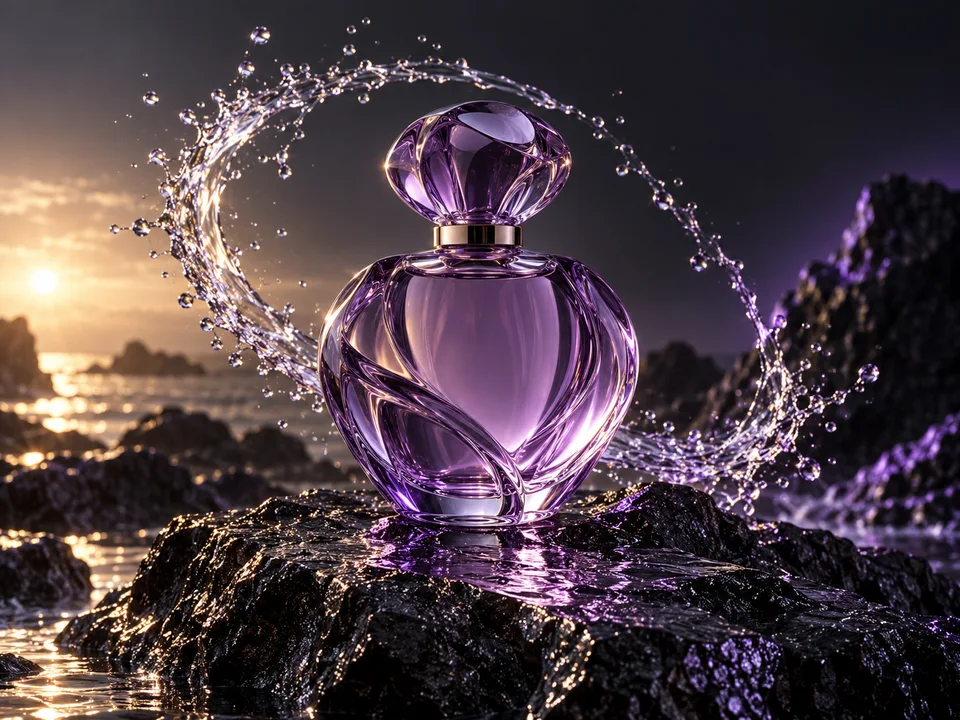
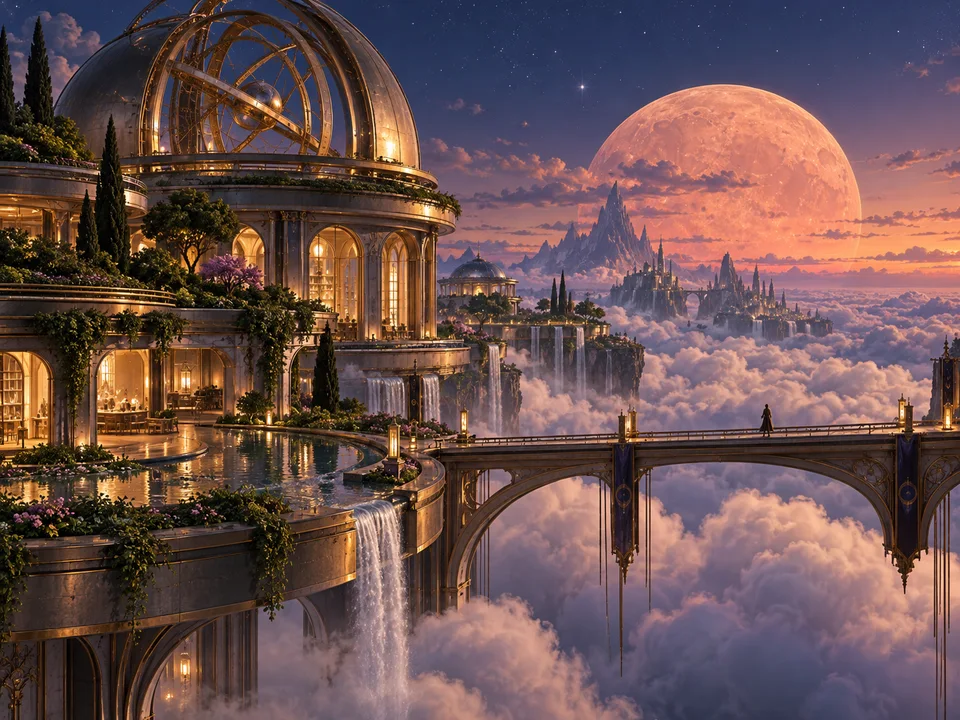
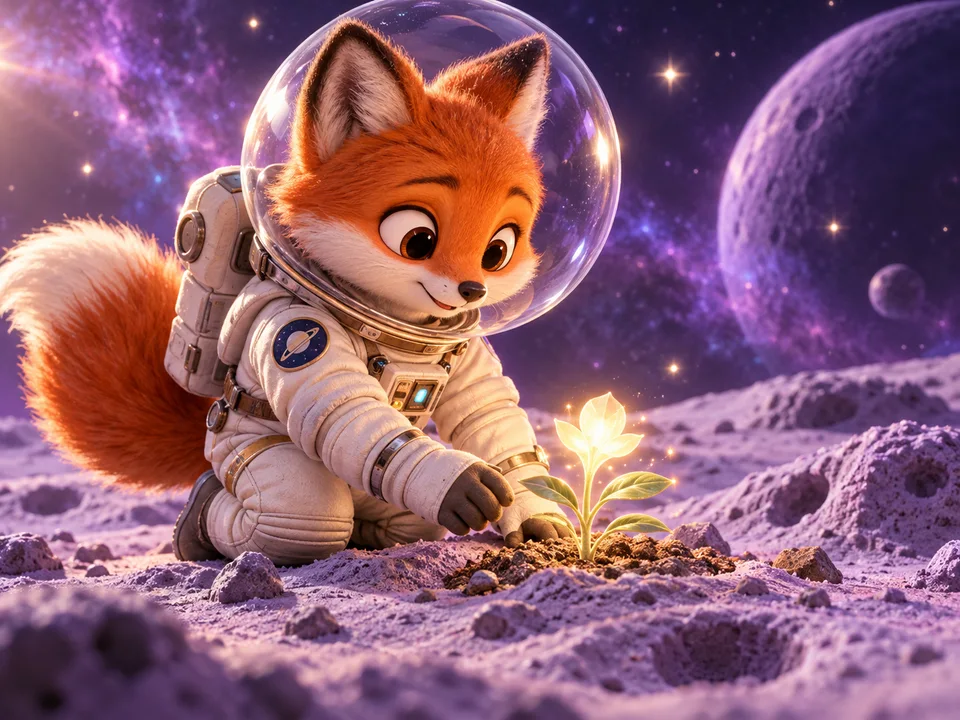
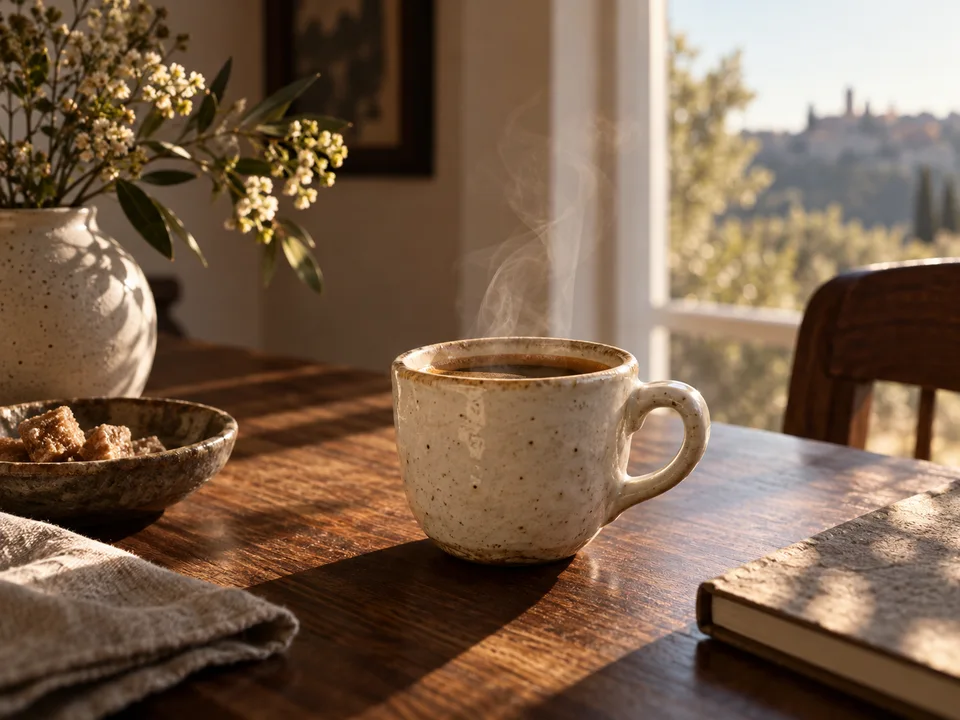
Try this structure: subject + setting + composition + light + style. Start with the part of the image that matters most. Avoid asking for several conflicting styles or unrelated subjects in the same request.
A starting idea
A coffee shop.
A clearer direction
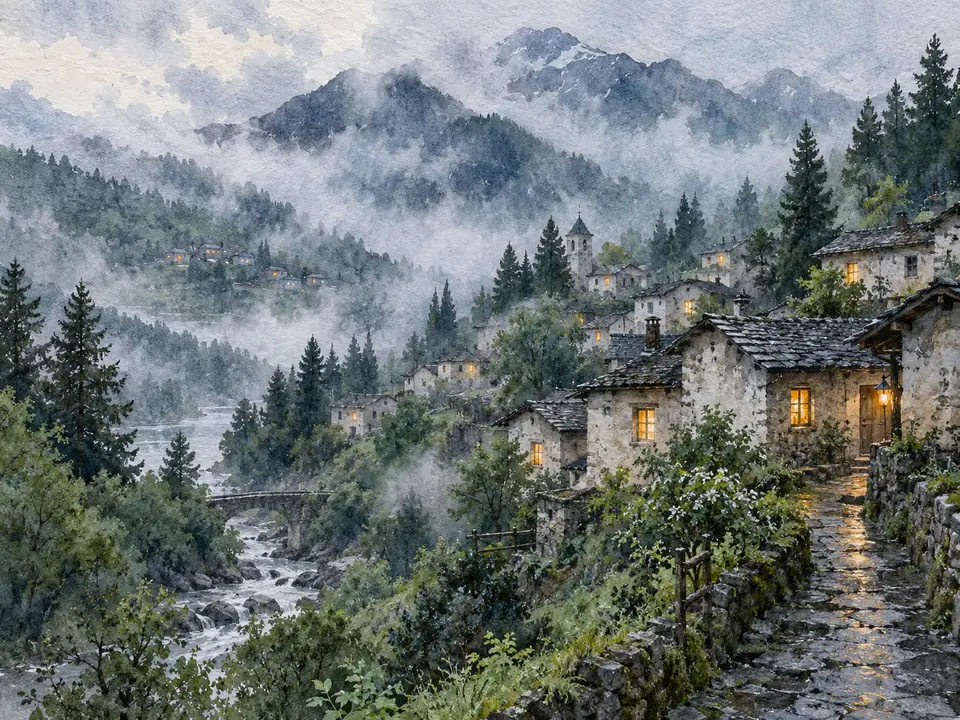
A small corner coffee shop on a rainy street, warm light through the windows, eye-level view, muted colors, watercolor illustration.
Leave space for a headline when planning a banner. For precise lettering, add the final text in a design editor. Check faces, hands, product labels, and repeated patterns before publishing a generated image.
Text to Image questions
What is a text-to-image generator?
It creates a new image from a written description. Your prompt guides the subject, setting, visual style, and composition. It generates a result rather than searching for a matching stock photo.
How do I generate an image in MagicCanvas?
Describe your idea on this page and continue to Create. Select an available image model and settings, review the cost, then generate. Inspect the result and refine the prompt if you want another version.
Do I need to upload a photo?
No. Text to Image starts from a description. If you already have a photo you want to change, use Image Edit in Create or AI Replace instead.
Which image models can I use?
The model section lists the Text to Image options returned by the current catalog. Availability, output sizes, and costs can change or depend on your account. The model picker in Create shows the options available when you generate.
Is AI image generation free?
Generation uses credits or diamonds. The amount depends on the model and settings. Check the price next to Generate in Create and review the plans page for account options.
Can I choose a style and aspect ratio?
Describe a style in your prompt, such as photography, watercolor, or 3D illustration. Choose an aspect ratio from the settings supported by your selected model in Create. Style examples on this page add prompt text; they are not separate model presets.
Can AI generate readable text inside an image?
Text quality varies by model and prompt. Check spelling and letter shapes carefully. For exact headlines, labels, or legal text, leave space in the image and add the final typography in a design editor.
Will the same prompt always produce the same picture?
Not necessarily. Generations can vary even with similar instructions. Keep a copy of prompts you like and compare results before deciding which version to use.
Can I use an image for a commercial project?
Check MagicCanvas’s terms, the selected model’s applicable terms, and any third-party rights relevant to your intended use. Do not assume that generated logos, likenesses, or characters are cleared for commercial use.
Can I turn my generated image into a video?
Yes. Download or select your finished image and use Image to Video to describe how it should move. Review the video for changes to the subject and other details.
What should I check before publishing?
Inspect hands, faces, text, product details, and repeated patterns. AI images can contain errors or resemble existing work. Make sure the image fits your intended use and avoid presenting a generated scene as documentary evidence.