The page could not load. Please refresh to try again.

This is taking longer than expected. You can keep waiting or refresh the page.

All apps

AI Expansion

AI Image Extender
Give your photo room.

Extend the edges of your image to make space for a wider composition, a new crop, or your next design.

Expand your image

Opens the image editor. Upload your photo to get started.

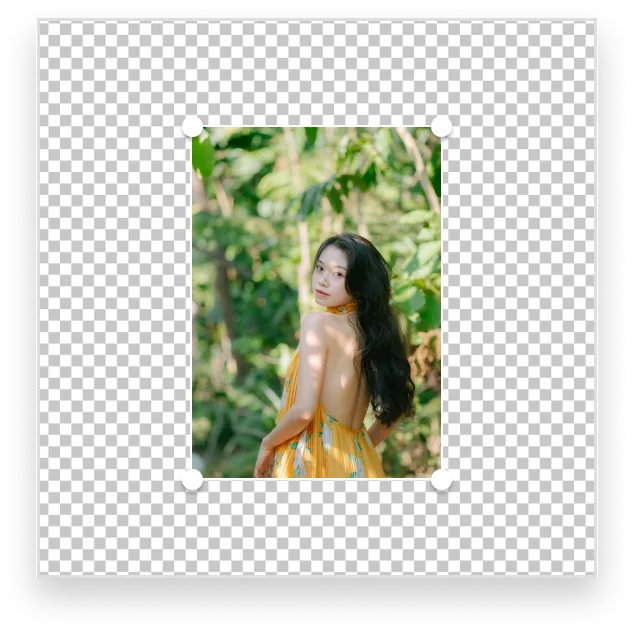
An example of expanding a photo beyond its original frame
AI Expansion · Example
  1. 1Upload your photo
  2. 2Adjust the canvas
  3. 3Generate the edges

How to expand your image

Set the new frame, guide the fill, and review the result.

Image expansion walkthrough
  1. 1

    Upload your photo

    Open the editor and choose the image you want to expand.

  2. 2

    Set the new frame

    Choose a canvas size or drag its edges to add space around your photo.

  3. 3

    Guide the new area

    Describe what you want to appear beyond the original image.

  4. 4

    Generate the extension

    Generate new content for the added canvas area.

  5. 5

    Review the result

    Check the edges and details. Adjust your instructions if needed.

  6. 6

    Download your image

    Save the version you want to use.

What does AI Expansion do?

AI Expansion adds generated content outside the existing edges of a photo. This process is also called outpainting. It gives an image more surrounding space for a different composition. It does not reveal a real scene beyond the original frame, stitch multiple photos together, or increase the detail of existing pixels.

AI Expansion use cases

Make room for a wider composition

Extend the sides of a portrait-oriented photo when you need a wider layout. Keep the subject in position and review how the new background meets the original edges. A calm background can be easier to extend than a crowded scene.

Leave space for a headline

Add space beside a subject for a banner or social graphic. Describe the surrounding background you need, then add your final text in a design editor. Check that the generated area has enough visual separation for readable text.

Give a tight crop more breathing room

Extend a photo that cuts too close to the subject. Start with a modest amount of extra canvas and inspect the new edges. Faces, limbs, and complex objects require particular care if the model must invent missing parts.

Explore a landscape framing

Add sky, ground, or surrounding scenery to try a different framing. Describe a continuation consistent with the source photo. The added scenery is synthetic and should not be used as evidence of what was outside the camera frame.

Tips for a more useful result

Start with a small extension and describe a background that matches the photo’s lighting and perspective. Check repeating patterns, horizons, and object boundaries. If the new area does not fit, revise the prompt or reduce the amount of added canvas before trying again.

AI Expansion: common questions

Is image expansion the same as upscaling?

No. Expansion generates content beyond the frame. Upscaling increases the pixel dimensions of the existing image. Use an upscaling tool when your goal is a higher-resolution version of the same composition.

Can it stitch several photos into a panorama?

This workflow starts with one image and generates new surroundings. It is not a panorama-stitching tool for aligning several real photos.

Can I control what appears in the new area?

Use the canvas controls to choose where to add space and describe the desired continuation in the prompt. The output is generated, so the instructions guide the result rather than guarantee every detail.

Is this tool free?

Generation uses credits or diamonds. Check the cost shown next to Generate in the editor before submitting. Available options may depend on your account and plan.

Where do I upload my image?

Use the main button on this page to open the dedicated image editor. Upload your source photo there, make your selection or adjust the canvas, and generate when you are ready.

Can I use it on my phone?

The editor runs in a browser and supports touch interaction. Zoom in when selecting small details. A larger screen can make precise selections easier.

Will every result look natural?

No. AI can change details or create artifacts, especially around faces, hands, text, reflections, and repeating patterns. Review the output at full size and try a smaller edit if needed.

How do I save the result?

Review the generated image in the editor and use its download action to save the version you want. Keep your source photo so you can try another edit.
Plans and creditsUpload privacy

Try it on your own photo

Open the editor, make your changes, and check the generation cost before submitting.

Open AI Expansion →