AI Expansion: common questions
Is image expansion the same as upscaling?
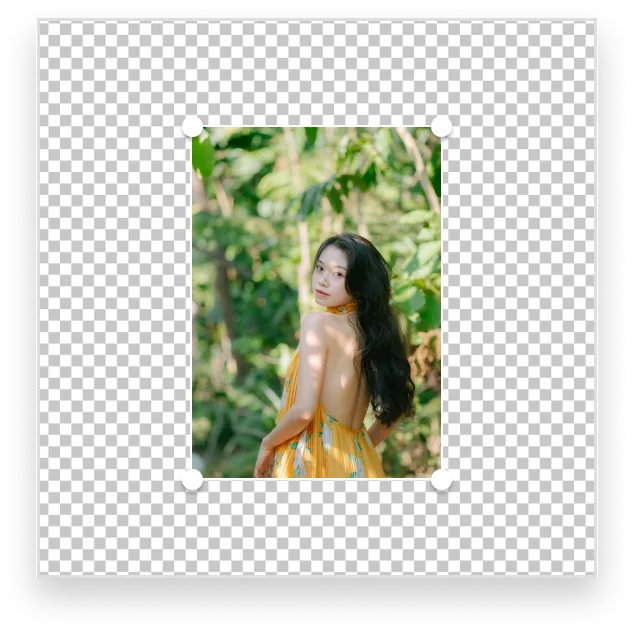
No. Expansion generates content beyond the frame. Upscaling increases the pixel dimensions of the existing image. Use an upscaling tool when your goal is a higher-resolution version of the same composition.
Can it stitch several photos into a panorama?
This workflow starts with one image and generates new surroundings. It is not a panorama-stitching tool for aligning several real photos.
Can I control what appears in the new area?
Use the canvas controls to choose where to add space and describe the desired continuation in the prompt. The output is generated, so the instructions guide the result rather than guarantee every detail.
Is this tool free?
Generation uses credits or diamonds. Check the cost shown next to Generate in the editor before submitting. Available options may depend on your account and plan.
Where do I upload my image?
Use the main button on this page to open the dedicated image editor. Upload your source photo there, make your selection or adjust the canvas, and generate when you are ready.
Can I use it on my phone?
The editor runs in a browser and supports touch interaction. Zoom in when selecting small details. A larger screen can make precise selections easier.
Will every result look natural?
No. AI can change details or create artifacts, especially around faces, hands, text, reflections, and repeating patterns. Review the output at full size and try a smaller edit if needed.
How do I save the result?
Review the generated image in the editor and use its download action to save the version you want. Keep your source photo so you can try another edit.