Finish an interrupted action
Give a short gesture or movement more room to develop. Describe one clear next action, keeping the subject and setting consistent with the end of your original clip.
The page could not load. Please refresh to try again.
This is taking longer than expected. You can keep waiting or refresh the page.
KEEP THE STORY MOVING
Your clip ends before the moment does. Upload a video, describe the next action or camera movement, and generate a continuation in MagicCanvas Create.
Extend your video →Opens Extend Video in Create. Add your source video and review the model, settings, and cost before generating.
Explore use cases ↓AI video extension generates new footage guided by your source clip and prompt. It is different from repeating the clip, freezing its last frame, or slowing down playback.
Give a short gesture or movement more room to develop. Describe one clear next action, keeping the subject and setting consistent with the end of your original clip.
Ask for a slow pullback, a gentle pan, or a continued forward move. Specify what stays consistent, such as the lighting, subject, or pace, instead of describing an unrelated scene.
Try a quieter ending for a product shot or a scene that stops abruptly. Describe how the shot should settle, then review the transition before using it in your edit.
FROM A SHORT CLIP TO A FINISHED EDIT
Find a scene like yours, then adapt the continuation prompt to your footage. Images are scene inspiration, not before-and-after extension results.
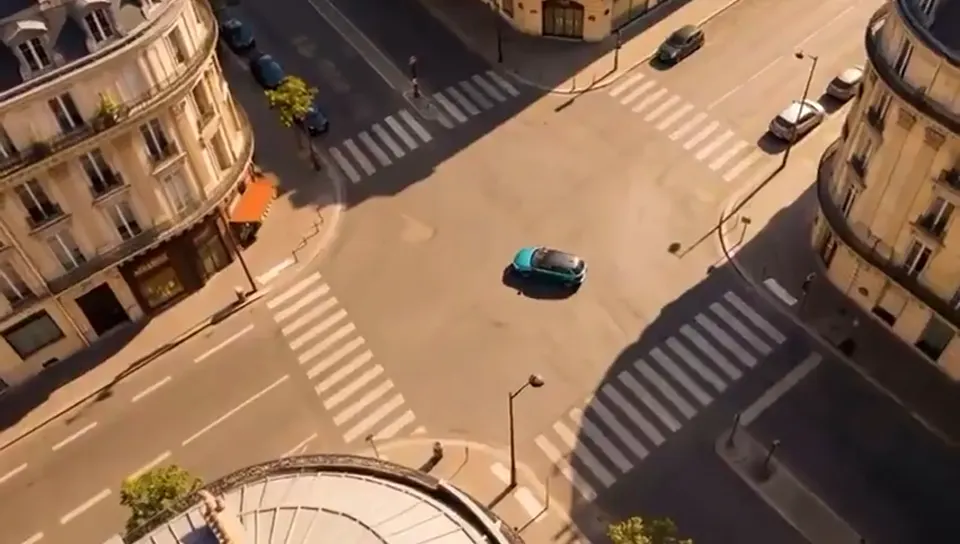
GIVE THE PRODUCT SHOT AN ENDING
Your product reveal ends before there is room for a closing message.
Continue the shot into a calmer ending, then add your logo or call to action in your editor. Check that the product keeps its shape and details.
The teal car continues smoothly through the intersection as the camera slowly pulls back. Keep the warm sunlight, car design, and city architecture consistent. End with a steady wide shot.

LET THE REACTION FINISH
A funny reaction or character moment cuts off too soon.
Give the gesture time to finish before cutting to your next shot. Keep the continuation simple so the joke still has a clear ending.
The blue bird lifts its head from the phone, tilts its head curiously, then settles back into the blanket. Keep the same close-up framing, soft light, and bird appearance.
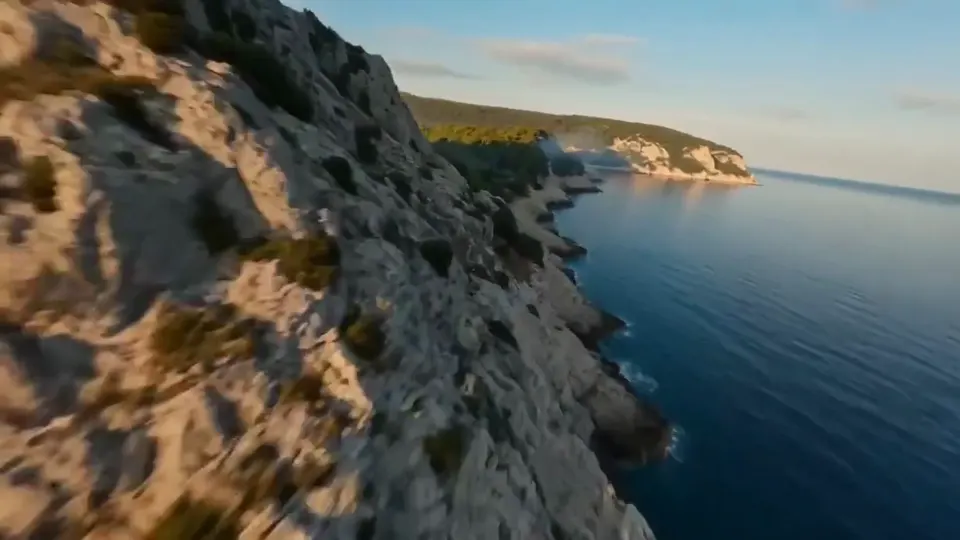
STAY WITH THE VIEW
A scenic clip stops just as the view is opening up.
Continue a slow camera move to reveal more of the location. Use the extra footage to pace a travel montage and review the landscape for unwanted changes.
Continue the smooth forward flight along the rocky coastline. Reveal more of the bay while keeping the same sunlight, calm blue water, and camera height. Avoid a sudden turn or cut.
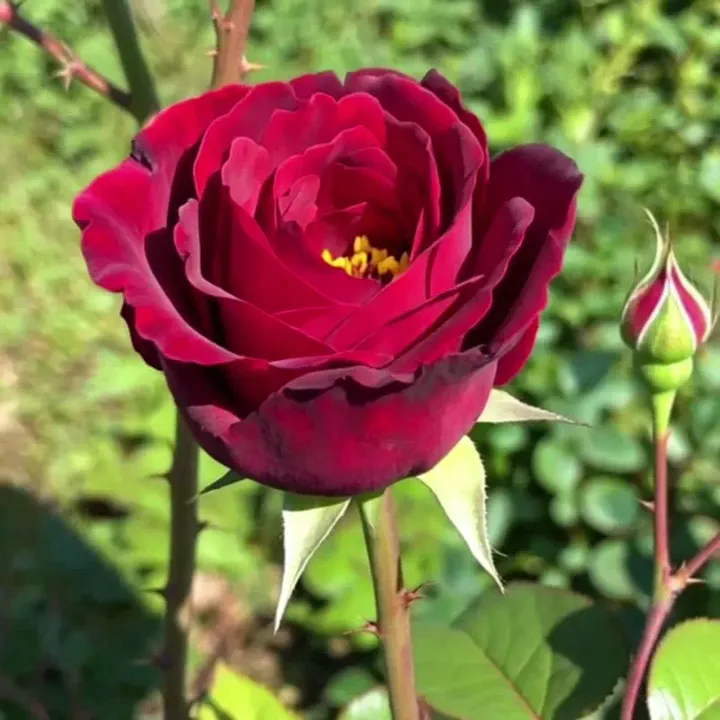
COMPLETE THE QUIET MOMENT
A detail shot ends before the next story beat feels ready.
Extend a small movement or a quiet pause to connect two scenes. For a nature sequence, let the breeze ease and the camera settle before the next cut.
The red rose sways gently as the breeze eases. Continue the subtle forward camera movement, keeping the petals, garden background, and soft sunlight consistent. Finish on a calm close-up.
Open Extend Video in Create and upload one video. Use a clip whose ending clearly shows the subject and scene you want to continue.
Write what should happen after the clip ends. Include the next action, camera direction, and any details that should remain consistent.
Select an available extension model and review its duration and output options. Check the displayed credit cost before submitting.
Watch the transition from the original ending into the new footage. Check motion, subject appearance, lighting, and audio before downloading or sharing.
A CLEAR NEXT STEP WORKS BETTER THAN “MAKE IT LONGER”
Choose an idea, then add a source video that fits it in Create.
The person finishes pouring the coffee, places the kettle down, and looks toward the window. Keep the same warm lighting and camera angle.
Use this prompt →Continue the slow forward camera movement along the forest path. Keep the soft morning light as the trees gently move in the breeze.
Use this prompt →The camera slowly pulls back from the product, revealing more of the tabletop. Keep the product in focus and end with a steady shot.
Use this prompt →These models have dedicated extension settings in our catalog. Availability, account access, and final options are shown in Create.
| Model | Added footage | Resolution options | Audio option | Start |
|---|---|---|---|---|
| Seedance 2.0 | 4–15 seconds | 480p / 720p / 1080p / 4k | Available | Try model → |
| Seedance 2.0 Fast | 4–15 seconds | 480p / 720p | Available | Try model → |
| Seedance 2.0 Mini | 4–15 seconds | 480p / 720p | Available | Try model → |
| Seedance 2.5 | 4–30 seconds | 480p / 720p | Available | Try model → |
The durations above describe the new footage, not the total video length. For these Seedance models, the continuation is joined to your original clip. Start with a short continuation to check the join. Audio generation does not guarantee that the original dialogue or soundtrack continues unchanged.
AI can change details or introduce an abrupt transition. Clear instructions help guide the result, but do not guarantee perfect continuity. Revise the prompt if the scene changes in an unwanted way.
PICK THE RIGHT STARTING POINT
Extend Video is for continuing existing footage. If you only have a photo, start with Image to Video. If you are imagining a scene from scratch, start with Text to Video.
It generates a continuation of an existing clip using your video and a description of what should happen next. It creates new footage rather than simply looping or slowing down the original.
No. Video extension adds time after a clip. Expanding the frame or changing the aspect ratio is a different editing task.
No. The added footage is AI-generated. Do not use it as evidence of events that were not captured in the original recording.
Start with one source video and a prompt describing the continuation. Create shows the selected model’s upload requirements and any additional reference options.
Available durations depend on the selected model. In the Seedance model comparison above, the range refers to newly generated footage. That continuation is joined to your original clip, so the finished video includes both. Check the current options in Create before generating.
Choose from the models available in Create’s Extend Video mode. The selection and settings can change, so use the current model picker to check your options.
Not always. AI may change a subject’s appearance, lighting, movement, or other details. Review the point where the original footage ends and the continuation begins. Use a focused prompt and try a shorter continuation when testing.
Extend Video requires a source video. Use Image to Video to animate a photo first, then use a suitable video clip as the source for an extension.
Generation uses credits or diamonds. Cost depends on the model and selected settings. Review the amount shown in Create before submitting your task.
Audio behavior depends on the selected model and settings. Check the available options in Create and listen to the completed output; do not assume an existing voice or soundtrack will continue unchanged.
Follow the generation status in Create and review your completed result there. If you leave the page or lose the connection, check generation history before submitting the same task again.
Add your video and tell MagicCanvas what happens next.
Extend your video →