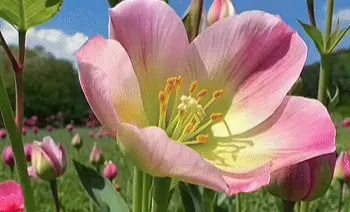
A flower opens in the morning light. The camera slowly moves closer as its petals unfold.
Try nature prompt ↗MAGICCANVAS · TEXT TO VIDEO
AI Text to Video
Start with your words.
Describe a scene, choose a model, and give your idea movement.
Create a new shot from text, without a camera or a starting image.
Continue in Create to choose your settings and review the credit cost.
- No image required
- Model choice in Create
- Review cost before generating
FROM AN IDEA TO A MOVING SCENE
See what a text prompt can become.
Start with a small moment: petals unfolding, a boat drifting, a character taking a step. Describe the motion and let MagicCanvas generate a take you can watch and refine.
Create a video ↗PROMPT IDEAS
A scene to start from.
Try a sample prompt in Create, then make it your own.
A paper boat floats across a puddle after the rain. The camera follows it at water level, with warm evening light reflected on the surface.
Try cinematic prompt ↗A tiny clay astronaut plants a flag on a pastel moon. The camera slowly pulls back to reveal the stars.
Try animation prompt ↗HOW IT WORKS
From text to video in four steps.
Write your idea
Describe a subject, an action, and a setting. Add your prompt above to carry it into Create.
Choose a model
Open Text to Video in Create and choose an available model.
Set up the shot
Select supported video settings and review the credit cost.
Generate and download
Watch the result, refine your next take, and download the video you want to keep.
FEATURES
Build the shot you have in mind.
Guide the scene with words. Choose the settings in Create.
Start with a description, not a shoot
Describe your subject, its action, and the setting. Add a camera move or lighting direction to guide the shot. You can start without uploading a photo.
Try a text promptA flower unfolds in soft morning light.

Give each scene a different look
Try cinematic lighting, stop-motion textures, or a soft illustrated style. Put the look you want in your prompt, then refine it after watching the result.
Explore a new lookChoose the model for your next take
Compare the available video models in Create. Each model has its own settings and credit cost, so you can choose before you generate.
Choose a modelFrame your video for where it will go
Choose from the aspect ratios, durations, and resolutions supported by your selected model. Plan a vertical social clip or a wider scene from the start.
Set up your videoFormat options depend on the selected model.
Watch, adjust, and create another take
Review your generated video in Create. Change your description or settings for the next version, then download the result you want to keep.
Start your first takeYOUR NEXT TAKE
“Move the camera closer.
Make the light warmer.”
USE CASES
A starting point for your next video.
Social clips
Turn a short visual idea into a clip for your next post.
Campaign concepts
Explore the mood and movement of an idea before planning a full production.
Cinematic cutaways
Describe an atmospheric scene to complement a longer video.
Animated scenes
Try a character action in a clay, illustrated, or other stylized world.
Music visuals
Generate moving imagery inspired by a mood, color palette, or setting.
Story exploration
Test how a moment could look and move before developing the next scene.
KEEP CREATING
One clip can be the beginning.
Have a reference photo instead? Start in Image to Video. For a story with multiple scenes, explore Movie Studio.
PLANS & CREDITS
Choose how you want to create.
Video cost varies by model and settings. Check the current plans or see the cost for your next shot in Create.
Plan your next video
Pick a model and supported settings. Review the required credits before submitting a generation.
Create a video ↗Compare MagicCanvas plans
See current pricing, included credits, and plan features on the plans page.
View plans ↗Text to video questions, answered.
What does Text to Video create?
It generates a video clip from your scene description. For a project with multiple scenes, explore Movie Studio.
Can my video include audio?
Audio support depends on the selected model. Check the available audio settings in Create before generating.
How long will generation take?
Generation time varies with the model, settings, and queue. Create shows the status of your request while it is processing.
Do I need an image to get started?
No. Text to Video starts with a written description. If you already have a picture you want to animate, use Image to Video instead.
Which models and video settings can I use?
The Create workspace shows the available models. Duration, resolution, aspect ratio, and audio options depend on the model you select.
How much does generating a video cost?
The credit cost depends on your model and settings. You can review the cost in Create before submitting your video.
Will my description carry over to Create?
Yes. The Create a video button opens Text to Video with the description you entered here. You can edit it and choose your settings before generating.
How can I get a more useful result?
Start with one subject and a clear action. Describe the setting, lighting, and a simple camera move. Review the result and change one detail at a time.
MORE WAYS TO CREATE
Explore other AI video tools.
YOUR NEXT SCENE STARTS HERE
Put your idea in motion.
A few words are enough to start exploring.
Create a video ↗