CHOOSE BY INPUT, THEN COMPARE
Lip sync models in MagicCanvas
Available models and options can change. Create shows the current selection and price for your task.
Model inputs and configured options. Check availability and final limits in Create.| Model | You provide | Resolution | Audio limit | Get started |
|---|
| OmniHuman 1.0 | Photo + audio | Check in Create | Check in Create | Try model → |
|---|
| OmniHuman 1.5 | Photo + audio | Check in Create | Check in Create | Try model → |
|---|
| InfiniteTalk | Photo + audio | 480p / 720p | Up to 10 min | Try model → |
|---|
| InfiniteTalk (Video) | Video + audio | 480p / 720p | Up to 10 min | Try model → |
|---|
| MultiTalk | Photo + audio | Check in Create | Up to 10 min | Try model → |
|---|
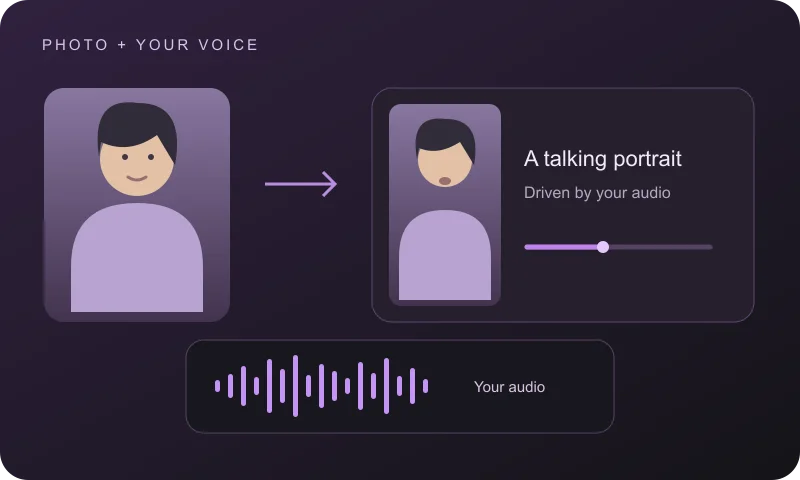
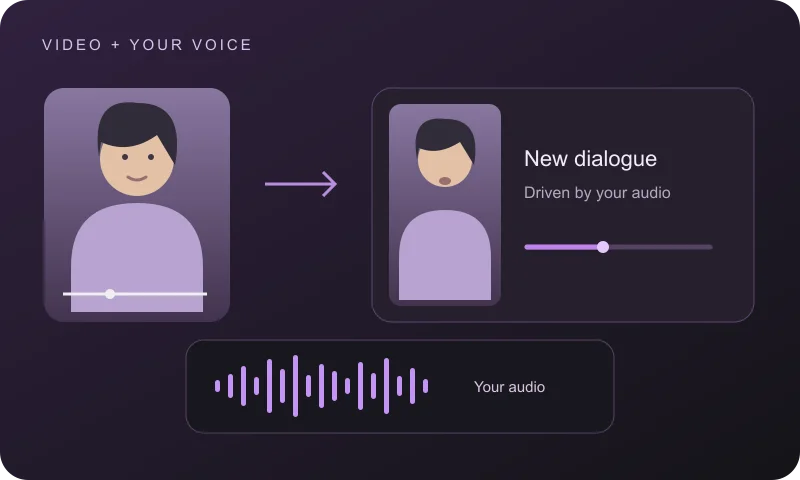
For a photo, start with an image-input model. For existing footage, choose InfiniteTalk (Video). Compare a short recording first: a longer supported duration is a limit, not a recommendation or a guarantee of quality. If a model is unavailable, choose an alternative in Create.
AI lip sync questions, answered
What is AI lip sync?
AI lip sync creates mouth movements that follow an audio recording. In MagicCanvas, start with a portrait or a face video, choose a compatible model, and add the audio you want the person to speak.
Can I make a photo talk?
Yes. Choose a model that accepts an image and audio, such as an available OmniHuman or InfiniteTalk image model. Upload a clear portrait and your recording. The result is a video, not an edited still image.
Can I use an existing video?
Choose a video-input model, such as InfiniteTalk (Video), when it is available in Create. Add your face video and a separate audio track. Image-input models require a portrait instead.
Can I use my own voice?
Yes. Upload a recording you have made. Record one speaker clearly, reduce background noise, and trim unwanted silence before uploading. Lip Sync follows the supplied recording; it does not clone a voice from the portrait.
Does Lip Sync translate my video?
No. Prepare the spoken audio in your target language first, then use it for lip sync. Check pronunciation, mouth timing, and the complete result before publishing a dubbed version.
Can I enter a script instead of uploading audio?
This workflow uses an uploaded audio track. Record your script or create a voiceover separately, then add that audio in Create. A text prompt alone does not replace the required audio input.
Which lip sync model should I choose?
Start with the input you have: a photo or a video. OmniHuman and MultiTalk configurations accept a photo with audio; InfiniteTalk has image and video variants. Create shows the currently available models, required inputs, settings, and cost.
Is MagicCanvas Lip Sync free?
Generation uses credits or diamonds. The required amount depends on the model, duration, and applicable settings. Check the displayed cost in Create before submitting a task.
What affects the quality of the result?
A clear, unobstructed face and clean audio are good starting points. Strong profile angles, hands covering the mouth, fast head turns, and noisy recordings can make synchronization harder. Review facial details and timing throughout the output.
How long can my audio be, and what resolution can I use?
Limits vary by model. Check the selected model’s audio duration and output settings in Create before preparing a long recording. Start with a short test to evaluate the face and voice combination.
Can I use someone else’s photo or voice?
Use images, footage, and recordings you own or have permission to use. Obtain the person’s consent before making them appear to say new words, and do not present a synthetic performance as an authentic recording.