Repair and colorize
Reduce visible scratches and fading while adding restrained, natural-looking color to an old black-and-white photo.
The page could not load. Please refresh to try again.
This is taking longer than expected. You can keep waiting or refresh the page.
AI PHOTO RESTORATION
Repair a digital copy of a faded, scratched, or damaged photograph. Choose whether to retain its black-and-white character or explore a naturally colorized version, then review the generated result beside your source.
Restore an old photo →AI may reconstruct missing details and infer colors. Keep your original scan as the historical record.
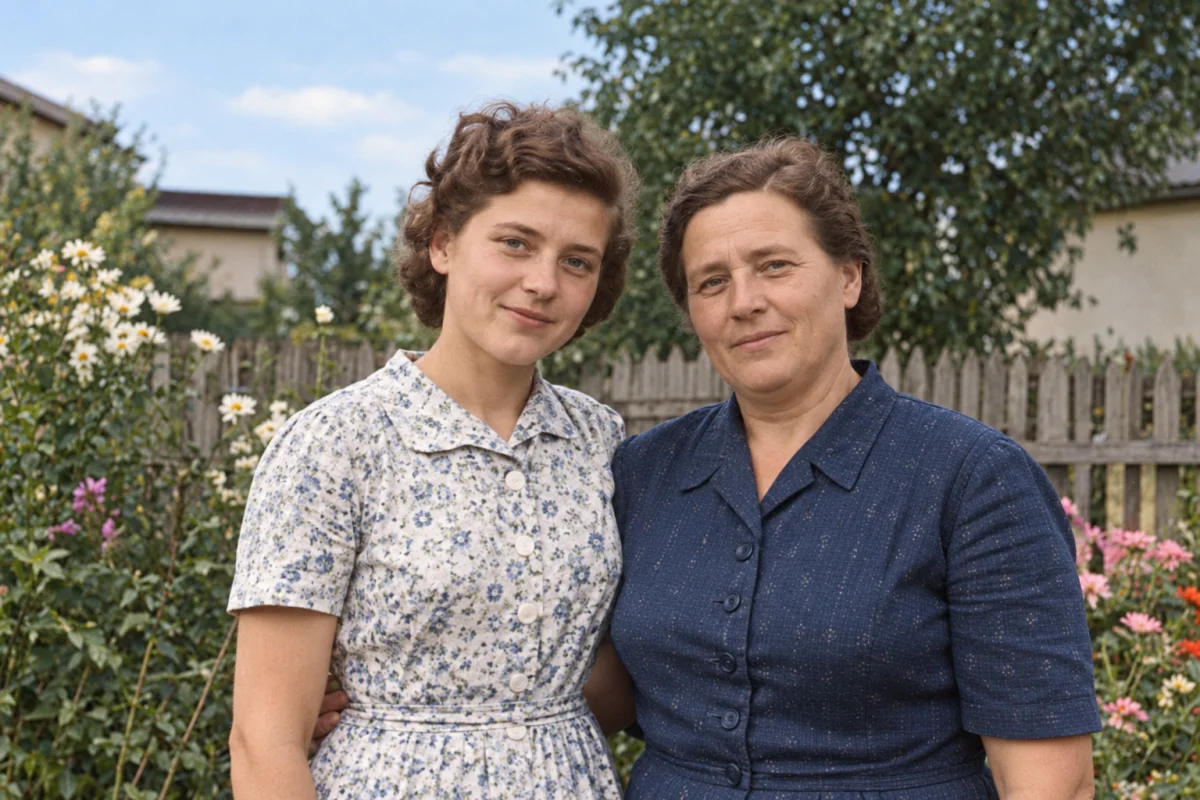
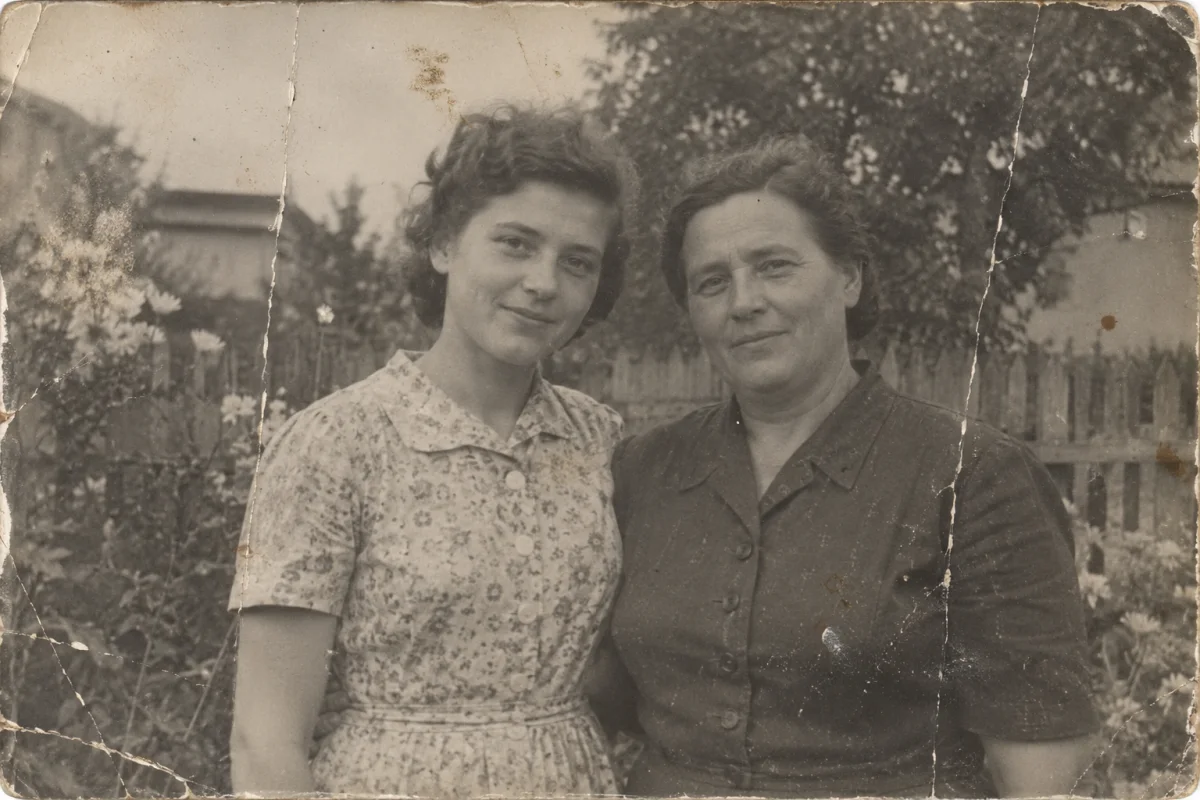 SourceRestored
CHOOSE THE TREATMENT
Photo restoration is not one universal edit. MagicCanvas offers separate treatments for general damage, grayscale photographs, and portraits so you can choose the direction that fits the image.
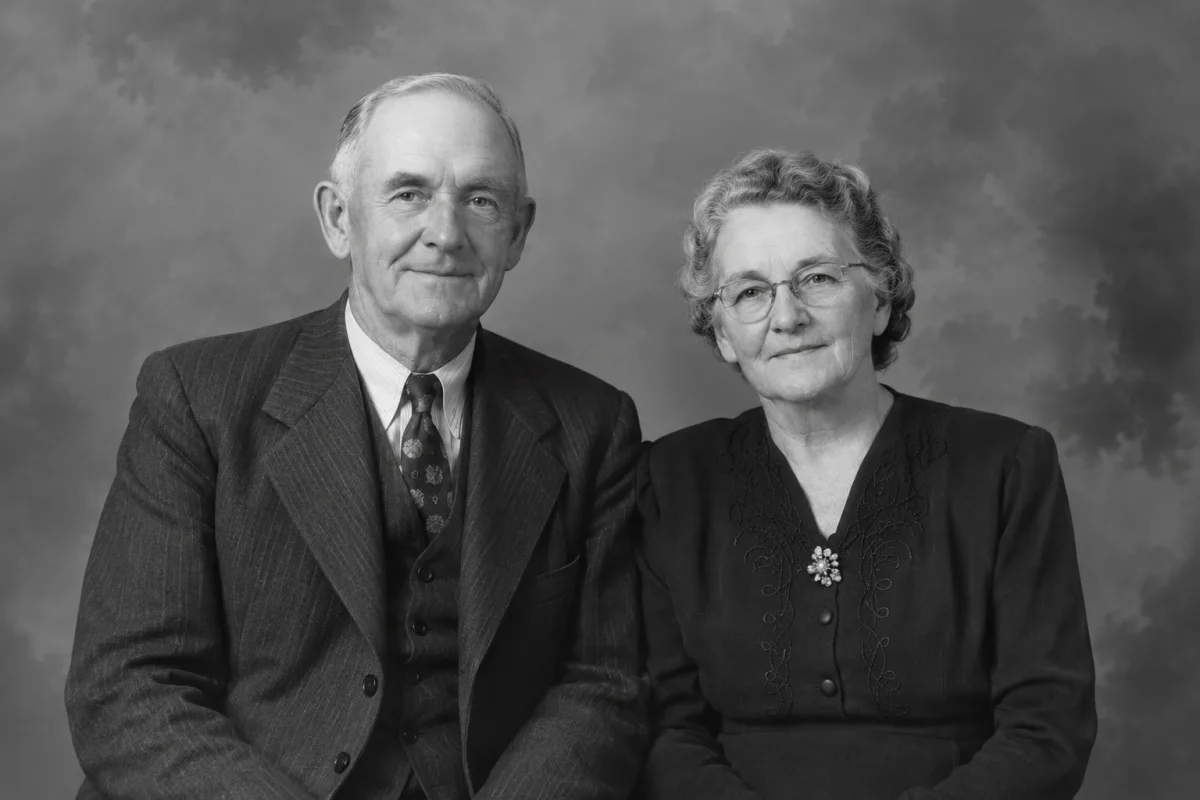
Reduce visible scratches and fading while adding restrained, natural-looking color to an old black-and-white photo.
Improve clarity and reduce artifacts while keeping the original grayscale character of the photograph.
Focus the restoration on facial structure, eyes, hair, and skin texture without turning the portrait into a modern beauty edit.
Restore damaged portrait details and add plausible color to skin, hair, clothing, and the surrounding scene.
HOW IT WORKS
The workflow is designed for one image at a time, making it easy to compare the generated version with the source before you save anything.
Start with the cleanest digital copy you can create. Capture the entire photograph, avoid glare, and keep the camera parallel if you are using a phone.
Decide whether the output should remain black and white, receive color, or give extra attention to portrait details.
Open the restoration tool, upload the source, confirm the displayed credit cost, and let the selected AI treatment produce a new image.
Inspect faces, hands, clothing, text, background structures, and inferred color. Download the result only after checking for details that changed unexpectedly.
WHAT IT CAN ADDRESS
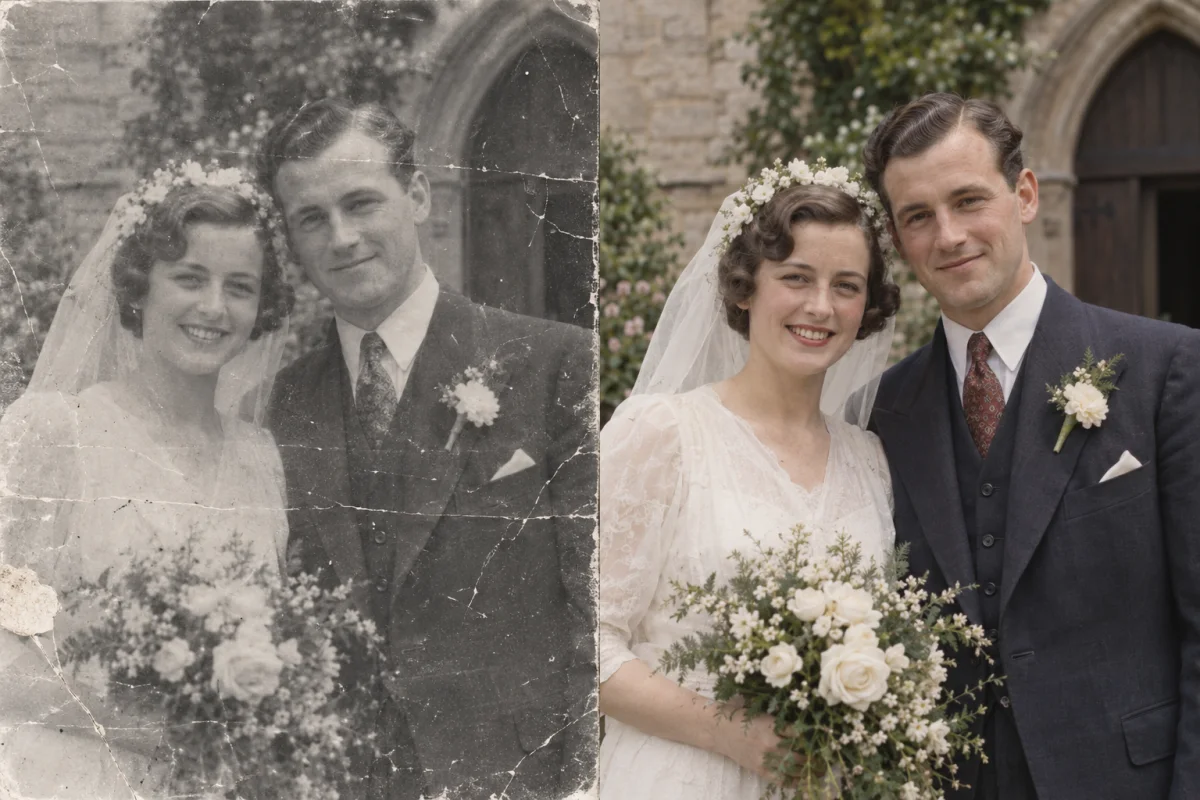
An AI photo restorer can reduce several kinds of visible deterioration in the same generated copy. Results depend on how much useful information remains in the source.
Reduce the appearance of dust, spots, fine scratches, small creases, and worn patches.
Recover clearer separation between faces, clothing, objects, and the surrounding scene.
Improve perceived sharpness around eyes, hair, fabric, and edges without relying on manual masks.
Generate plausible detail in small damaged areas, with the understanding that reconstructed content may not be historically exact.
MEMORIES AND ARCHIVES
Work on a copy, keep the original file untouched, and label generated restorations when historical accuracy matters.
Prepare faded family photographs for digital albums, private sharing, or a new print while keeping the original scan stored separately.
Make faces, clothing, signs, and background details easier to inspect when organizing a family history project.
Create a clearer working copy of a meaningful portrait for a remembrance page, slideshow, or family tribute.
Improve the legibility of a scanned photograph before using it in a classroom project, local-history post, or documentary layout.
Restore a copy before building a card, framed collage, anniversary book, or image-to-video memory project.
Clean up damage and improve definition without adding color when monochrome tone is part of the photograph’s identity.
BETTER INPUT, MORE INFORMED OUTPUT
The model can work only with the information in the uploaded image. A careful scan helps separate real facial and scene details from dust, glare, compression, and camera blur.
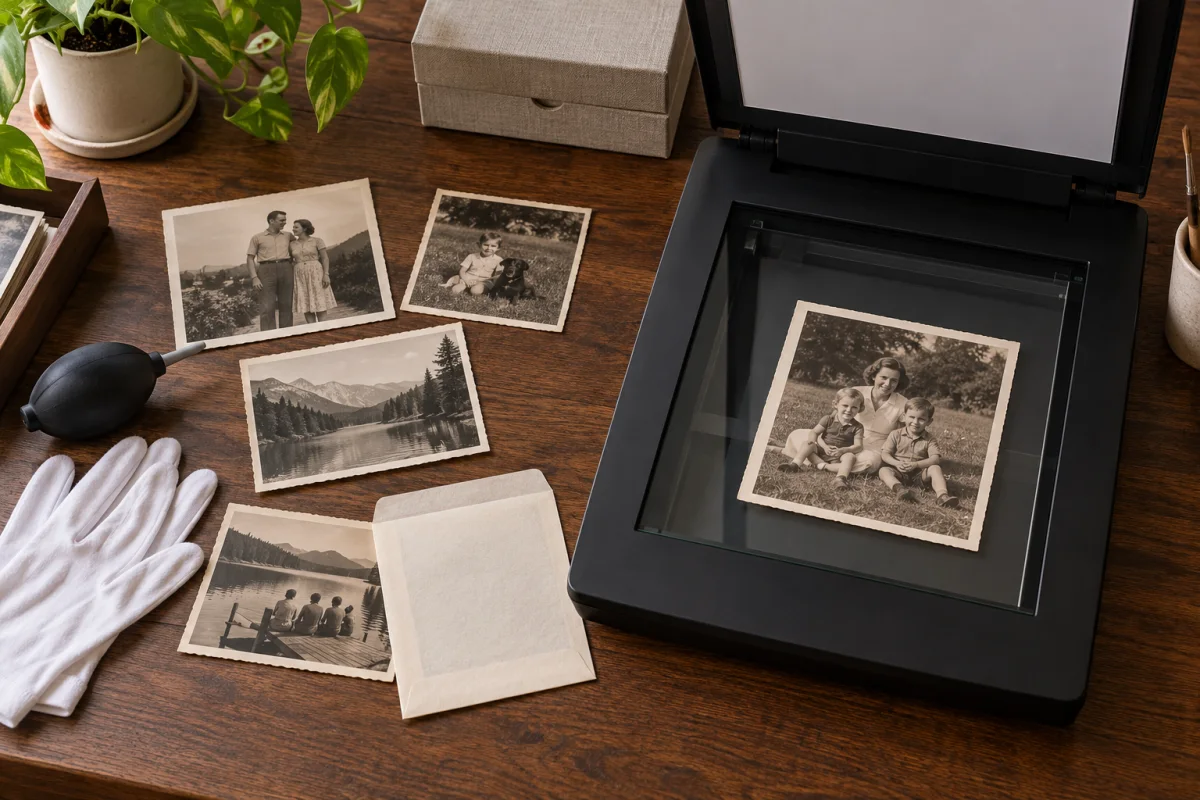
Once you have reviewed the result, another MagicCanvas tool can enlarge it, isolate the subject, or turn the still photograph into motion.
AI photo restoration analyzes a digital image and generates a repaired version. Depending on the selected mode, it can reduce visible scratches and noise, improve clarity, reconstruct damaged details, or add plausible color.
It can reduce many visible scratches, creases, spots, and small damaged areas. Large missing regions may require the model to invent details, so compare the result with the original and keep an untouched scan.
Yes. Choose a black-and-white restoration mode to improve clarity and reduce damage while preserving grayscale tones.
Portrait modes are designed to refine facial details, but they may reconstruct information that is unclear or missing. Treat the output as a generated interpretation rather than historical proof.
Use the clearest scan or photograph available. A high-resolution JPG, PNG, or WebP with even lighting gives the model more useful detail than a compressed screenshot.
Not necessarily. Colors and missing details are inferred by AI and may not match the original scene. For archives and research, preserve the source scan and document that the restored version was AI-generated.
Place it flat, clean the scanner glass, scan at a high resolution, avoid automatic filters, and capture the full edges. If you use a phone, keep the camera parallel and avoid glare.
Only if you have the rights and permissions needed for the source image and the people or material shown. Review the result and applicable terms before commercial use.
RESTORE A DIGITAL COPY
Upload one old photograph, choose how it should be treated, and compare the AI-generated result with the source.
Restore an old photo →