The page could not load. Please refresh to try again.

This is taking longer than expected. You can keep waiting or refresh the page.

All apps

PHOTO · VIDEO · MULTIPLE FACES

AI face swap. A new face in your scene.

Swap faces in a photo or video with MagicCanvas. Pick the tool that matches your file, upload it, and choose the faces you want to change.

Review the generation cost in Create before you start.

See face swapping in action
  • Photo and video workflows
  • Up to 5 detected faces
  • Individual face matching
  • Keep unassigned faces unchanged

Photo and video face swap in one place

Choose your file type first. Each button opens the right Face Swap tab in Create.

01 / PHOTO FACE SWAP

Photo Face Swap for portraits and groups

Upload the photo you want to edit. After MagicCanvas finds the faces, add a clear portrait for each person you want to change. Your first photo keeps the pose, outfit, and setting.

Use this tool for portraits, group shots, and creative photo ideas. Check each face match before you generate.

Open Photo Face Swap →
02 / VIDEO FACE SWAP

Video Face Swap for moving scenes

Upload a video, pick a clear frame, and add the new face photos. If MagicCanvas misses someone, choose a frame where that person is easier to see.

Use this tool for short clips and group scenes. Watch the full result to check turns, movement, and changes in camera angle.

Open Video Face Swap →

WHY MAGICCANVAS

More control over who appears in your scene

Change one face or work through a group. You choose who stays in the scene.

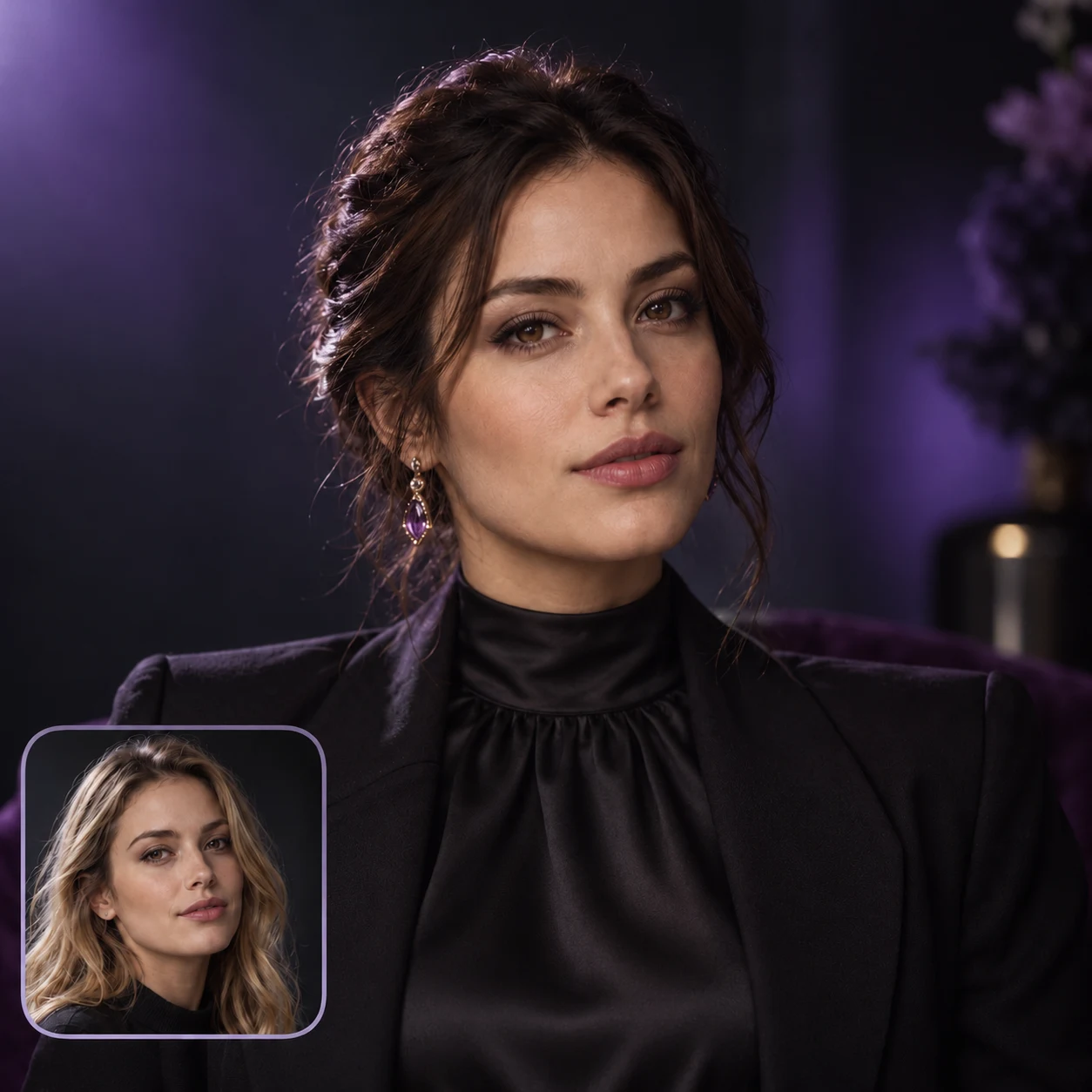
Portrait face swap example with a replacement face reference

A PHOTO IS YOUR STARTING POINT

Keep the scene and change the face

Start with a portrait, costume photo, or reaction image. Add a new face while the original photo keeps the pose, outfit, and setting. You do not need to write a long prompt.

Try a character idea or make a reaction image. Check the final face before you share it.

Try Photo Face Swap →
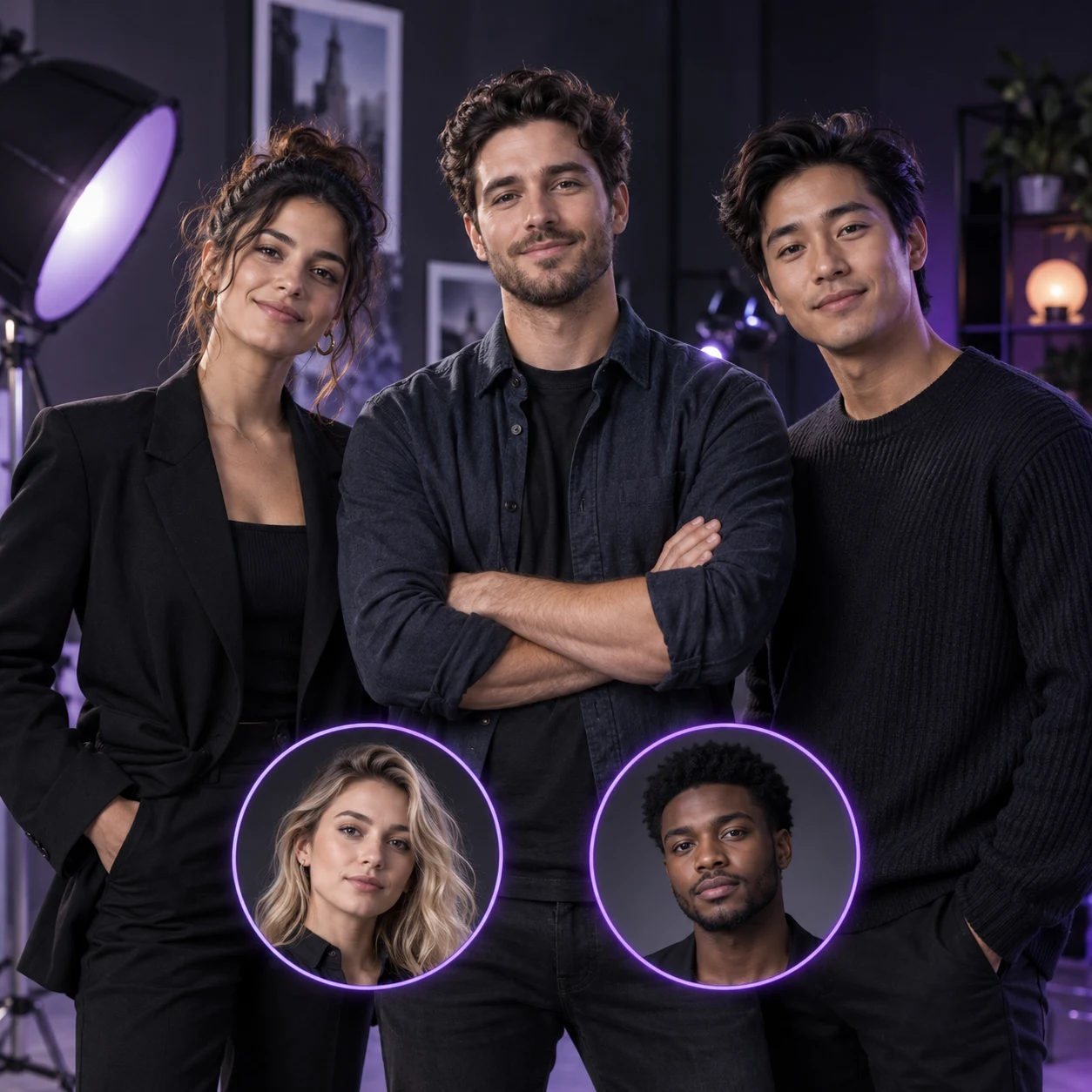
Three-person group face swap example with separate reference portraits

KEEP THE GROUP TOGETHER

Test a full cast in one composition

Keep the same camera angle, light, and background while you test each role. You can compare a full cast in one scene.

Use the result as a concept image. Review each face at full size.

Swap multiple faces in a photo →
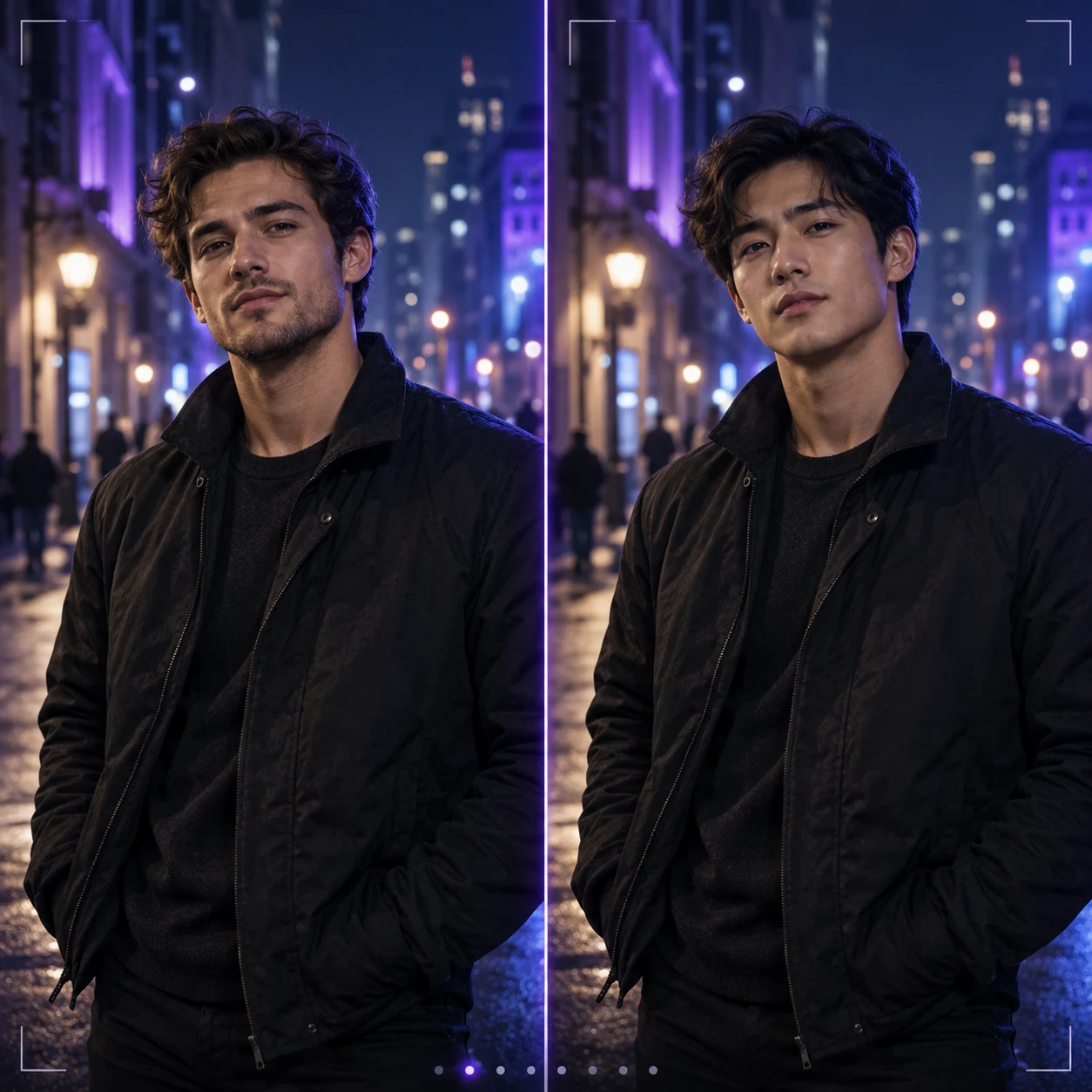
Before and after face swap example in a cinematic video scene

PHOTOS AND MOVING SCENES

Bring face matching into video

Open Video Face Swap for a moving scene. Pick a clear frame, check the faces, and add your new portraits.

Use your own short clips for creative edits and social posts. Watch the full result to check movement and side views. To add motion to a photo, try Image to Video. To match speech, use Lip Sync.

Try Video Face Swap →

MULTIPLE FACE SWAP

How to assign multiple faces

Add a new portrait beside each face you want to change. Leave a slot empty when you want to keep the original person.

You can set up as many as five faces. For video, start with a frame that shows everyone clearly.

Detected faceYour choice
01 Person 01→Replacement portrait A
02 Person 02→Replacement portrait B
03 Person 03→Keep original face

Example assignments — add your own photos in Create.

How to swap faces online

Make and check your result in four steps.

  1. 01

    Choose photo or video

    Open the right Face Swap tab. Upload the photo or video you want to edit.

  2. 02

    Check detected faces

    Check the faces MagicCanvas finds. For video, try a new frame if someone is missing or blocked.

  3. 03

    Add replacement portraits

    Add a clear portrait for each new face. Leave a slot empty to keep the original person.

  4. 04

    Generate and review

    Check the cost and start the swap. Review each face and play the full video before you share it.

Face swap ideas for your next project

Use media you own or have permission to edit. Then choose the tool that fits your scene.

Portrait concepts

Try a new face in a portrait you already have. Match the head angle when you can. Check the eyes, hairline, and skin at full size.

Group photos

Use a different new face for each person in a photo. Leave a face slot empty for anyone you want to keep.

Short-form videos

Make a new version of a clip you own for a Reel, Short, or social post. Pick a clip where the face stays clear. Watch the video instead of checking only the cover image.

Character and casting concepts

Test how a character may look in a scene before a shoot. Treat the result as a concept. Get permission to use every face in your source photos.

Better source photos make a better starting point

For the replacement face

Use a sharp portrait with even light and a clear face. Try to match the angle in the scene. Avoid small or heavily filtered selfies.

For the scene or clip

Look for clear faces with little blur. Avoid scenes where hands or objects cover the face. For video, check fast turns, side views, and cuts.

Keep creating after the swap

Face Swap changes who appears in a scene. Use another tool when you want motion, speech, or a new object or outfit.

AI face swap questions

What is AI face swap?

AI face swap adds a face from one photo to another photo or video. Start with the scene you want to keep, then choose the face you want to add. You do not need to describe or build a new scene.

Can I swap faces in both photos and videos?

Yes. Choose Photo Face Swap for an image or Video Face Swap for a clip. Each button opens the right tab in Create.

Can I swap multiple faces in one photo or video?

Yes. You can set up as many as five faces in Create. Add a separate portrait for each person you want to change.

Can I leave some people unchanged?

Yes. Leave a face slot empty to keep that person unchanged. Check the matches before you generate, especially when people look alike or stand close together.

Which image should I upload first?

Upload the photo or video with the scene you want to keep. Then add a clear portrait for each new face. The scene file and face photos have different jobs, so upload them in the right places.

What if the video does not detect a face?

Use Choose faces and pick a frame where the person is easy to see. Then confirm the frame and scan again. Avoid blur, blocked faces, and very small faces.

What makes a good replacement face photo?

Choose a sharp, well-lit portrait that shows the full face. Try to match the angle and light in the scene. Avoid tiny faces, strong filters, sunglasses, and hands over the face.

Is face swapping free?

Check the price in Create before you start. Cost and access depend on the tool and your account. See the plans page for your options.

Will every frame look perfect?

Results depend on light, movement, face angle, and image quality. Fast turns, blocked faces, and small faces can cause errors. Watch the full video before you download or share it.

Does face swap change voices or sync lips?

Face Swap changes the face you see. It does not change a voice. Use Lip Sync when you want mouth movement to match audio.

Can I use the result in a project?

Use only photos, videos, and likenesses you have permission to edit. Make it clear when a realistic result could be mistaken for a real recording. Review the terms for your project and the privacy policy for details about uploads.
Plans and creditsPrivacy policyTerms of service

Which scene will you make yours?

Choose a photo or video, then match the faces in Create.

Swap faces in a photo →Swap faces in a video →