Blemish softening
Reduce the visual emphasis of small spots and temporary blemishes without erasing every natural detail.
The page could not load. Please refresh to try again.
This is taking longer than expected. You can keep waiting or refresh the page.
AI PORTRAIT RETOUCH
Smooth skin in a photo without turning the person into someone else. MagicCanvas softens small blemishes and uneven tone while aiming to preserve pores, freckles, lighting, expression, and recognizable facial features.
Retouch a portrait →AI generates a new image and may alter details. Compare the result with your source before downloading or publishing it.
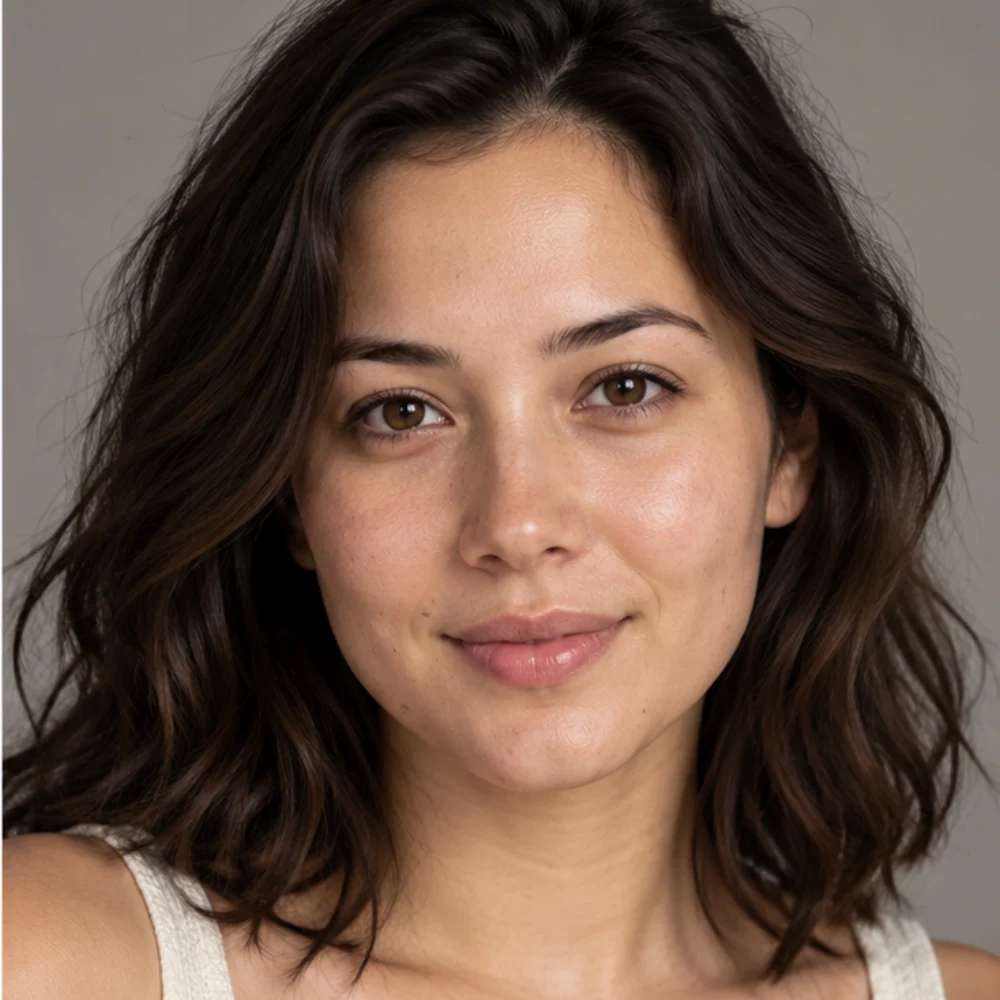
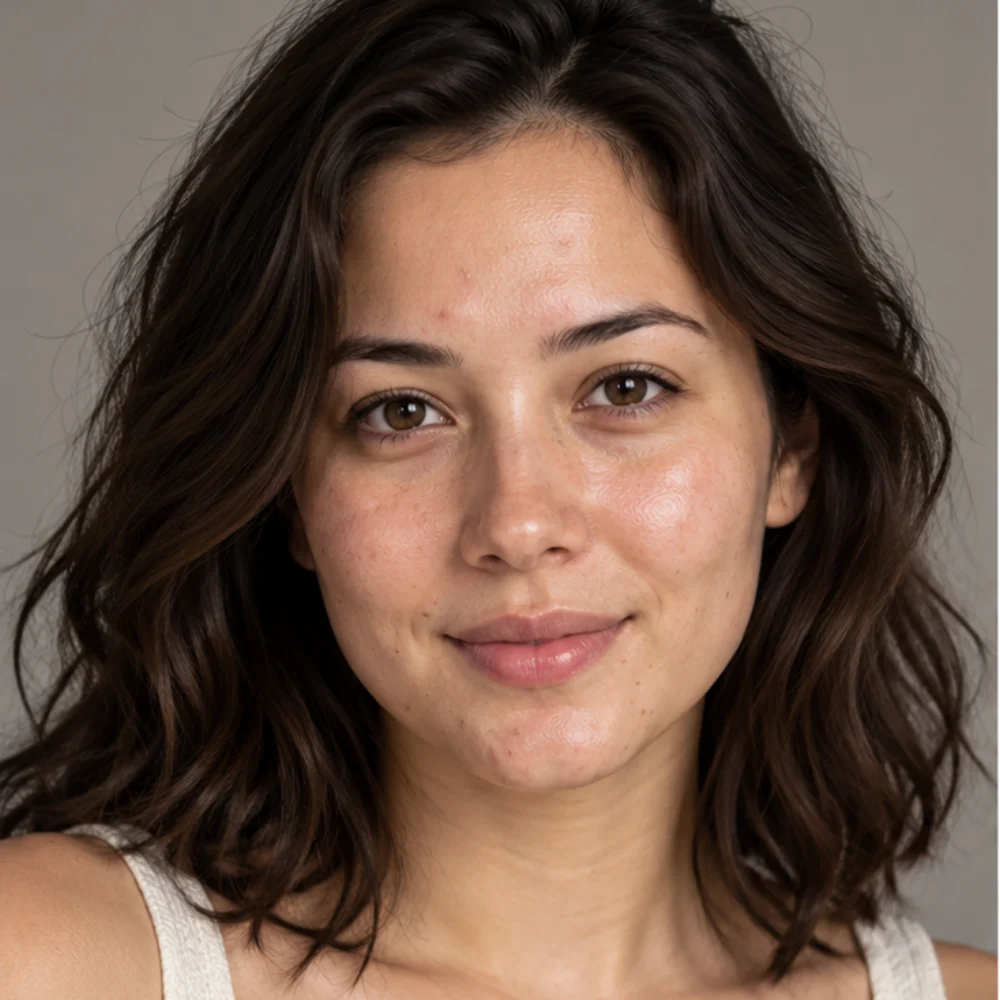 SourceRetouched
RETOUCH, NOT REPLACE
A useful face retouch should reduce distractions, not erase age, character, or identity. The treatment focuses on facial skin and gives you a generated version to inspect beside the original.
Reduce the visual emphasis of small spots and temporary blemishes without erasing every natural detail.
Balance mild redness and uneven areas so the face reads consistently across the photograph.
Keep pores, freckles, fine lines, and the character that makes a real portrait feel human.
Retouch skin while keeping the subject’s eyes, nose, mouth, expression, and overall facial structure recognizable.
HOW IT WORKS
No manual brush or skin mask is required. Start with a useful portrait, generate one restrained treatment, and make the final judgment yourself.
Use a sharp image with one visible face, natural lighting, and enough resolution to show real skin detail.
Open the focused retouch workspace and select the image you have permission to edit.
The AI creates a new image that softens small blemishes and uneven tone while aiming to retain facial structure and texture.
Zoom in on the eyes, nose, mouth, jawline, hairline, skin texture, and lighting. Save the result only when it still looks like the source subject.
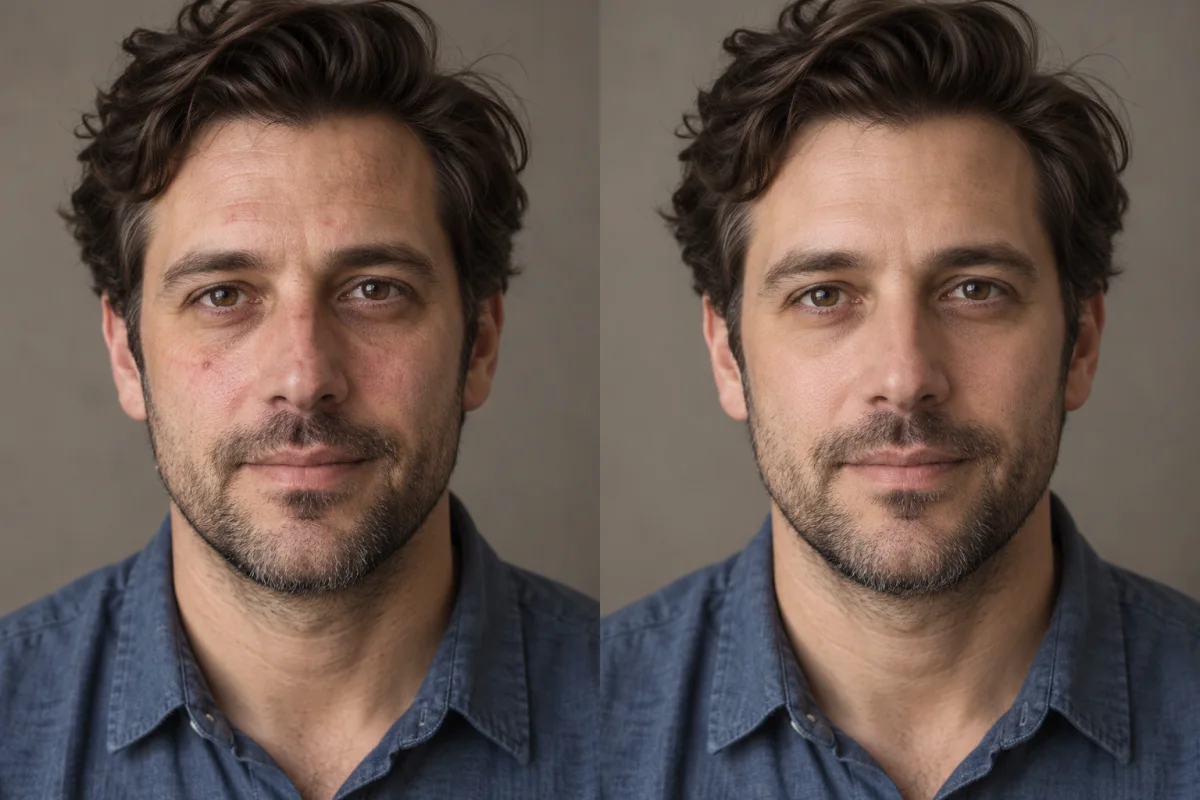
TEXTURE IS INFORMATION
Skin has pores, fine lines, highlights, shadows, freckles, and facial hair. Removing all of them can make a portrait look waxy and can change how the subject is perceived. A restrained retouch keeps enough local detail for the face to remain believable.
The best result also respects the photograph’s original light. If highlights, shadow direction, or skin color suddenly disagree with the neck and surroundings, the edit will feel artificial even when the face looks smooth.
Retouch while keeping texture →WHERE IT FITS
Use portrait retouching when the image already works and temporary skin distractions are drawing too much attention. It is not a substitute for consent, accurate identity, or careful photography.
Refine a casual portrait before using it on a professional profile, community account, or creator page.
Create a cleaner working version of a well-lit headshot while retaining the subject’s age and distinguishing features.
Soften temporary blemishes or uneven tone in graduation, birthday, engagement, or celebration photographs.
Prepare a consistent portrait for a thumbnail, channel banner, media kit, or social post without applying a dramatic beauty filter.
Make a subtle edit to a favorite family portrait while keeping expressions, freckles, and familiar details intact.
Explore a restrained skin retouch before a final layout, then inspect the generated image closely before publication.
INPUT AND REVIEW GUIDE
AI can only infer from the pixels it receives. A clean source and a deliberate review are more important than asking for maximum smoothing.
A RESPONSIBLE EDIT
Portrait retouching is a creative edit, not dermatological treatment and not evidence of how someone “should” look. Avoid using it to misrepresent identity, health, age, events, or documentary material. Obtain permission when editing another person, especially for sensitive or commercial use.
For professional headshots, journalism, identification images, legal records, or historical archives, follow the rules of the organization receiving the image. When an untouched record matters, preserve and share the original alongside any edited copy.
After reviewing the retouch, another focused MagicCanvas tool can enlarge the image, isolate the subject, or repair an older photograph.
AI portrait retouching analyzes a face in a photograph and generates a refined version. MagicCanvas is designed to soften small blemishes and uneven skin tone while retaining natural texture and recognizable facial features.
Not necessarily. A beauty filter may reshape features or apply a stylized look. This tool is intended for a restrained skin retouch, but every AI result should still be compared with the source.
The selected treatment is instructed not to change the shape or position of the eyes, nose, or mouth. Because the output is AI-generated, inspect facial identity and geometry before downloading or sharing it.
That is the intended direction. The model aims to reduce distracting blemishes and uneven tone while keeping realistic pores and texture, although results vary with the source image.
Use a clear, well-lit image where one face is visible at a useful size. Heavy blur, very low resolution, harsh filters, or strong obstruction give the model less reliable information.
A photograph with one clearly visible face is the most predictable input for this treatment. In a group image, smaller or partially hidden faces may receive inconsistent edits.
Those are not the stated focus of this tool. It is designed around facial skin, small blemishes, and uneven tone rather than virtual makeup, teeth whitening, hair editing, or object removal.
Use the result only when you have the necessary rights and permissions for the source image and the people shown. Review the generated output and applicable terms before commercial publication.
KEEP THE PERSON, REFINE THE PORTRAIT
Upload one clear portrait, generate a restrained skin edit, and compare the result carefully with your source.
Retouch a portrait →