
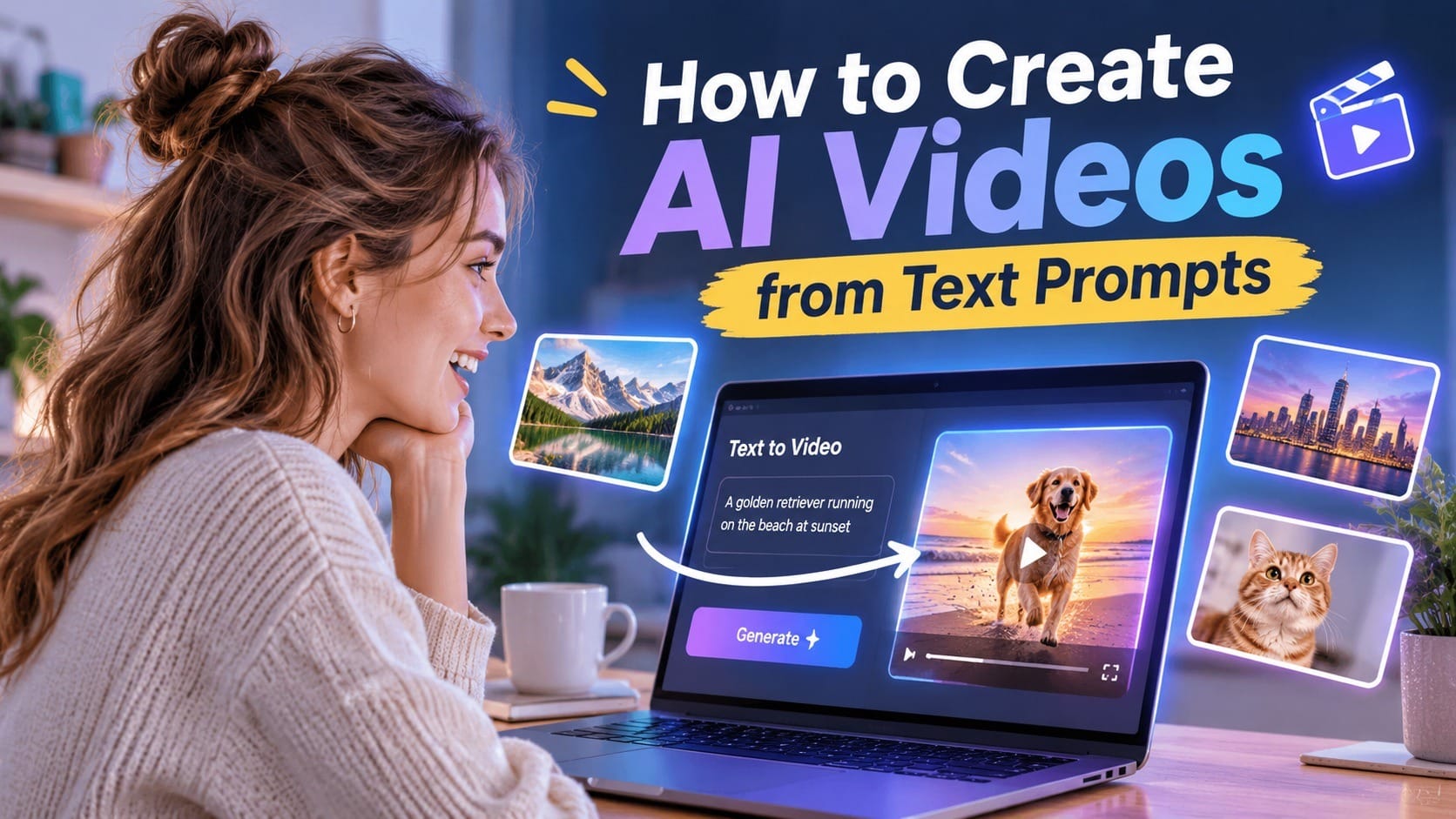
Ever watched an AI-generated video and wondered how someone turned a simple sentence into something that looks like a scene from a movie?
The interesting part is that you don't need a camera, expensive editing software, or a professional production team to do it. In many cases, all you need is a good text prompt and an AI video generator.
AI video generation has made it possible for beginners to turn written descriptions into short videos in just a few steps. You can describe a person walking through a city, a product floating in a futuristic environment, or a cinematic sunset over the ocean, and let AI bring the idea to life.
But there's a catch: typing a random sentence into an AI tool doesn't always produce the result you imagined. The quality of your prompt matters more than you might expect.
In this guide, we'll explain how to create AI videos from text prompts, how to write better prompts, and how to avoid some common beginner mistakes. We'll also look at how tools like MagicCanvas can make the process easier.
What Is Text-to-Video AI?
Text-to-video AI is technology that generates video clips based on written descriptions.
Instead of recording footage yourself, you describe what you want to see. The AI model interprets your instructions and generates a video that attempts to match your description.
For example, you could enter:
"A golden retriever running through a green field on a sunny afternoon, with the camera following from behind."
An AI video generator may turn that description into a short clip showing a dog running through a field.
The more detailed and specific your description is, the more guidance the AI has when generating the video.
Text-to-video tools are commonly used for:
- Social media videos for TikTok, Instagram Reels, and YouTube Shorts.
- Marketing and promotional videos.
- Product advertisements and creative concepts.
- Cinematic scenes and storytelling.
- Educational and explainer content.
- Visual assets for presentations and websites.
You don't need to know how to operate a camera or understand complicated editing techniques. However, learning how to describe a scene clearly will make a big difference.
What Do You Need Before Creating an AI Video?
The good news is that getting started is relatively simple. You don't need a professional setup, but a little preparation can help you get better results.
1. An AI video generator
Choose a tool that supports text-to-video generation. Some platforms offer different AI models, styles, video lengths, and aspect ratios.
For beginners, an easy-to-understand interface is usually more important than having dozens of advanced settings.
2. A clear video idea
Before writing your prompt, decide what the video should communicate.
Are you creating a product advertisement? A cinematic landscape? A funny social media clip? A character introduction?
Having one clear objective helps prevent your prompt from becoming unnecessarily complicated.
3. A descriptive text prompt
Your prompt is essentially the creative brief for the AI.
It should explain the subject, action, environment, visual style, and camera movement when relevant.
You don't need to write a paragraph every time. A few well-chosen details are often more useful than a long description filled with unrelated adjectives.
How to Create AI Videos from Text Prompts: Step by Step
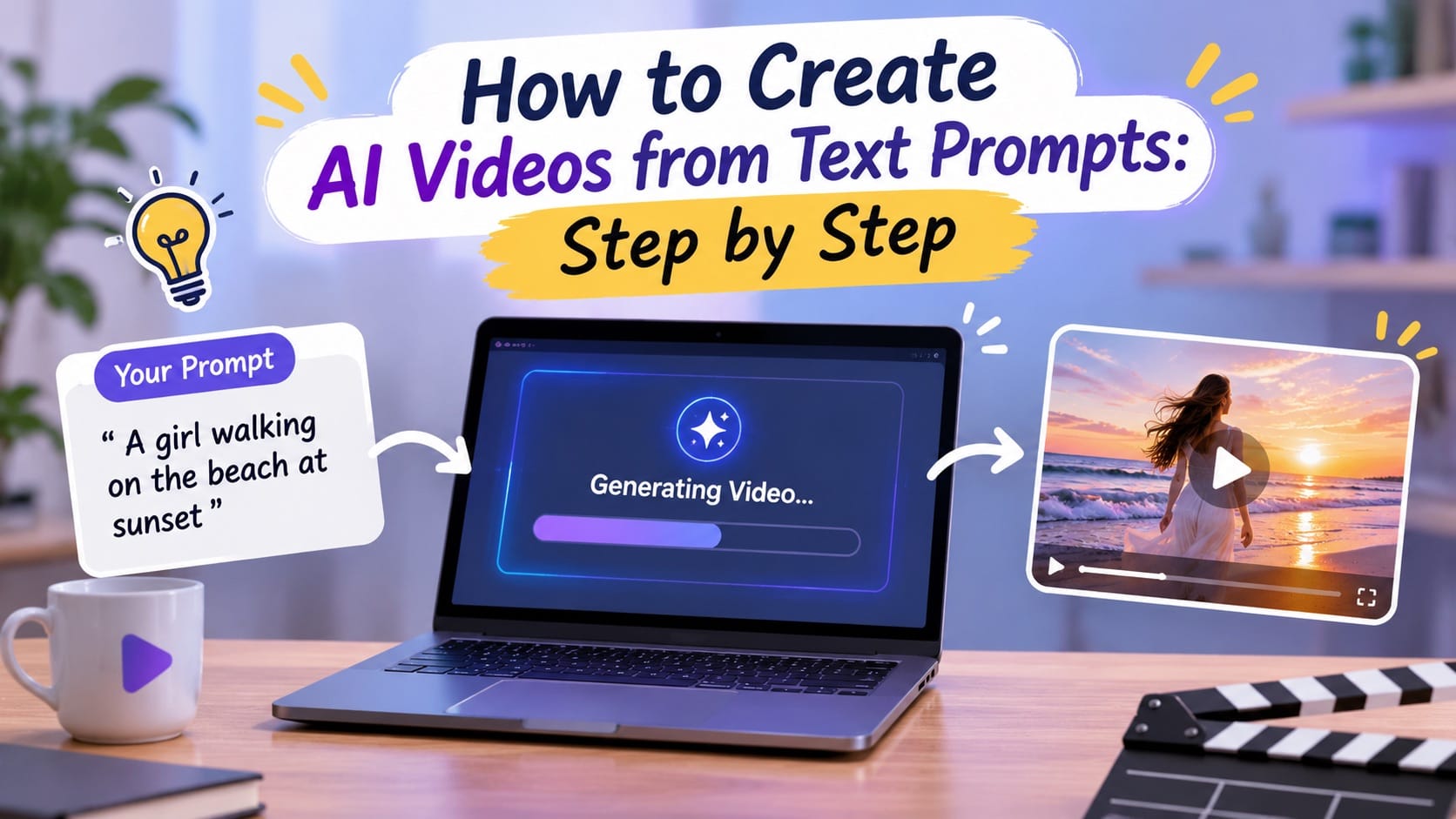
Let's walk through the process using a typical AI video generation workflow.
Step 1: Choose an AI Text-to-Video Tool
Start by choosing an AI video generator that allows you to create videos directly from text.
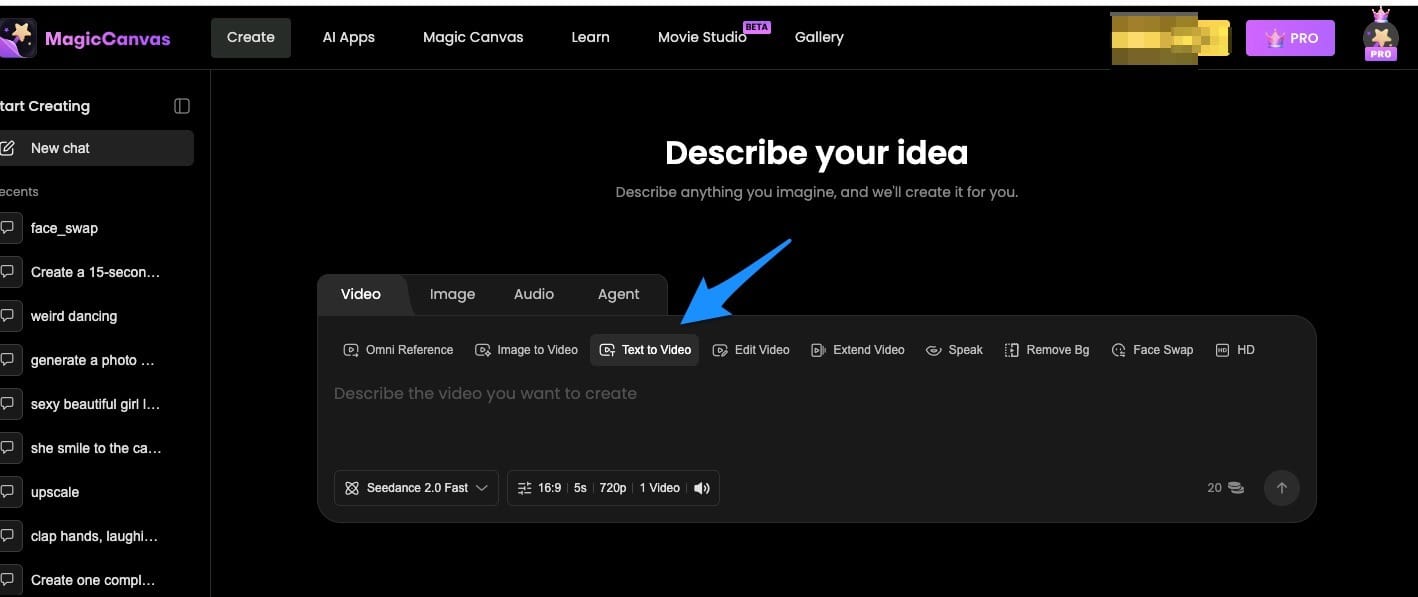
For example, MagicCanvas offers a Text to Video workflow that lets users turn written ideas into video clips without filming anything themselves.
You can explore the available tools at MagicCanvas.
When comparing platforms, consider:
- Whether text-to-video generation is supported.
- Which AI models are available.
- Whether you can control video style and motion.
- The available video duration and aspect ratios.
- How easy it is to adjust prompts and generate new versions.
If you're a beginner, start with a tool that makes experimenting straightforward.
Step 2: Decide What You Want to Create
Before opening the prompt box, imagine the final video.
Try to answer these four questions:
- Subject: What should appear in the video?
- Action: What is happening?
- Environment: Where does the scene take place?
- Style: What should the video look and feel like?
For example, instead of simply writing:
"A woman in a city."
Try developing the idea:
"A young woman wearing a beige trench coat walks through a busy New York street on a rainy evening. Reflections from colorful neon signs appear on the wet pavement. Cinematic lighting, realistic movement, and a slow tracking camera shot."
The second description gives the AI much more information to work with.
Step 3: Write Your First Text Prompt
This is where the creative part begins.
A useful beginner-friendly prompt structure looks like this:
Subject + Action + Environment + Camera Movement + Visual Style
Here's an example:
"A white sports car drives along a coastal highway at sunset, ocean waves visible in the background, smooth tracking camera movement, cinematic lighting, realistic details."
You don't have to include every element in every prompt. However, this structure gives you a reliable starting point.
A few writing tips:
- Use specific nouns instead of vague descriptions.
- Describe what the subject is doing.
- Keep the scene focused on one main action.
- Mention the lighting and atmosphere.
- Include camera movement if it matters to the shot.
- Avoid combining too many unrelated scenes in one prompt.
One common beginner mistake is trying to describe an entire movie in a single prompt. AI video generators generally work better when you give them a focused scene to create.
Step 4: Choose a Visual Style
Your prompt should also communicate the visual style you want.
The same subject can look completely different depending on the style you describe.
For example:
Realistic style:
"A golden retriever running through a sunny park, natural lighting, realistic fur details, lifelike movement."
Cinematic style:
"A golden retriever running across a misty field at sunrise, dramatic backlighting, cinematic composition, slow-motion atmosphere."
Animated style:
"A cute golden retriever running through a colorful fantasy garden, stylized 3D animation, vibrant colors, playful atmosphere."
Vintage film style:
"A golden retriever running through a countryside meadow, warm vintage film tones, subtle film grain, nostalgic atmosphere."
Don't mix too many visual styles unless you're intentionally experimenting. A clear visual direction usually produces more consistent results.
Step 5: Adjust Camera Movement and Motion
A video isn't just a picture that happens to move. Motion is one of the most important elements to consider.
If your AI tool supports camera or motion instructions, try describing how the camera should behave.
Some useful terms include:
- Slow zoom-in: The camera gradually moves closer to the subject.
- Tracking shot: The camera follows a moving subject.
- Pan: The camera moves horizontally across a scene.
- Tilt: The camera moves vertically.
- Dolly-out: The camera gradually moves away from the subject.
- Static shot: The camera stays in one position.
For example:
"A young woman standing on a rooftop overlooking the city, her hair moving gently in the wind, the camera slowly pushes in toward her face."
This gives the AI both subject motion and camera direction.
If you're unsure, start with one simple movement. Adding multiple complicated camera instructions can sometimes make the result less predictable.
Step 6: Generate Your Video
Once your prompt is ready, select the available generation settings and start creating.
Depending on the platform and AI model, you may be able to adjust:
- Video duration.
- Aspect ratio.
- Resolution.
- Visual style.
- Motion or camera settings.
- AI generation model.
For social media, vertical formats are usually a good starting point. For website banners, presentations, or YouTube content, landscape formats may work better.
In MagicCanvas, you can explore its available Text to Video options and experiment with different generation models to find a style that suits your idea.
Don't expect every first attempt to be perfect. AI generation is an iterative process, and sometimes a small prompt adjustment can make a noticeable difference.
Step 7: Review and Improve the Result
After generating your clip, watch it carefully.
Ask yourself:
- Does the main subject look right?
- Is the action clear?
- Does the movement look natural?
- Does the video match the original idea?
- Are there visual inconsistencies or strange details?
If something looks off, don't immediately rewrite the entire prompt.
Instead, identify the specific problem and adjust only that part.
For example:
Original prompt: "A woman walking through a city."
Improved prompt: "A woman walking naturally along a modern city sidewalk, her arms moving gently as she walks, with a smooth tracking camera following her from the side."
Small changes can often make your next generation more focused.
5 AI Video Prompt Examples for Beginners
If you're not sure what to type into the prompt box, here are five examples you can experiment with.
1. Cinematic Nature Video
"An aerial view of a tropical island surrounded by clear turquoise water, gentle ocean waves moving toward the white sandy beach, sunlight reflecting on the water, smooth drone camera movement, cinematic travel footage."
Best for: Travel content, background videos, and scenic social media posts.
2. Product Advertisement
"A luxury perfume bottle standing on a black marble surface, soft golden light reflecting across the glass, delicate mist floating in the background, slow camera push-in, premium commercial photography style."
Best for: E-commerce, product promotions, and advertising concepts.
3. Lifestyle Video
"A young woman enjoying coffee at a cozy outdoor cafe on a sunny morning, gentle breeze moving her hair, warm natural lighting, candid lifestyle photography, slow cinematic camera movement."
Best for: Lifestyle creators, personal brands, and social media content.
4. Fantasy Scene
"A mysterious castle floating above the clouds at sunset, glowing waterfalls flowing into the sky, birds flying around the towers, magical atmosphere, wide cinematic camera shot, highly detailed fantasy environment."
Best for: Creative storytelling, fantasy content, and visual experiments.
5. Social Media Short Video
"A playful orange cat sitting at a kitchen table, suddenly looking surprised when a small cake appears in front of it, expressive movement, bright natural lighting, funny short-form video style."
Best for: TikTok, Instagram Reels, and entertaining short videos.
Feel free to change the subjects, settings, and visual styles to match your own ideas.
Common Mistakes to Avoid When Writing AI Video Prompts
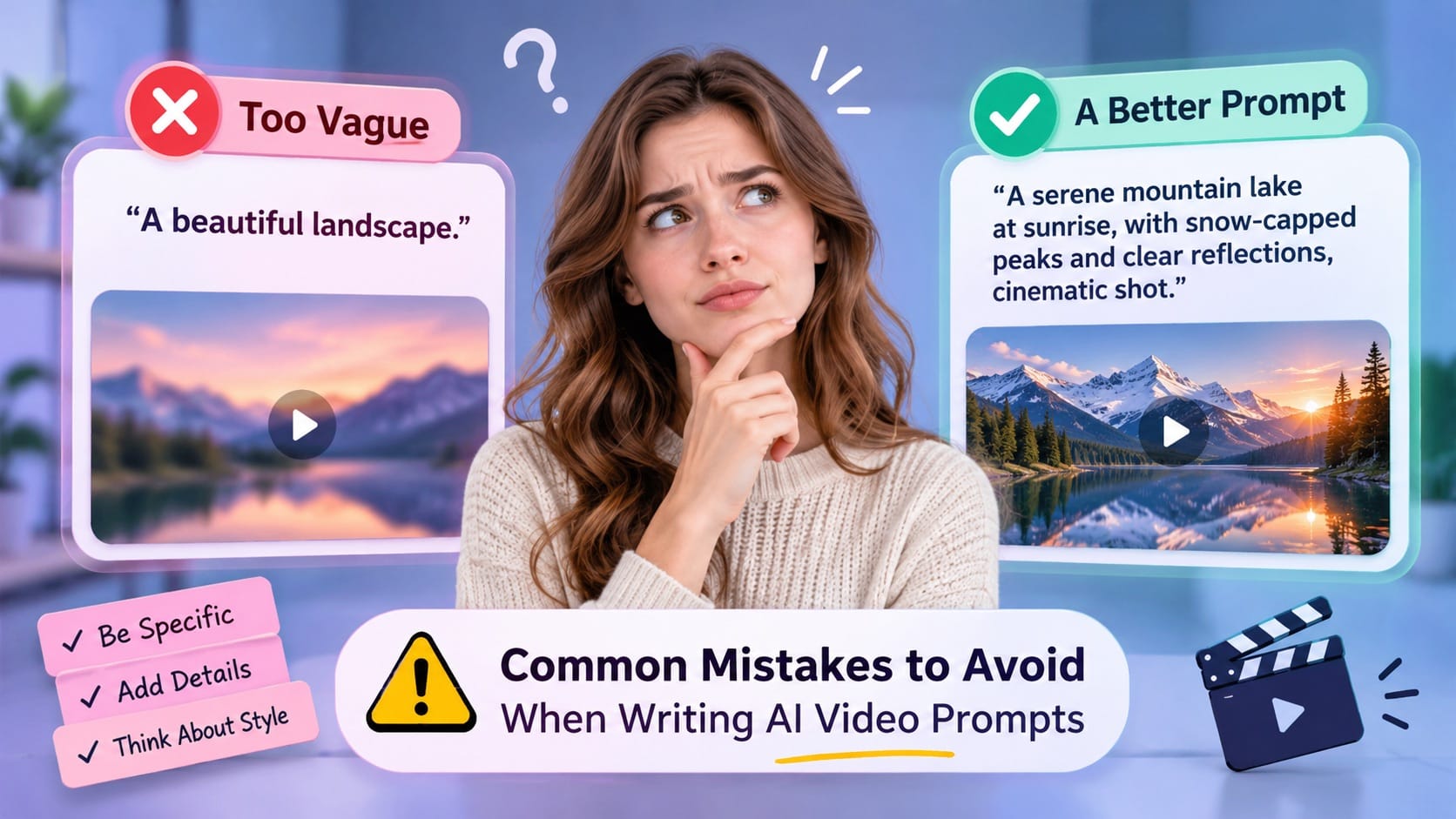
Even with a good AI video generator, beginners sometimes struggle to get the results they expect.
Here are a few mistakes worth avoiding.
1. Being Too Vague
Prompts like "beautiful landscape" or "cool product video" don't provide much creative direction.
Try describing the subject, environment, lighting, and movement instead.
2. Adding Too Many Actions
A prompt that asks a character to walk, run, jump, turn around, pick something up, and talk within a few seconds can become difficult for the model to interpret.
Focus on one main action per clip.
3. Ignoring Camera Movement
If you don't provide camera instructions, the result may not have the visual composition you imagined.
Try simple directions such as slow zoom-in, tracking shot, or static camera.
4. Mixing Conflicting Styles
Combining terms like photorealistic, watercolor illustration, anime, and vintage documentary in the same prompt may create an inconsistent visual result.
Choose one main style first.
5. Expecting Perfect Results on the First Try
AI video generation isn't always predictable. A prompt may produce unexpected movements, unusual details, or slightly different interpretations of your idea.
Treat the first result as a draft, then refine it.
How MagicCanvas Makes Text-to-Video Creation Easier
Writing a good prompt is important, but choosing the right generation workflow also matters.
MagicCanvas brings AI video creation tools together in one platform, making it easier to experiment with different ways of turning ideas into visual content.
Its Text to Video feature is a useful starting point for anyone who wants to generate video clips from written descriptions without recording footage.
Rather than starting with a camera or a complicated editing timeline, you can begin with an idea and describe the scene you want to create.
Depending on the creative task, you can also explore other MagicCanvas workflows:
- Text to Video: Turn written prompts into video clips.
- Image to Video: Add movement to existing images.
- MagicEdit: Make AI-assisted edits to video content.
- Mythic: Explore more detailed video creation with controls for subjects, motion, environments, camera, aesthetics, and audio.
- InfiniteTalk: Create talking-photo content from images and dialogue.
This flexibility is helpful when a project starts with text but later requires additional visual assets or editing.
For example, you might generate a cinematic product scene from a text prompt, create another version using a product image, and then refine the visual result for a social media campaign.
You can explore these workflows on MagicCanvas.
Final Thoughts
Creating AI videos from text prompts is much easier to get started with than traditional video production.
You don't need expensive equipment or professional editing experience. What you do need is a clear idea, a descriptive prompt, and a willingness to experiment.
Start with a simple subject and one main action. Add details about the environment, lighting, camera movement, and visual style. Generate a clip, review the result, and refine your prompt when necessary.
Most importantly, don't worry about writing the perfect prompt immediately. The best way to improve is to experiment and learn which descriptions produce the results you want.
With tools like MagicCanvas, turning a few lines of text into a video can be a practical starting point for your next creative project.