
There's something special about a video that feels like it belongs in a movie. The lighting is just right, the camera movement feels intentional, and even a simple scene can make you want to keep watching.
A few years ago, creating that kind of footage meant having access to professional cameras, lighting equipment, editing software, and a lot of production experience.
In 2026, AI video generators have changed the process. You can describe a scene, upload a reference image, choose a video model, and generate footage without organizing a traditional film shoot.
But there's a catch: typing "make it cinematic" into an AI video generator doesn't automatically give you a Hollywood-quality result.
The difference usually comes down to how you direct the scene. Camera movement, lighting, composition, character consistency, and storytelling all matter.
In this guide, we'll walk through how to create cinematic videos with AI, from developing an idea to generating individual shots and putting everything together. We'll also explore how tools like MagicCanvas can help you create more polished videos without a complicated production setup.
What Makes an AI Video Look Cinematic?
Before creating anything, it's worth understanding what makes a video feel cinematic in the first place.
It's not simply about adding dramatic colors or making everything look like a movie trailer. Cinematic visuals come from a combination of filmmaking decisions.
According to Adobe's cinematography guide, elements such as composition, lighting, camera movement, and lens choice help shape how viewers experience a scene.
Here are five elements worth paying attention to.
1. Camera Movement
A static camera isn't always a bad thing, but intentional movement can make a scene feel more immersive.
Some common camera movements include:
- Dolly In: The camera slowly moves toward the subject, creating intimacy or tension.
- Dolly Out: The camera moves away, revealing more of the environment.
- Tracking Shot: The camera follows a moving subject.
- Pan: The camera rotates horizontally to reveal more of the scene.
- Orbit Shot: The camera moves around a subject to create a more dramatic perspective.
For example, imagine a character standing alone on a rainy city street.
A static wide shot might establish the location. A slow dolly-in toward the character's face could make the same moment feel much more emotional.
The important thing is to choose movement that supports the scene instead of adding motion just because you can.
2. Cinematic Lighting
Lighting has a huge influence on the atmosphere of a video.
Think about the difference between a bright afternoon scene and a dark room illuminated by a single warm lamp. They can feature the same character, but the emotional feeling is completely different.
Some popular lighting styles include:
- Golden-hour lighting for warm, romantic scenes.
- Low-key lighting for suspense and mystery.
- Soft natural lighting for realistic everyday moments.
- Backlighting for dramatic silhouettes.
- Neon lighting for futuristic or nighttime environments.
When writing AI video prompts, describe where the light comes from, how soft or intense it is, and how it interacts with the environment.
3. Shot Composition
Composition determines what viewers see and where their attention goes.
A wide establishing shot helps introduce a location, while a close-up can reveal a character's emotions.
You can experiment with:
- Wide shots for landscapes and establishing scenes.
- Medium shots for conversations and character actions.
- Close-ups for emotional expressions.
- Over-the-shoulder shots for dialogue.
- Low-angle shots for dramatic or powerful characters.
Good composition makes even a simple AI-generated scene feel more intentional.
4. Color Grading and Visual Style
Color is another important part of cinematic storytelling.
A warm orange and brown palette can create a nostalgic feeling, while cool blue tones can make a scene feel lonely or mysterious.
You can describe a specific visual direction in your prompt, such as:
- Warm golden cinematic tones.
- Cool blue nighttime color grading.
- Muted vintage film colors.
- High-contrast noir photography.
- Soft pastel colors with dreamy lighting.
Try to keep the color palette consistent across different shots. Otherwise, your final video may look like several unrelated clips stitched together.
5. Storytelling and Pacing
Perhaps the most overlooked part of AI video creation is storytelling.
A beautiful five-second clip can look impressive, but a collection of beautiful clips doesn't automatically become a good video.
Think about what happens in each shot and why it matters.
A simple cinematic sequence might follow this structure:
- Establish the environment.
- Introduce the main character.
- Show an important action.
- Capture the character's reaction.
- End with a memorable visual moment.
Even a short video benefits from having a beginning, middle, and ending.
How to Create Cinematic Videos with AI: A Step-by-Step Guide
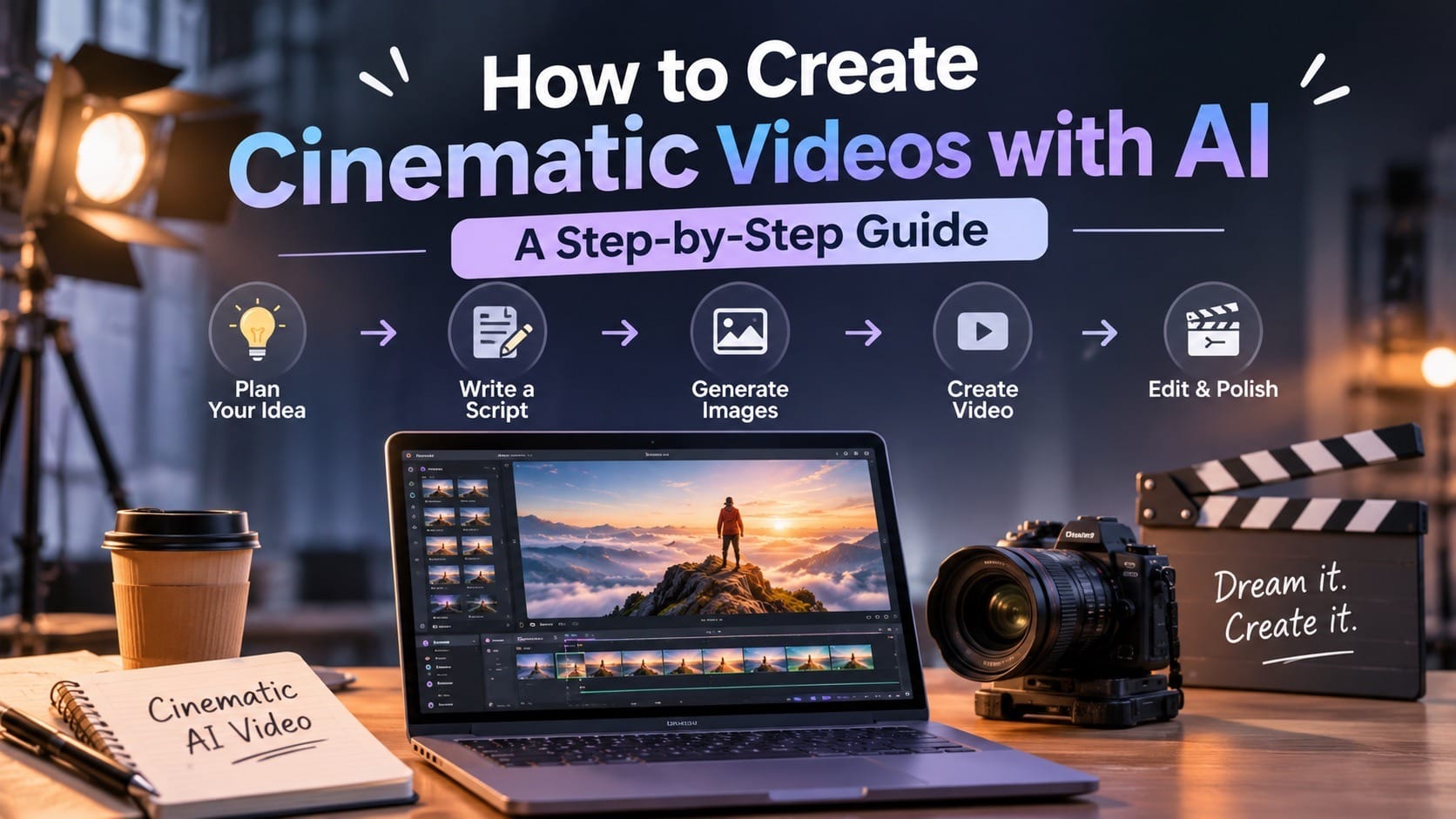
Now let's get practical. You don't need a professional film crew to start experimenting with cinematic AI videos.
Here's a workflow you can follow using an AI video creation platform like MagicCanvas.
Step 1: Start With a Clear Video Concept
Before opening an AI video generator, decide what you want to create.
Don't start with something vague like "a beautiful cinematic video." Instead, develop a specific scene or story.
For example:
Concept: A Lonely Night in Tokyo
A young woman walks alone through a rainy Tokyo street at midnight. Neon signs reflect on the wet pavement. She stops in front of a small convenience store, looks through the window, and smiles slightly.
This concept already gives you several visual elements to work with:
- Main subject: A young woman.
- Location: A rainy Tokyo street.
- Time: Midnight.
- Atmosphere: Quiet, nostalgic, slightly melancholic.
- Lighting: Neon signs and warm storefront lights.
- Action: Walking, stopping, and looking through a window.
You can turn these details into individual shots later.
Step 2: Write Cinematic AI Video Prompts
This is where many beginners struggle.
A prompt like "a woman walking in a beautiful city, cinematic style" leaves too much room for interpretation.
Instead, write your prompt like a short instruction to a cinematographer.
A useful structure is:
Subject + Action + Environment + Camera Movement + Lighting + Visual Style
For example:
Basic Prompt:
A woman walking through a city at night, cinematic and realistic.
Improved Cinematic Prompt:
A young woman in a dark brown coat walks slowly along a narrow Tokyo street after midnight. Medium-wide tracking shot, the camera follows her from behind at a steady pace. Rain falls gently, neon signs reflect across the wet pavement, warm light spills from small restaurants, subtle depth of field, realistic skin and fabric details, atmospheric 35mm film look, natural movement, cinematic color grading.
Notice the difference?
The second prompt doesn't just describe what appears in the video. It explains how the scene should look and move.
For more inspiration, check out Runway's AI camera prompting guide, which explains how to describe shot sizes, camera angles, and movement.
Step 3: Choose the Right AI Video Generation Method
There are two common ways to create cinematic footage with AI.
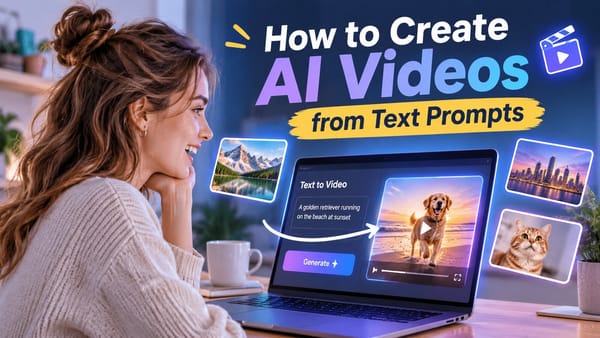
Option A: Text to Video
If you're starting with an idea rather than an existing image, Text to Video is a natural starting point.
You describe the scene, choose an available model, configure the settings, and generate a video.
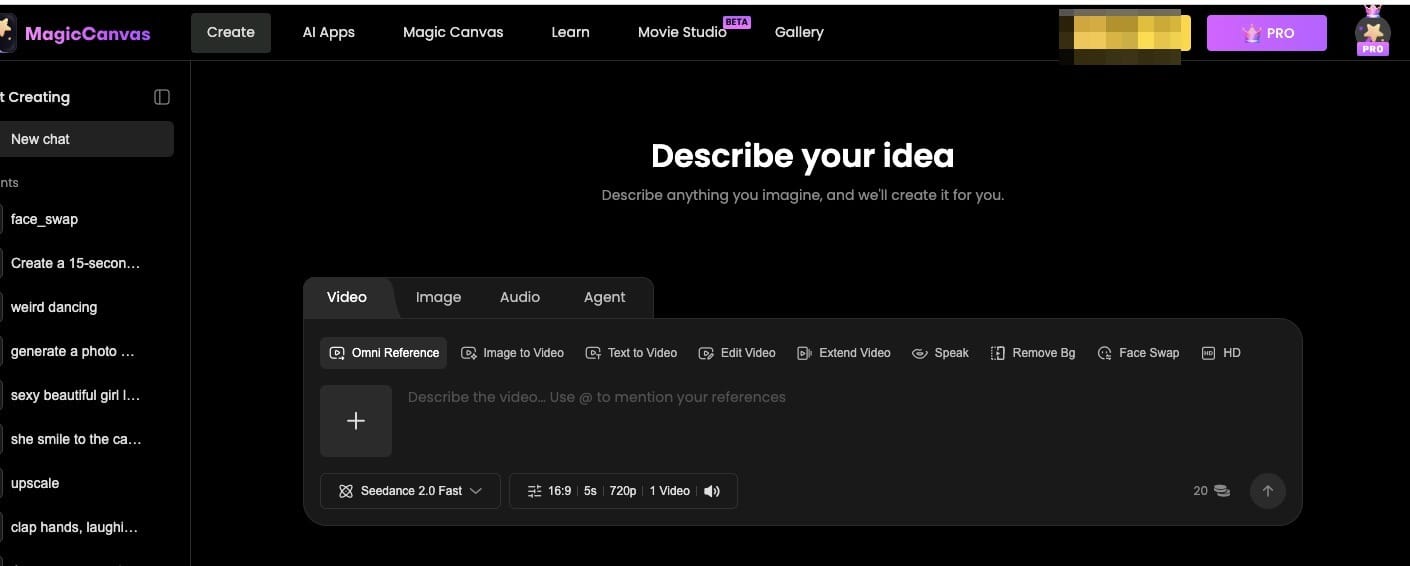
MagicCanvas Text to Video lets you create scenes directly from written descriptions.
It's useful for:
- Cinematic landscapes.
- Dramatic character introductions.
- Atmospheric establishing shots.
- Creative commercial concepts.
- Short visual storytelling scenes.
For example, you could generate a wide aerial view of a mountain village at sunrise, followed by a closer shot of someone walking through a quiet street.
Option B: Image to Video
Sometimes you already have a specific visual in mind.
Maybe you've generated a character portrait, designed a fantasy environment, or found a reference image that captures the exact composition you want.
In that case, Image to Video gives you a visual starting point.
With MagicCanvas Image to Video, you can upload an image, describe the movement, select a supported model, and turn the still image into a video.
For example, upload a portrait of a woman standing beside a window and use this prompt:
"The woman slowly turns her head toward the window as soft sunlight moves across her face. The camera performs a gentle push-in. Keep her facial features, hairstyle, and clothing consistent. Subtle natural movement, cinematic lighting."
This approach is particularly useful when the appearance of your main subject matters.
Step 4: Keep Characters and Scenes Consistent
One of the biggest challenges in AI filmmaking is consistency.
You generate a character in one scene, move to the next shot, and suddenly the character has a different hairstyle, face shape, or outfit.
It's not exactly ideal if you're trying to tell a continuous story.
A few techniques can help:
Use Reference Images
Create or select a reference image for your main character before generating multiple scenes.
Use the same reference wherever the selected model supports it.
Describe Important Character Details
Include details such as:
- Hair color and hairstyle.
- Clothing and accessories.
- Approximate age and appearance.
- Facial features.
- Distinctive visual characteristics.
Keep the Visual Environment Consistent
If your story takes place at night, avoid accidentally switching to bright afternoon lighting in the next shot.
You can also use MagicCanvas Omni Reference to work with multiple reference images, characters, objects, and visual elements for more consistent AI video creation.
The more carefully you establish your visual references, the easier it becomes to maintain a recognizable style across scenes.
Step 5: Create Different Shots Instead of One Long Clip
Here's a useful tip: don't try to generate an entire movie in one prompt.
AI video generators are generally easier to direct when each generation focuses on a specific moment.
For our Tokyo example, you could create four separate shots:
| Shot | Description | Camera Direction |
|---|---|---|
| 1 | Rainy Tokyo street at midnight | Wide establishing shot |
| 2 | Woman walking past neon signs | Tracking shot |
| 3 | Close-up of her face | Slow dolly-in |
| 4 | Woman looking through a shop window | Medium close-up |
Generate each shot separately, then arrange them into a sequence.
This gives you more control over pacing, composition, and the story.
It also makes it easier to regenerate one problematic scene without starting the entire project again.
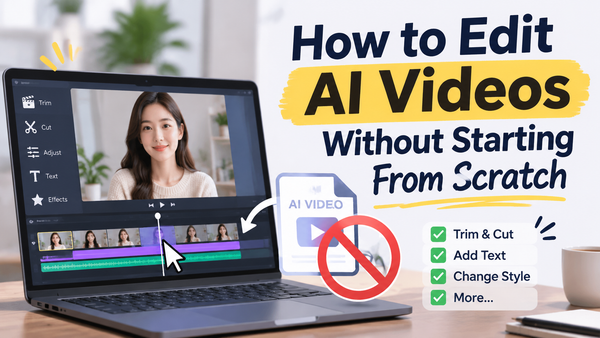
Step 6: Edit and Extend Your AI Video
Even a good AI-generated clip might need some adjustments.
Maybe the camera movement ends too early, the subject doesn't complete an action, or the final moment feels abrupt.
Instead of generating everything again, consider editing or extending the footage.
MagicCanvas offers several tools that can help:
Edit Video
MagicCanvas Edit Video allows you to modify existing video footage using natural-language instructions. Depending on the supported workflow, you can change scenes, objects, characters, backgrounds, and visual styles.
Extend Video
With MagicCanvas Extend Video, you can continue an existing clip by describing what should happen next.
For example:
"The camera slowly pulls back as the woman continues walking down the street. Keep the same rainy nighttime environment, neon reflections, lighting, and character appearance."
This is useful when you need a little more footage to complete a scene or create a smoother ending.
Remember to review the transition carefully. AI-generated extensions can sometimes introduce changes in character appearance, lighting, or motion.
5 Cinematic AI Video Prompts You Can Try
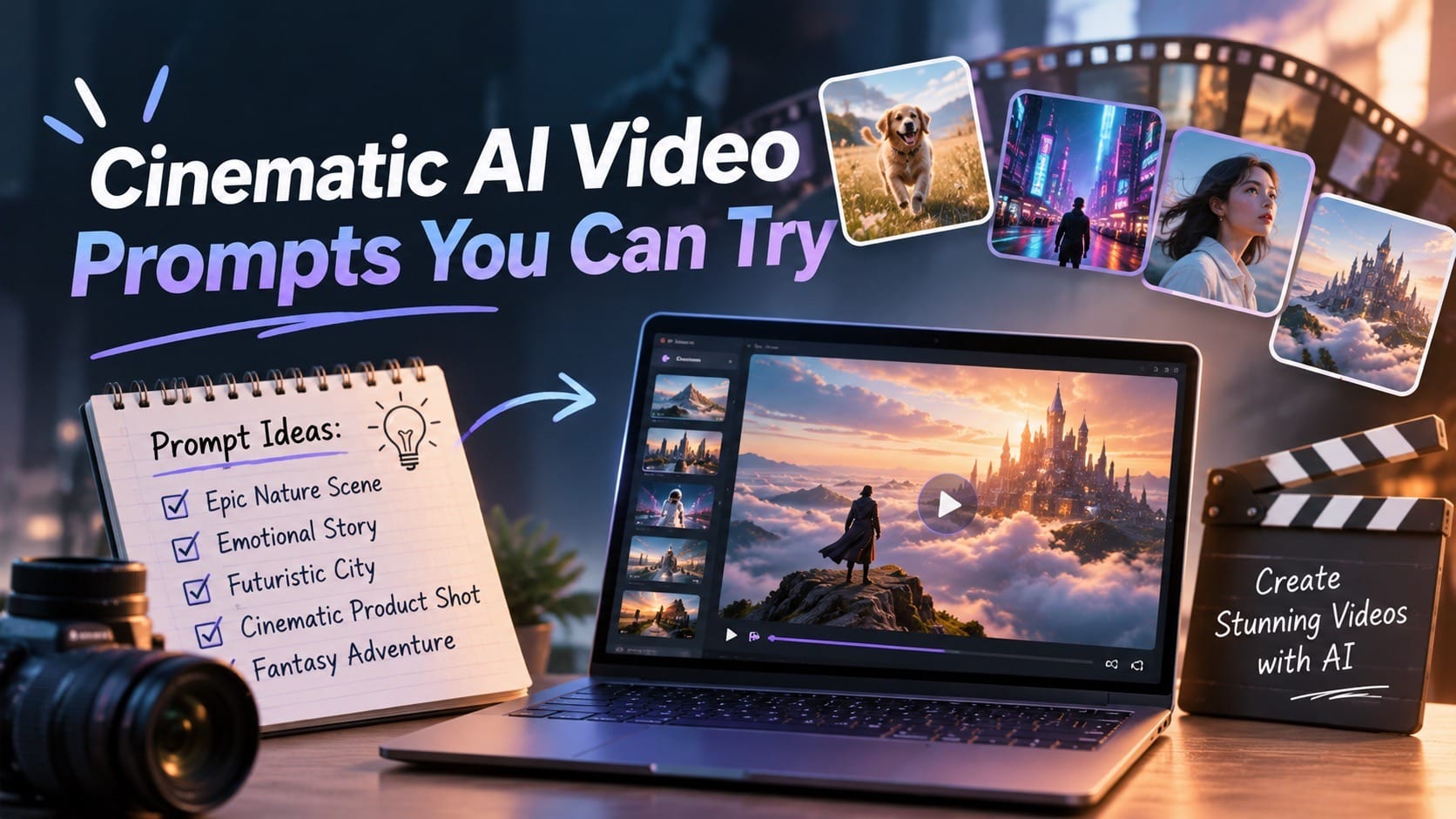
If you're not sure where to start, here are five prompts you can experiment with in MagicCanvas or another AI video generator.
1. Cinematic Nature Scene
A breathtaking aerial view of a misty mountain range at sunrise, golden sunlight slowly illuminating the mountain peaks, clouds drifting between the valleys, smooth forward drone movement, realistic atmospheric perspective, cinematic landscape photography, natural color grading, highly detailed environment.
2. Emotional Character Scene
A young woman sitting beside a rain-covered window at night, looking outside with a thoughtful expression. Medium close-up, slow camera push-in, soft warm lamp lighting on her face, cool blue reflections from the rainy window, shallow depth of field, realistic skin texture, intimate cinematic film aesthetic.
3. Futuristic City Scene
A futuristic city at night filled with glowing neon signs and towering skyscrapers. Flying vehicles move slowly between buildings, a cinematic aerial tracking shot reveals the city skyline, atmospheric fog, reflections on glass surfaces, dramatic blue and purple lighting, photorealistic science fiction film style.
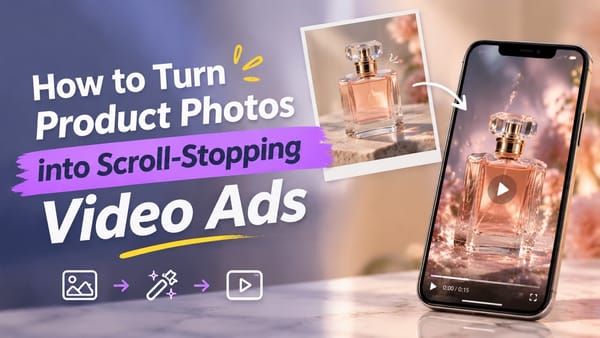
4. Luxury Product Commercial
A premium black perfume bottle placed on a polished dark marble surface. A slow cinematic orbit reveals the glass reflections, soft directional studio lighting, subtle atmospheric haze, elegant shadows, macro details, luxurious commercial cinematography, sophisticated dark color palette.
5. Fantasy Film Scene
An ancient castle standing on a floating island above a sea of clouds. The camera slowly moves forward toward the castle entrance, dramatic golden sunlight breaks through the clouds, birds fly across the distant mountains, epic fantasy cinematography, detailed architecture, atmospheric depth, realistic lighting.
A practical tip: don't change every part of a prompt when experimenting. Generate one version, identify what doesn't work, and adjust one or two details at a time.
Common Mistakes to Avoid When Creating Cinematic AI Videos
Even with good AI models, some common mistakes can make the final result look less professional.
1. Using Too Many Camera Movements
Asking the camera to zoom, rotate, pan, and follow a character simultaneously can produce confusing results.
Start with one primary camera movement per shot.
2. Writing Overly Complicated Prompts
More words don't always mean better videos.
If your prompt contains several characters performing different actions in multiple locations, the model may struggle to follow everything.
Keep each shot focused on one main action.
3. Ignoring Character Consistency
A different-looking character in every scene can quickly break the illusion of a continuous story.
Use reference images and repeat important character details when needed.
4. Forgetting the Final Aspect Ratio
A cinematic landscape video and a vertical Instagram Reel have different framing requirements.
Decide where the video will be published before generating it. Check the aspect ratios supported by your selected model.
5. Expecting AI to Handle Everything Perfectly
AI-generated footage can contain visual artifacts, unnatural movement, inconsistent details, or unexpected changes.
Always review your clips before using them in a finished project.
Sometimes a simpler shot with natural movement looks much better than an ambitious scene filled with visual effects.
Final Thoughts
Creating cinematic videos with AI in 2026 is no longer limited to professional filmmakers or people with expensive production equipment.
With a clear concept, well-written prompts, thoughtful camera direction, and the right reference images, you can create impressive visual scenes from your own ideas.
The biggest lesson is simple: think like a filmmaker, not just someone typing prompts into an AI tool.
Plan your shots, pay attention to lighting, keep your characters consistent, and build your story one scene at a time.
If you want to experiment with different video styles and models without constantly switching between platforms, MagicCanvas brings multiple AI video generation and editing tools together in one creative workspace.
Start with a simple scene, try a few camera movements, and see what you can create. Your next cinematic video might be closer than you think.