
You've finally generated an AI video that looks pretty good. The lighting is beautiful, the camera movement works, and the overall scene is exactly what you imagined.
Then you notice a problem.
Maybe the background looks strange. Maybe the main character doesn't quite fit the scene. Perhaps the product changes shape halfway through the clip, or the visual style isn't quite right.
Your first instinct might be to open the prompt, change a few words, and generate the entire video again.
And then again.
And maybe one more time, because apparently the AI has decided that your original idea was merely a suggestion.
But here's something worth knowing: you don't always need to regenerate an entire AI video just because one part isn't working.
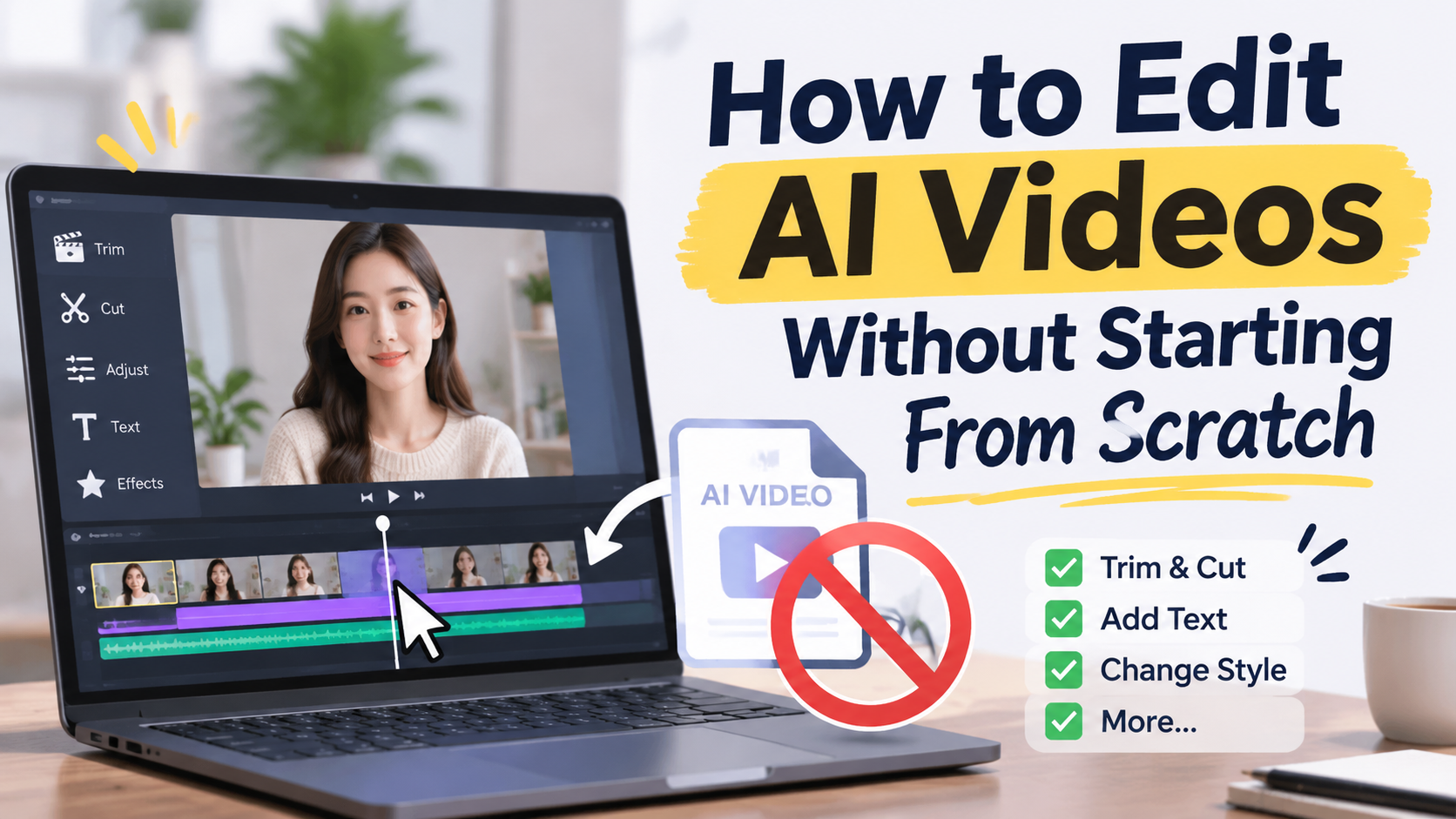
AI video editing tools are making it easier to work with existing footage, adjust specific visual elements, and experiment with different creative directions without rebuilding everything from zero.
In this guide, we'll look at how to edit AI videos without starting from scratch, which parts of a video you can improve, how to write better editing prompts, and how tools like MagicCanvas can make the process more flexible.
Why Starting Over Isn't Always the Best Solution
Generating an AI video from scratch is exciting. You write a prompt, choose a model, wait for the result, and hopefully get something close to what you imagined.
But the first result isn't always perfect.
In fact, even a video that looks impressive at first can contain small problems that become obvious after a closer look.
For example:
- A character's clothing changes unexpectedly between frames.
- The background contains distracting or unrealistic objects.
- A product looks slightly different from the reference image.
- The lighting feels too dark, too bright, or inconsistent.
- The video has the right composition but the wrong visual style.
- An object appears in the wrong place or doesn't fit the scene.
These problems don't necessarily mean the entire video is unusable.
Sometimes, most of the footage is already exactly what you need. You only want to change one or two details.
That's where AI video editing becomes useful.
Instead of treating every imperfect result as a failed generation, you can treat it as a starting point. Keep what works, identify what doesn't, and make targeted changes.
It's a much more practical way to approach AI video creation, especially when you're producing content regularly.
What Can You Change in an Existing AI Video?
Modern AI video editing tools can do more than basic trimming, cropping, and color adjustments. Some allow you to describe visual changes using natural-language prompts.
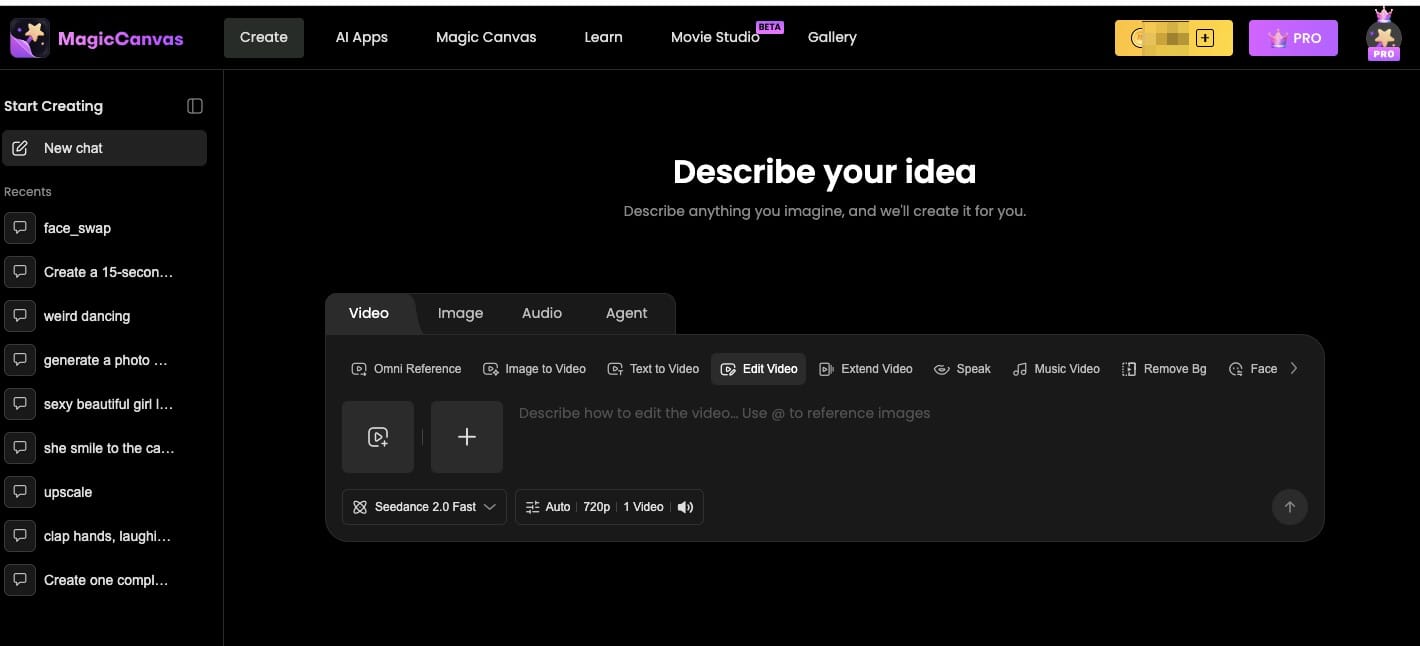
With MagicCanvas Edit Video, you can upload an existing video and use written instructions to guide changes to scenes, objects, characters, styles, and backgrounds.
Here are several situations where this approach can be helpful.
1. Change the Background Without Recreating the Entire Scene
Backgrounds can make a huge difference to how a video feels.
Imagine you've generated a fashion video featuring a model wearing a beautiful outfit. The model looks great, the movement is natural, and the camera angle works.
Unfortunately, the background looks like a random hotel hallway instead of the luxury studio you imagined.
You don't necessarily need to regenerate the entire video.
An AI video editing workflow can help you explore a different environment while keeping the original creative direction.
For example, you could try a prompt like:
Example prompt:
"Replace the background with a modern luxury fashion studio featuring warm neutral walls, soft natural lighting, and minimalist interior design. Keep the model's appearance, outfit, pose, and original camera movement consistent."
The important part is telling the AI both what should change and what should remain unchanged.
If you only write "make the background better," you're leaving too much room for interpretation.
2. Replace or Adjust Objects in the Scene
Sometimes, the problem isn't the background. It's a particular object.
Maybe there's an unnecessary chair in the corner, a distracting decoration on a table, or an object that doesn't match the rest of the scene.
For product videos, this becomes especially important.
Imagine you're creating a commercial for a skincare product. The bottle is positioned nicely, the lighting looks professional, but another object in the background makes the composition feel cluttered.
You can use an editing prompt to describe the change you want.
Example prompt:
"Remove the distracting objects from the background and replace them with a clean, elegant marble surface. Keep the skincare bottle in its original position, preserving its shape, label, color, and lighting."
This kind of instruction is useful because it gives the AI a clear editing objective rather than asking it to invent a completely different video.
Always inspect the result afterward. AI edits can sometimes introduce unexpected changes to nearby objects or details.
3. Change the Visual Style
A video can have the right subject and composition but still feel wrong stylistically.
For example, you might generate a scene that looks too cartoonish when you actually want something realistic. Or perhaps the result looks like ordinary smartphone footage when you want a cinematic advertisement.
Instead of starting from a completely different concept, you can experiment with a new visual direction.
Example prompt:
"Transform the scene into a cinematic luxury commercial style. Use realistic textures, soft golden lighting, natural shadows, and a refined color palette. Preserve the main subject, composition, and original movement."
You can also experiment with different aesthetics:
- Cinematic realism
- Vintage film
- Luxury commercial
- Dreamy atmosphere
- Minimalist editorial
- Anime-inspired visuals
If you're still exploring visual styles, you may also enjoy our guide to creating cinematic videos with AI in 2026.
The key is to make the style change intentional. Don't throw five unrelated visual directions into one prompt and expect the AI to read your mind.
4. Improve Character Appearance
Characters are one of the most interesting parts of AI-generated videos, but they can also be one of the most frustrating.
A character might look perfect in the first few seconds, only for their facial features, hairstyle, or clothing to change later.
If you're creating a story video, promotional clip, or character-based social media content, these inconsistencies can make the final result feel less professional.
AI editing can help you guide changes to a character's appearance.
Example prompt:
"Adjust the character's hairstyle to a neat shoulder-length brown hairstyle. Preserve the original facial features, skin tone, clothing, body proportions, and scene composition."
Be specific about the details you want to preserve. If the character's identity is important, avoid describing an entirely new appearance when you only want to change one feature.
For projects involving multiple scenes, reference images and consistency-focused workflows can also help.
5. Adjust Lighting and Atmosphere
Lighting can completely change the mood of a video.
A simple product shot can feel premium with warm studio lighting. A travel video can feel more cinematic with soft sunset light. A dramatic scene might benefit from stronger contrast and deeper shadows.
You don't always need to regenerate the scene to experiment with these changes.
Try describing the atmosphere you want.
Example prompt:
"Make the lighting warmer and softer, with natural golden-hour sunlight coming from the left side. Preserve the original subject, environment, camera angle, and movement."
This is particularly useful when your video already has a strong composition but needs a different mood.
How to Edit an AI Video Without Starting Over
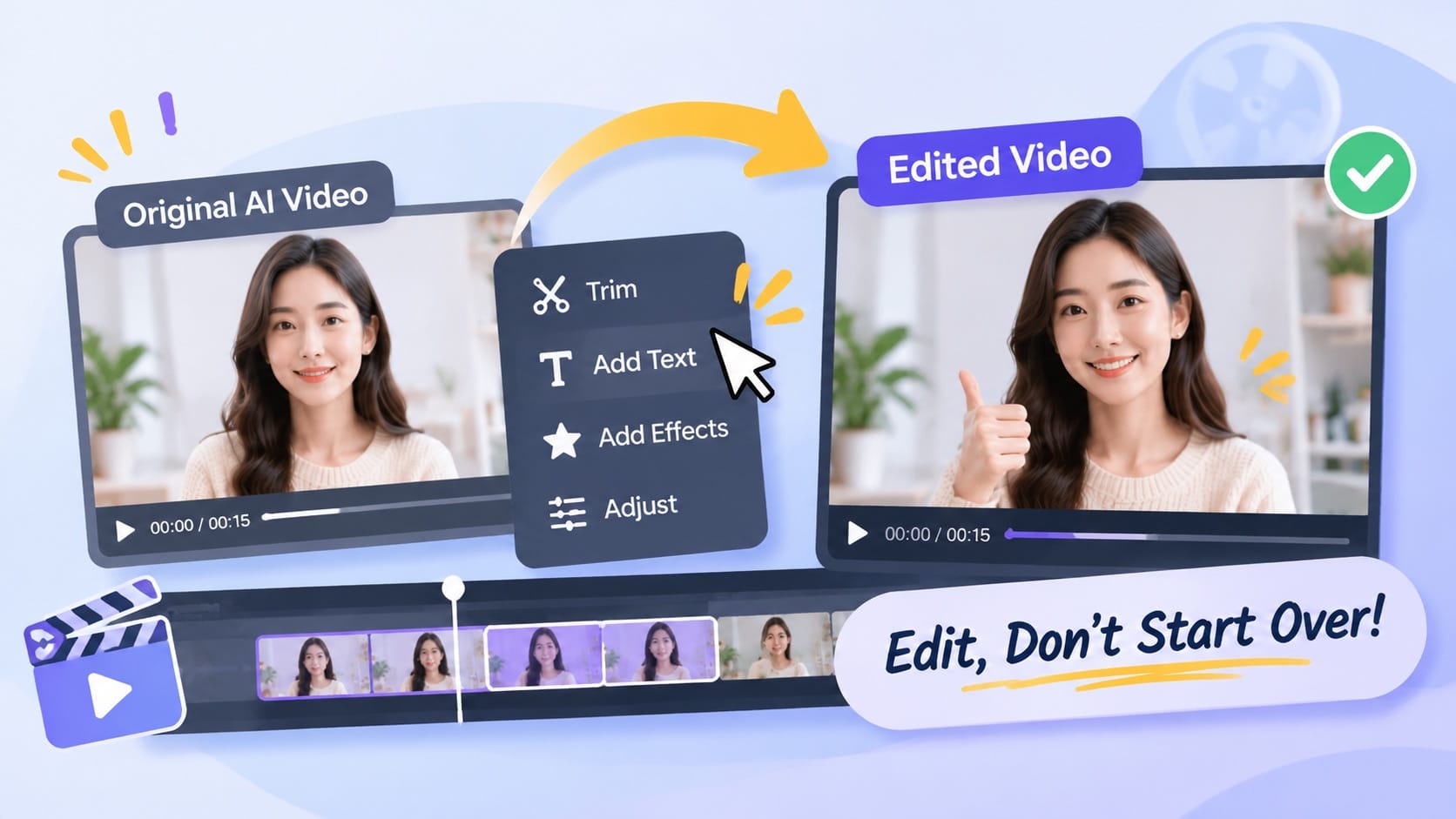
Now let's turn the idea into a practical workflow.
The exact options available will depend on the editing tool and selected model, but the general process is straightforward.
Step 1: Choose a Video Worth Editing
Start with an existing video that already has something worth keeping.
It doesn't have to be perfect. In fact, that's the whole point.
Look for footage where the main subject, composition, movement, or overall idea is working.
Before uploading it, watch the entire clip and identify the specific problem.
Ask yourself:
- Is the background distracting?
- Does the character need an appearance adjustment?
- Is the lighting inconsistent with the intended style?
- Is there an unwanted object?
- Does the overall scene need a different atmosphere?
Try to identify one main issue first.
If you can't clearly explain what needs fixing, it's probably too early to write an editing prompt.
Step 2: Upload Your Original Video
Open MagicCanvas and navigate to the Edit Video feature.
Upload the source video you want to modify.
Starting with the original file is usually a good idea. Repeatedly exporting, compressing, and re-uploading footage can reduce visual quality.
Before proceeding, check that your source video meets the requirements shown by the selected model.
Also, keep an untouched copy of your original footage. It's always useful to have a backup when experimenting with AI edits.
Step 3: Describe Exactly What You Want to Change
This is probably the most important step.
AI video editing relies heavily on instructions. A vague prompt can produce unpredictable results, while a focused prompt gives the model a clearer creative direction.
A useful editing prompt usually contains four elements:
- The change: What do you want to modify?
- The target: Which character, object, or part of the scene is affected?
- The preserved details: What should stay the same?
- The visual direction: What should the final result look like?
For example:
"Replace the plain gray background with a modern luxury apartment interior. Use warm natural lighting and subtle neutral colors. Keep the woman, her clothing, facial appearance, and original camera movement unchanged."
Compare that with:
"Make this video look more luxurious."
The second prompt sounds simple, but it doesn't explain what luxury should look like or which elements should be preserved.
If you want to improve your prompt-writing skills, check out our guide on how to write better AI prompts.
Step 4: Choose the Right Editing Model and Settings
Different AI models can produce different results, even when you give them the same instructions.
MagicCanvas brings multiple AI models and creative tools together in one workspace, allowing you to explore different options without constantly jumping between platforms.
For video editing, available choices may include models such as Seedance, Wan, Kling, and other supported options.
The best choice depends on your footage and editing goal.
Before generating, check:
- Supported input video formats
- Available resolution
- Video duration limits
- Model-specific editing options
- Credit cost
Don't automatically choose the most expensive or highest-resolution option.
If you're testing a new editing idea, it can be smarter to experiment first and review the output before committing more credits to a final version.
Step 5: Generate and Review the Edited Video
Once your prompt and settings are ready, generate the edited result.
But don't immediately assume the job is finished.
Watch the new video carefully, preferably alongside the original.
Check whether:
- The requested changes were actually applied.
- The main character still looks recognizable.
- Important objects remain consistent.
- The lighting and visual style look natural.
- The movement feels continuous.
- New visual artifacts have appeared.
AI editing is not guaranteed to preserve every detail perfectly. Sometimes an edit improves one part of the scene but unexpectedly changes another.
If that happens, refine your prompt and try again.
The goal is not to change everything. It's to make the smallest useful adjustment that gets you closer to the result you want.
5 Practical AI Video Editing Prompts You Can Try
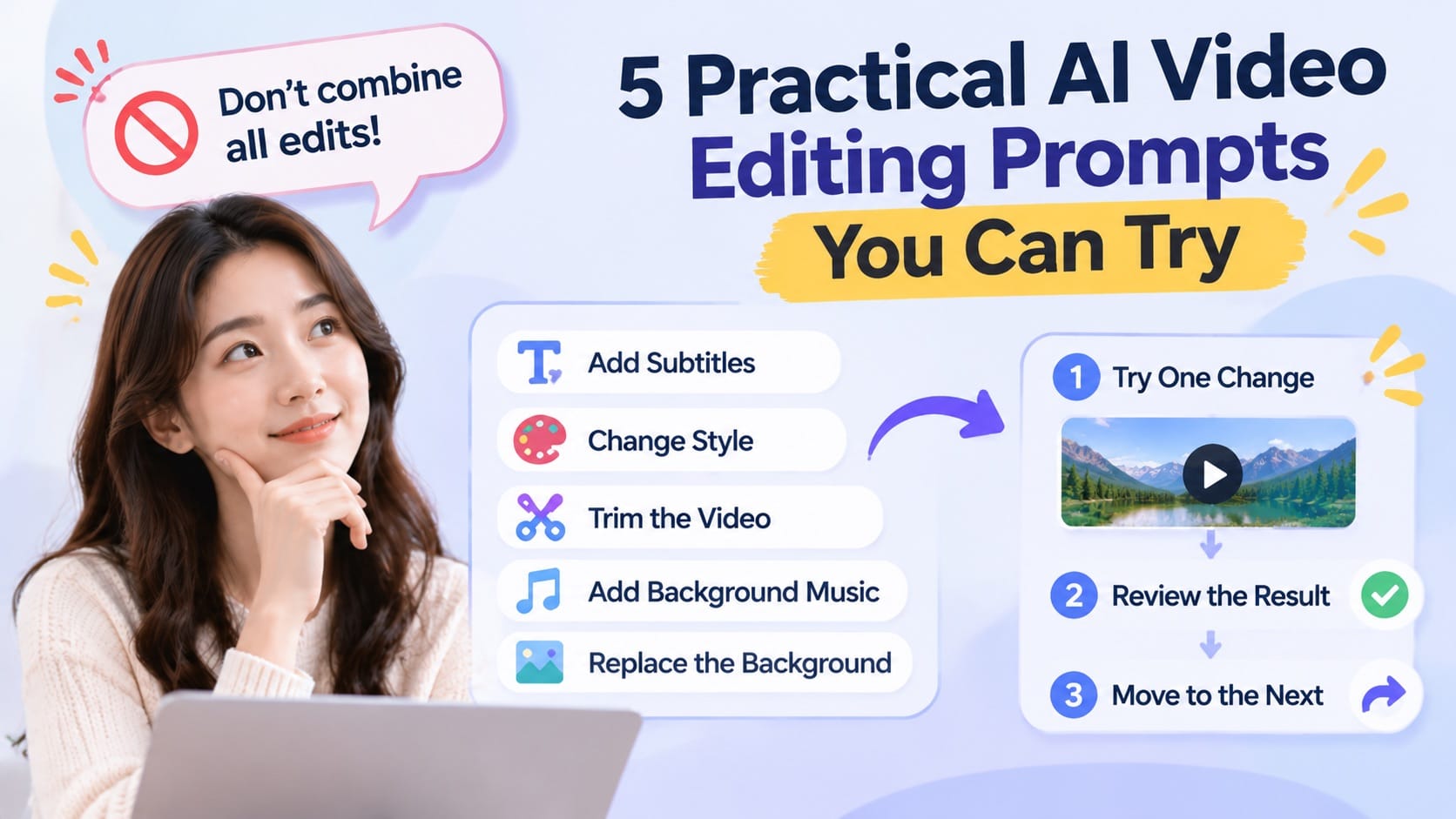
Here are five prompts you can adapt for different projects.
| Editing goal | Example prompt |
|---|---|
| Background replacement | Replace the background with a clean modern office. Keep the main subject and original movement unchanged. |
| Lighting adjustment | Add soft natural window lighting with realistic shadows. Preserve the original composition and subject appearance. |
| Object removal | Remove the distracting object on the table and naturally reconstruct the surrounding surface. |
| Style transformation | Give the scene a cinematic commercial aesthetic with realistic textures and warm color grading. |
| Character adjustment | Change the character's jacket to a black leather jacket while preserving facial features, hairstyle, and body proportions. |
One important tip: don't combine all five edits into one prompt.
If you want to change the background, outfit, lighting, camera movement, and visual style simultaneously, it becomes harder to identify which instruction caused an unexpected result.
Start with one change, review it, and move on to the next.
When Should You Edit an Existing Video Instead of Generating a New One?
AI editing isn't the answer to every problem.
Sometimes, starting from scratch is still the better choice.
Here's a simple way to decide.
| Situation | Better approach |
|---|---|
| The background needs changing | Edit the existing video |
| One object is distracting | Try an AI edit |
| The lighting needs adjustment | Try an AI edit |
| The visual style needs refinement | Try an AI edit |
| The entire scene is incorrect | Generate a new video |
| The main character is completely wrong | Consider regenerating |
| The original motion doesn't fit the story | Rework the generation |
Think of it this way: if the foundation is good, editing can save time. If the foundation is completely wrong, adding more edits might only make the problem more complicated.
A useful related workflow is AI video extension. If your clip is good but ends too early, you may not need to recreate it. You can explore ways to create AI story videos and build on existing footage to develop a longer sequence.
More Ways to Improve Your AI Video Workflow
Editing existing videos is only one part of the creative process.
If you want to produce better results consistently, it's worth thinking about the entire workflow rather than treating every video as an isolated task.
Start With Better Source Material
A good source video gives an editing model more useful visual information to work with.
If your original footage is blurry, heavily compressed, or poorly lit, some problems may remain even after editing.
Whenever possible, start with the highest-quality original file available.
Keep Your Prompts Focused
More words don't automatically mean better results.
A detailed prompt is useful when it provides relevant instructions. A long prompt filled with unrelated visual descriptions can make the editing objective less clear.
Describe the desired change first, then explain what should remain consistent.
Save Different Versions
Don't overwrite your original video.
Keep separate versions of your edits so you can compare results and return to an earlier version if needed.
This is particularly useful when experimenting with different backgrounds, styles, and lighting setups.
Use the Right Tool for the Job
Not every creative problem requires the same feature.
For example:
- Use Text to Video when you're creating a scene from a written idea.
- Use Image to Video when you want to animate an existing picture.
- Use Edit Video when you want to modify existing footage.
- Use Extend Video when you want to continue an existing clip.
- Use video enhancement tools when you need to improve output clarity.
MagicCanvas brings these different creative options into one workspace, making it easier to move between generation and editing.
If you're still comparing different creation platforms, you can also read our guide to the best AI video generators for content creators in 2026.
Common Mistakes to Avoid When Editing AI Videos
Even with good tools, a few common mistakes can make the editing process unnecessarily difficult.
1. Changing too many things at once
If you ask AI to replace the background, change the outfit, adjust the lighting, and redesign the character in one go, the result may become unpredictable.
Focus on one major change at a time.
2. Forgetting to describe what should stay the same
Telling AI what to change is important, but telling it what not to change can be equally useful.
Mention important details such as facial appearance, product shape, clothing, camera movement, and composition.
3. Using vague descriptions
Words like "better," "cooler," and "more professional" can mean different things.
Instead, describe specific visual characteristics such as warm lighting, neutral backgrounds, realistic textures, or soft shadows.
4. Ignoring the original video quality
AI editing doesn't magically recover every detail lost in a low-quality source file.
Use the best original footage you have, and avoid unnecessary compression before editing.
5. Skipping the final review
A video can look impressive in a thumbnail but contain strange details when played.
Always watch the complete result before publishing it.
Final Thoughts: Your First AI Video Doesn't Have to Be Your Final One
One of the biggest advantages of AI video creation is how quickly you can experiment with different ideas.
But creating a good video doesn't always mean generating everything from scratch.
Sometimes, you already have the right character, the right camera movement, and the right composition. You just need to fix a distracting background, improve the lighting, or adjust one visual detail.
That's why AI video editing is becoming such an important part of the creative process.
With MagicCanvas, you can explore video generation, editing, extension, and enhancement within one creative workspace. Its Edit Video feature lets you work with existing footage using natural-language instructions, helping you experiment with new creative directions without rebuilding every scene.
So the next time your AI video looks almost perfect, don't immediately throw it away.
Try editing it first. You might be one good prompt away from the result you wanted.
Ready to give your existing footage another chance? Explore MagicCanvas and try AI-powered video editing.
FAQs
1. Can AI edit an existing video without generating a new one?
Yes. AI video editing tools can modify existing footage using prompts or other editing controls. Depending on the tool and model, you may be able to change backgrounds, objects, characters, and visual styles without recreating the entire scene.
2. How do I change the background of an AI-generated video?
Upload your existing video to a compatible AI video editing tool and describe the background you want. Be specific about the new environment, lighting, and atmosphere. Also explain which elements, such as the main character and camera movement, should remain unchanged.
3. Can I change objects or characters in an existing AI video?
Some AI video editing models support changes to objects and characters. Results depend on the model, source footage, and complexity of the requested edit. Always review the output to make sure important details remain consistent.
4. Do I need video editing experience to use AI video editing tools?
Not necessarily. Many AI editing tools use natural-language prompts, so beginners can describe the changes they want without learning complicated editing software. However, understanding basic composition, lighting, and visual direction can help you get better results.
5. What is the difference between AI video editing and AI video generation?
AI video generation creates new footage from text prompts, images, or other references. AI video editing works with existing footage and modifies selected visual elements or characteristics. The two approaches can also be combined in the same creative workflow.
6. Can AI editing preserve the original character and scene?
AI editing tools can be guided to preserve important visual details, but perfect consistency isn't guaranteed. Clearly identify which elements should remain unchanged, use suitable reference material when supported, and review the edited video carefully.
7. Can I extend an AI video instead of generating a completely new one?
Yes. AI video extension tools can generate additional footage based on an existing clip and a description of what should happen next. This is useful when a scene ends too early or needs a more complete ending. The generated continuation should still be checked for visual and motion consistency.