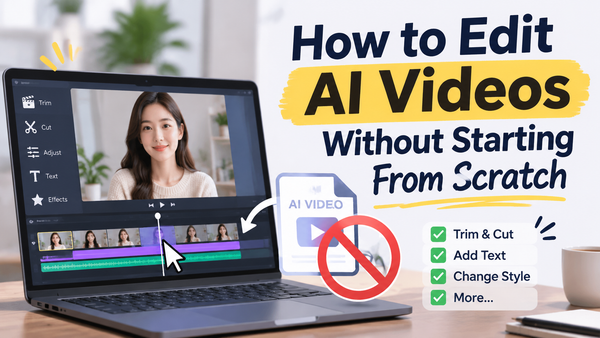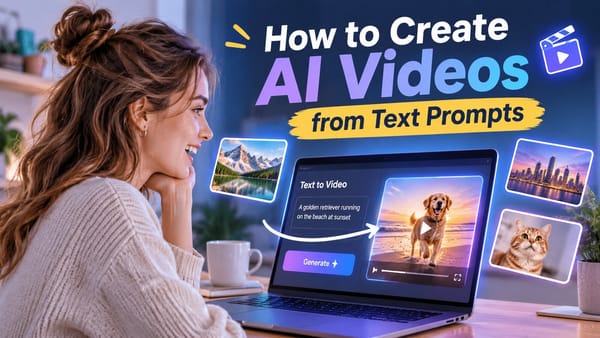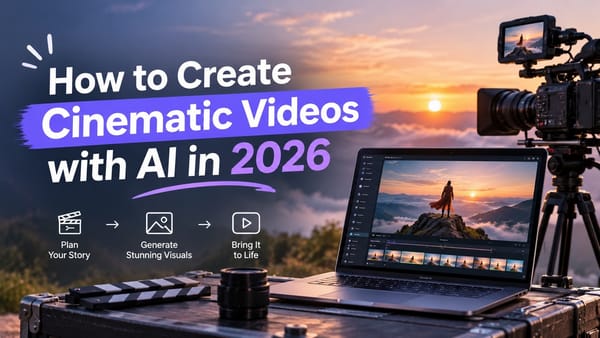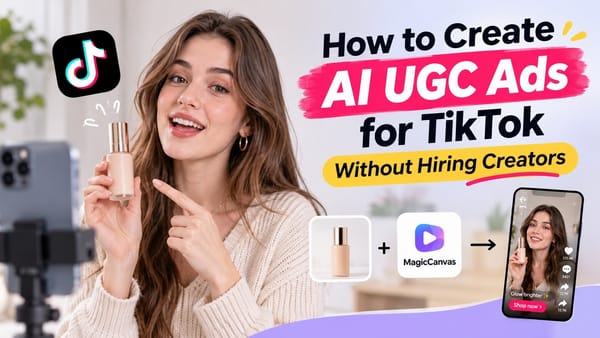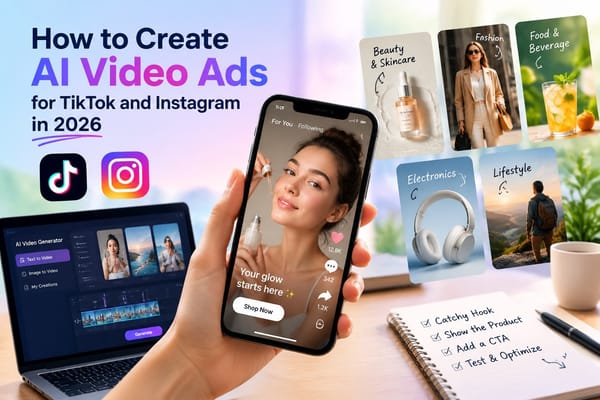


Creating videos used to mean cameras, lighting, editing software, and approximately 47 cups of coffee. Now, AI can do much of the heavy lifting. Give it a prompt, upload an image, or feed it an existing clip, and you can turn an idea into something worth sharing.
Sounds great, right?
Well, mostly. Some AI videos look so realistic that you want to watch them twice. Others feature people with mysterious extra fingers or objects that seem to have forgotten the laws of physics.
The trick is finding the right tool for your workflow.
Whether you're creating TikToks, YouTube videos, product ads, or cinematic clips for Instagram, the best AI video generator depends on what you actually want to make. Some tools generate videos from scratch, while others transform existing footage, create talking avatars, or turn long videos into dozens of short clips.
We've rounded up seven AI video tools worth exploring, starting with MagicEdit from MagicCanvas.
1.MagicCanvas: Best for AI-Powered Visual Editing
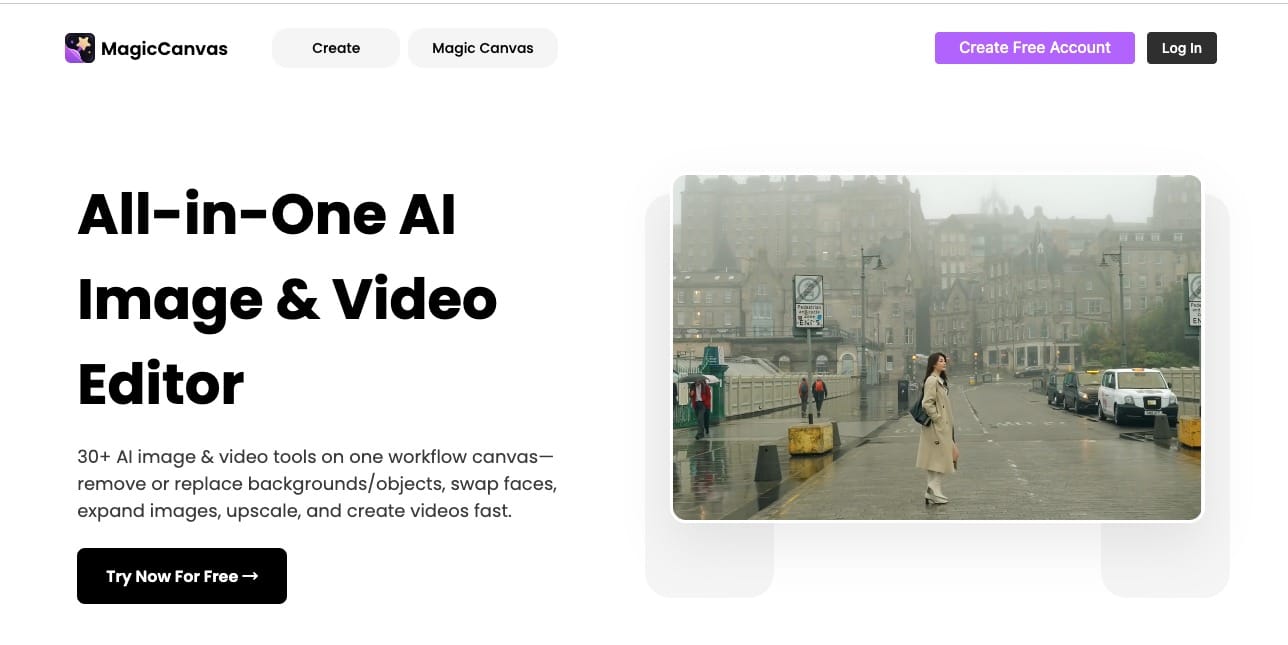
Best for: Creators who want to transform visual ideas and refine content with AI.
Pros:
- Helps simplify visual editing workflows.
- Useful for experimenting with creative ideas.
- Part of a broader AI image and video creation platform.
Cons:
- The best results still depend on your input and editing choices.
- It's worth checking the available features before choosing it for a specific video workflow.
Sometimes, the hardest part of making a video isn't generating the footage. It's getting the visuals to look the way you imagined.
Maybe your original image needs a different look. Perhaps a visual element doesn't fit the scene, or you want to experiment with a new creative direction without starting from scratch.
That's where MagicCanvas comes in.
MagicCanvas brings together AI-powered creation and editing tools, giving creators a place to work on visual content without constantly jumping between different applications. Rather than treating every creative task as a completely separate project, you can explore different ways to generate, modify, and prepare your assets.
For content creators, that flexibility matters. A product image might become the starting point for a promotional video. A portrait could inspire a short visual story. An existing asset might need a few adjustments before it fits your social media campaign.
Instead of rebuilding everything manually, you can use AI-assisted editing as part of the creative process.
MagicCanvas also offers video workflows such as Image to Video, Text to Video, Edit Video, and Extend Video. This makes it useful to consider the wider platform when planning a project that involves both visual editing and video generation.
The practical approach? Start with the visual result you want, explore the relevant tool, and refine the output until it fits your project. AI can speed up experimentation, but it doesn't eliminate the need for a good creative brief.
Try it: Explore MagicCanvas
2. Runway: Best for Creative AI Video Production
Best for: Creators who want more control over cinematic visuals and AI-assisted video workflows.
Pros:
- Offers advanced AI video creation capabilities.
- Suitable for creative experimentation and visual storytelling.
- Useful for projects that need more than basic slideshow-style videos.
Cons:
- Advanced workflows can take time to learn.
- Generative results may require several attempts to get right.
If your creative ambitions extend beyond making another video of your morning coffee, Runway deserves a look.
Runway focuses on AI-powered creative production, helping users generate and manipulate visual content. It's particularly appealing to creators who want to experiment with cinematic scenes, stylized footage, and imaginative concepts that would otherwise require more production resources.
Imagine you're creating a short sci-fi film. You want a futuristic city, dramatic lighting, and a camera movement that makes the whole scene feel expensive. Your actual budget? Enough for a sandwich.
AI video generation can help you explore those ideas without building a physical set or hiring an entire production crew.
The workflow typically begins with a prompt or visual reference. You describe the scene, generate footage, and review the result. Depending on the model and tools available, you can then experiment with additional generations or editing options.
The catch is that creative control doesn't always mean perfect control. A character might move differently than expected, or a scene might look fantastic in one frame and slightly strange in the next.
Runway is worth considering when visual experimentation is a major part of your work. If you only need to trim a clip and add subtitles, though, a simpler editor may be a better fit.
3. Kling AI: Best for Realistic Image-to-Video Clips
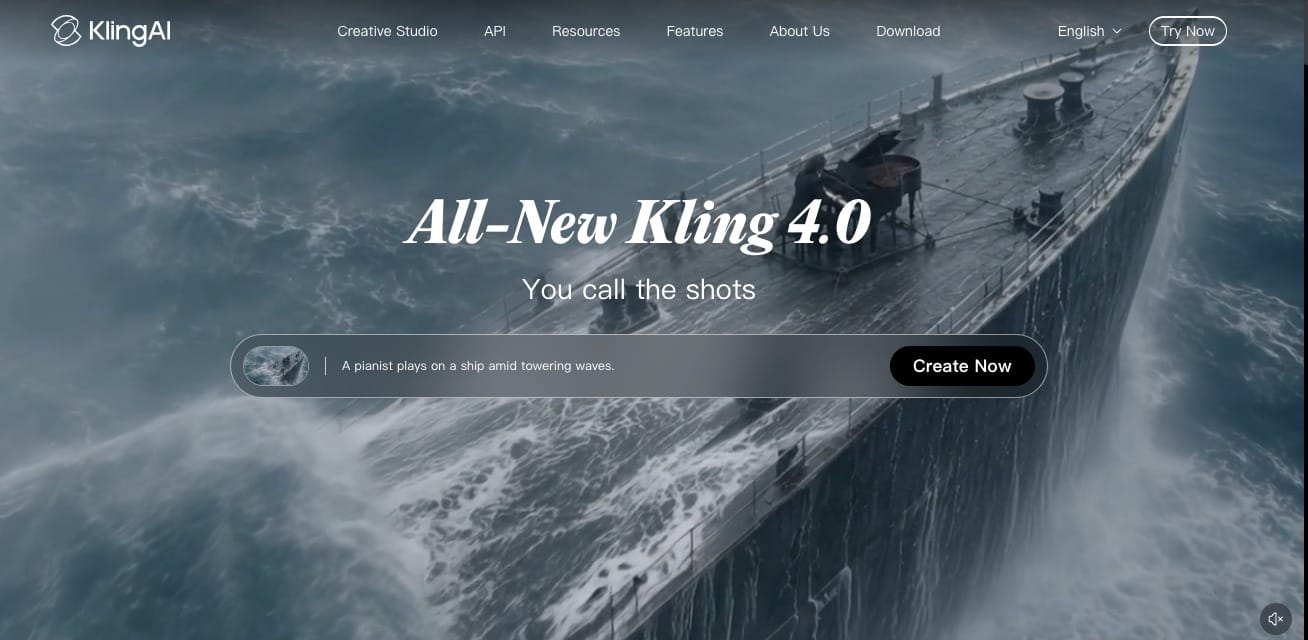
Best for: Creators who want to animate still images or produce visually rich short videos.
Pros:
- Offers text-to-video and image-to-video workflows.
- Useful for cinematic scenes and character-based visuals.
- Lets creators experiment with motion without filming everything themselves.
Cons:
- Complex movements may not always look natural.
- Maintaining character and scene consistency can require iteration.
You have a beautiful image. It looks polished, the composition is perfect, and everything is exactly where it should be.
Then you realize it would look even better if something actually happened.
Kling AI is an option for turning visual concepts into moving footage. Its image-to-video workflow is particularly relevant when you already have a reference image and want to add motion rather than generate an entire scene from a text prompt.
For example, a fashion creator might animate a model walking through a city. A travel account could bring a scenic landscape to life. An ecommerce marketer might experiment with an animated product shot for a social media campaign.
The process generally involves uploading an image, describing the desired movement, selecting the available generation settings, and reviewing the result.
Prompt quality matters. "Make it move" leaves plenty of room for interpretation. Describing the camera movement, subject action, and atmosphere gives the model a more useful direction.
You may still need a few attempts. AI occasionally interprets a subtle head turn as an audition for a supernatural thriller.
Kling is worth testing if image animation and realistic visual motion are important to your content. Compare results using your own images rather than relying entirely on impressive demonstration clips.
4. Pika: Best for Playful Social Media Videos
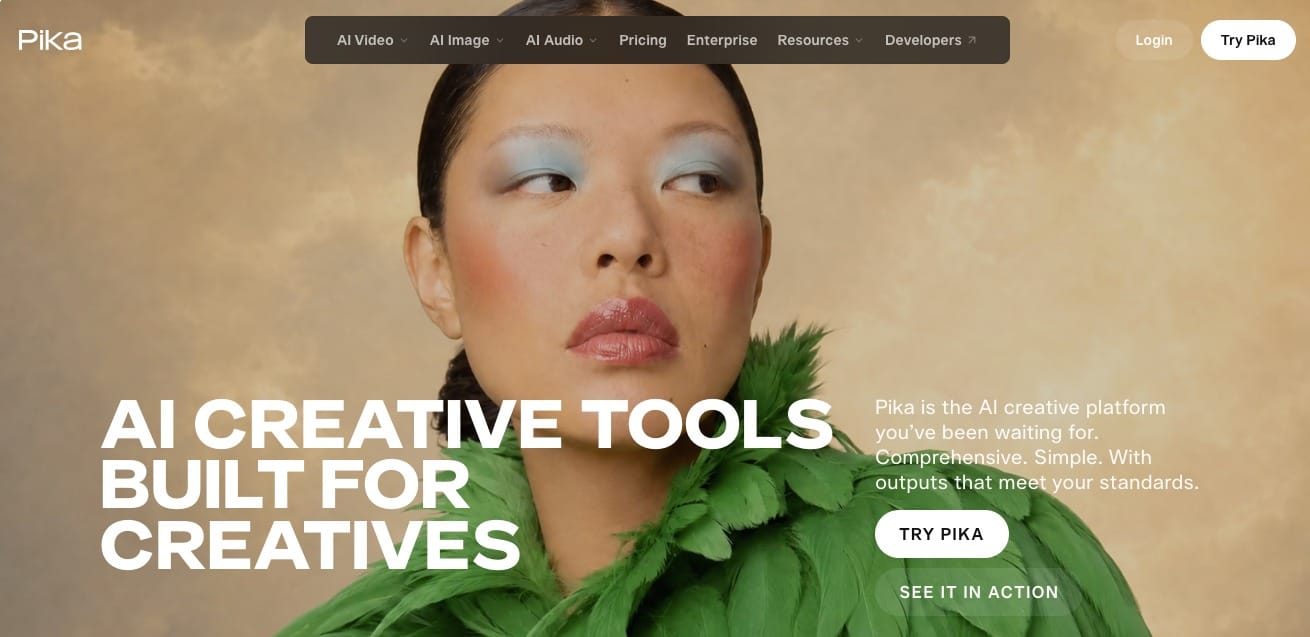
Best for: Creators who enjoy experimenting with visual effects and attention-grabbing short clips.
Pros:
- Designed around accessible AI video creation.
- Offers creative effects and stylized visual transformations.
- Useful for social content that needs a strong visual hook.
Cons:
- Highly specific creative ideas may take several attempts.
- Results can vary depending on the prompt and selected workflow.
Social media moves quickly. One moment, a video format is everywhere; the next, everyone has moved on to something involving a dancing sandwich.
Pika is worth exploring if your content relies on creative visual effects, playful transformations, or short clips designed to catch someone's attention while they scroll.
Rather than setting up a complicated production, you can experiment with AI-generated visuals and effects to explore ideas that might be difficult to film conventionally.
A creator could turn an ordinary scene into a surreal visual, experiment with unusual transformations, or create a short clip that gives a familiar object an unexpected twist.
This makes the tool appealing for entertainment content, visual experiments, and social posts where originality matters more than strict realism.
However, flashy effects aren't a substitute for a good idea. A video can look spectacular and still give viewers absolutely no reason to keep watching.
Start with a clear hook, then use the visual effects to support it. If you're creating content for a particular platform, also consider its preferred aspect ratio, video length, and audience expectations.
Pika is a useful option when you want to experiment quickly and give ordinary content a more imaginative presentation.
5. InVideo AI: Best for Turning Prompts Into Social Videos
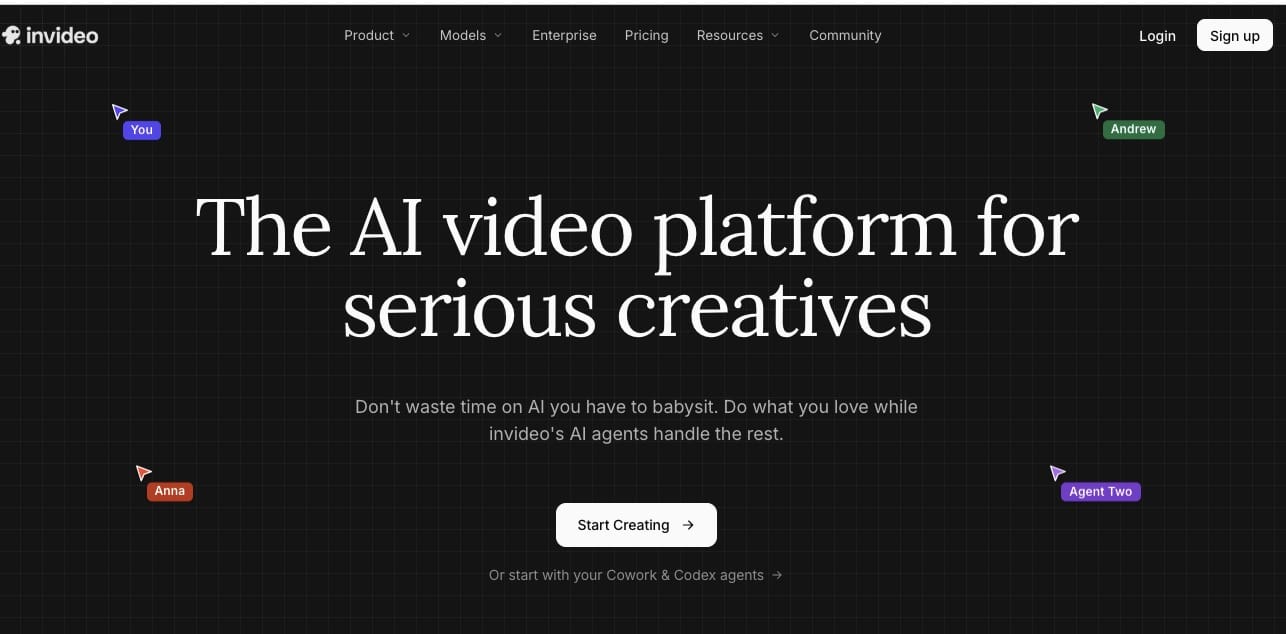
Best for: Creators who want to produce script-driven videos without assembling every element manually.
Pros:
- Helps turn text prompts into video drafts.
- Can combine scripts, stock visuals, voiceovers, and other elements.
- Useful for producing informational and faceless videos.
Cons:
- Automatically selected visuals may not always match the intended message.
- Generated videos can require substantial polishing.
Not everyone wants to spend an afternoon choosing B-roll for a 60-second explainer.
Sometimes, you just want to explain a topic, publish the video, and move on with your life.
InVideo AI helps simplify that process by using text prompts to create video drafts. Depending on the selected workflow, it can assemble scripts, visuals, voiceovers, text, and transitions into a starting point for further editing.
Imagine you run a YouTube channel about personal finance. You enter a prompt for a video explaining common budgeting mistakes. The tool can help develop the script and assemble relevant footage into a draft.
You then review the narrative, correct anything inaccurate, replace unsuitable visuals, and refine the presentation.
This approach can be especially useful for creators who publish frequently or produce educational content without appearing on camera.
It's also helpful when you're repurposing ideas into different formats. A topic that begins as a short script might become a longer explainer or a series of social media clips.
Still, automated assembly isn't the same as thoughtful editing. Stock footage can feel generic, and a technically correct video may lack personality.
Treat the first draft as a starting point. Add original insights, check factual claims, and make sure the visuals actually support what you're saying.
6. HeyGen: Best for Talking Avatars and Presenter Videos
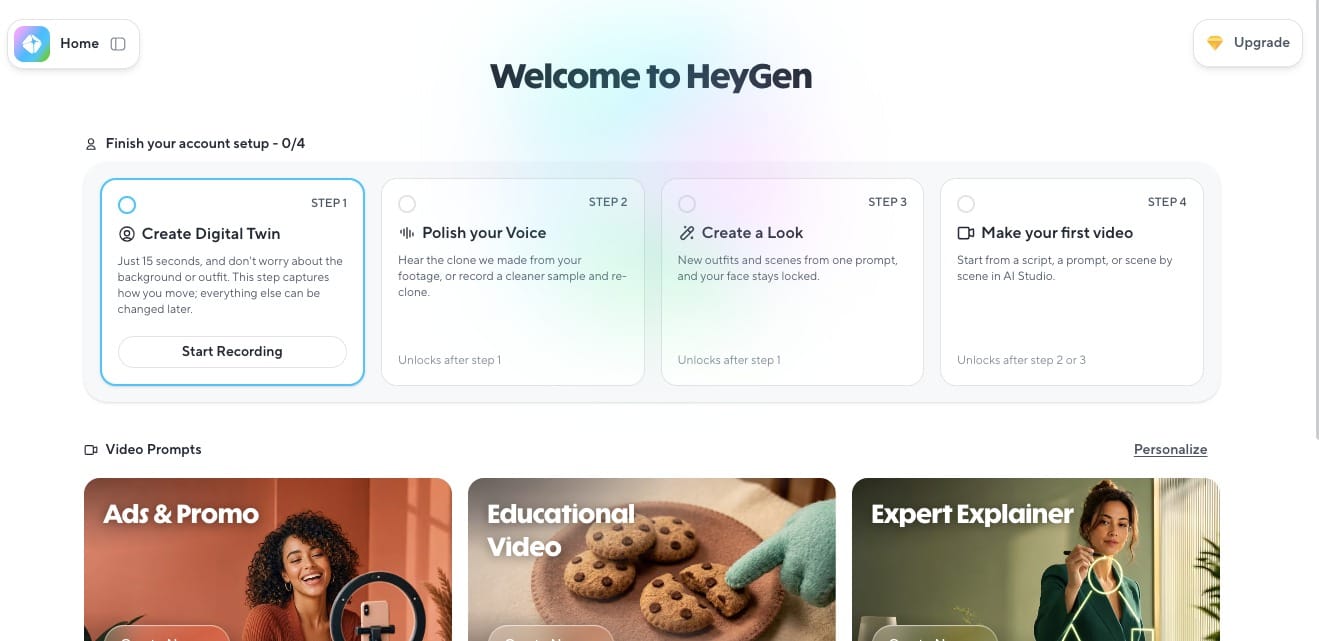
Best for: Creators and businesses producing presenter-led videos, explainers, and multilingual content.
Pros:
- Offers AI avatar and talking-presenter workflows.
- Useful for creating videos from scripts.
- Supports multilingual video production features.
Cons:
- Avatar movements and expressions may occasionally look artificial.
- Less suitable for every type of cinematic or action-focused content.
Not everyone enjoys being on camera. Some people love it. Others would rather reorganize their entire desktop than record one more take.
HeyGen provides an alternative through AI avatars and presenter-style video creation.
You can use an avatar-based workflow to present a script without filming yourself for every video. This can be useful for product explainers, training content, educational videos, and marketing materials that need a consistent presenter.
For example, a small business could create an introductory product video without arranging a filming session every time a feature changes. An educator could prepare versions of a presentation for different language audiences, depending on the available translation and voice features.
The workflow is generally straightforward: choose an avatar or relevant creation method, add your script, configure the available voice and presentation options, and generate the video.
Of course, AI presenters aren't perfect substitutes for real people. Subtle facial movements can look unnatural, and a convincing avatar still needs a well-written script.
There's also an important creative consideration: audiences may respond differently to synthetic presenters than to genuine personal storytelling.
HeyGen is worth considering when consistent, presenter-led communication is the priority. If your videos depend on spontaneous reactions, physical demonstrations, or an unmistakably personal style, filming yourself may still be the better choice.
7. OpusClip: Best for Turning Long Videos Into Short Clips
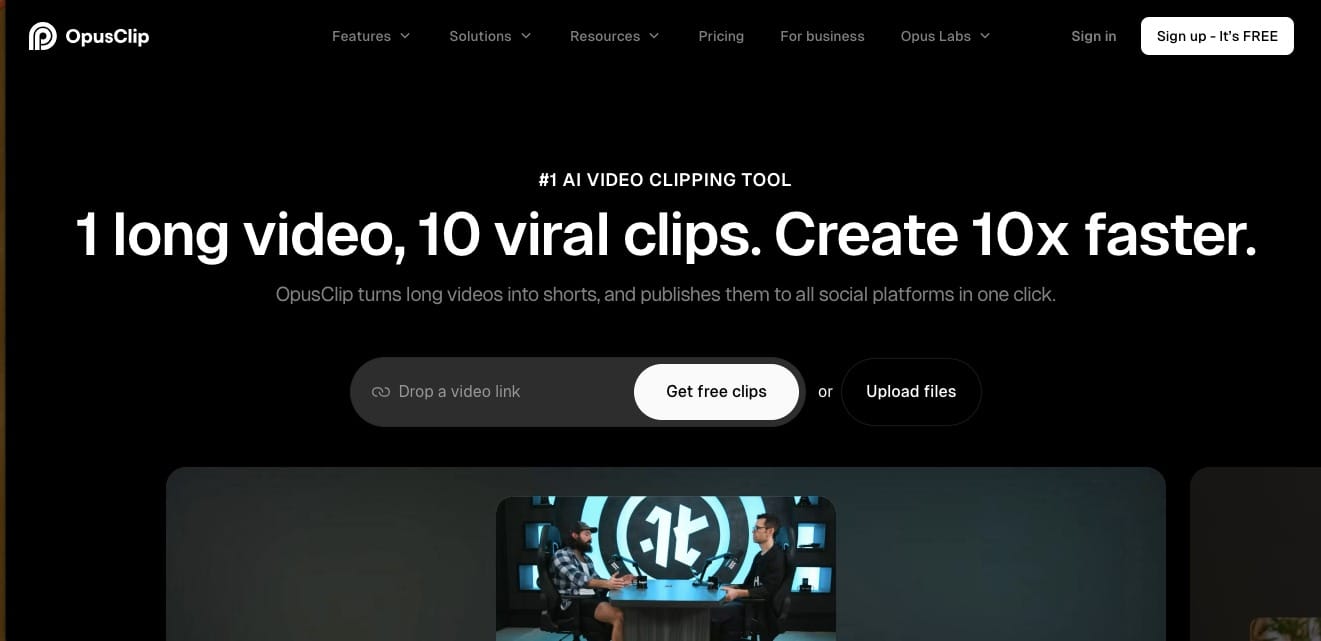
Best for: YouTubers, podcasters, educators, and marketers who already produce long-form content.
Pros:
- Helps identify potential highlights in longer videos.
- Can automate parts of short-clip creation and captioning.
- Useful for repurposing content across social platforms.
Cons:
- Automated clip selection may miss important context.
- Generated clips often need manual review and adjustments.
You've just recorded a 50-minute podcast. It contains excellent advice, a few hilarious moments, and one tangent about coffee that somehow lasts seven minutes.
Now you need short clips for TikTok, Instagram Reels, and YouTube Shorts.
Watching the entire recording again to find the best moments isn't exactly an exciting afternoon.
OpusClip helps creators turn long-form videos into shorter clips. Depending on the workflow, it can identify potential highlights, reframe footage, generate captions, and prepare clips for social media.
For podcasters and interview-based channels, this can make existing content go much further. One recording can become a collection of shorter videos rather than a single upload that disappears into the internet.
It's also useful for webinars, educational presentations, and marketing interviews.
However, a clip that looks engaging in isolation may lose important context. A sentence can sound completely different when separated from the conversation around it.
Always review the selected moments, check captions, and make sure each clip communicates a complete thought. If the opening takes 15 seconds to get interesting, consider trimming it.
OpusClip is different from a text-to-video generator: its main appeal is helping you repurpose content you've already created. If your workflow starts with long videos rather than blank prompts, that's a meaningful distinction.
How to Choose the Right AI Video Generator
The best tool isn't necessarily the one with the most features. It's the one that solves the problem you encounter most often.
Here's a quick way to narrow your options:
| Your main goal | Tool to explore |
|---|---|
| AI-assisted visual editing | MagicCanvas |
| Creative and cinematic video production | Runway |
| Animating images into video | Kling AI |
| Playful effects and visual transformations | Pika |
| Creating videos from scripts and prompts | InVideo AI |
| Producing presenter-led videos | HeyGen |
| Repurposing long videos into short clips | OpusClip |
Before paying for a subscription, test the tool with a real project. Check the output quality, available export options, generation limits, watermark policy, and pricing on the official website. Features and plans can change, so don't assume yesterday's free tier is still available today.
Also consider your entire workflow. A video generator might produce excellent footage but offer limited editing options. Another tool might generate less elaborate visuals but save time when preparing content for publication.
The goal is not to collect seven AI subscriptions. It's to find one or two tools that genuinely make your work easier.
Final Thoughts
AI video tools have made video production more accessible, but they haven't eliminated the need for creativity.
A good prompt still needs a good idea behind it. Generated footage still needs a purpose. And someone still has to decide whether the final video is worth watching.
For visual editing and a broader creative workflow, MagicEdit and MagicCanvas are worth exploring. For cinematic generation, consider Runway or Kling AI. If you create presenter-led content, HeyGen may fit better, while OpusClip is a practical option for repurposing existing recordings.
Start with your biggest production bottleneck. Test a tool, create something real, and see whether it saves enough time to justify adding it to your workflow.
Your next video doesn't need a Hollywood budget. It just needs a clear idea, the right tools, and preferably no mysterious extra fingers.
Ready to experiment with AI-powered creation and editing?
Explore MagicCanvas and see how its available tools fit your next creative project.