
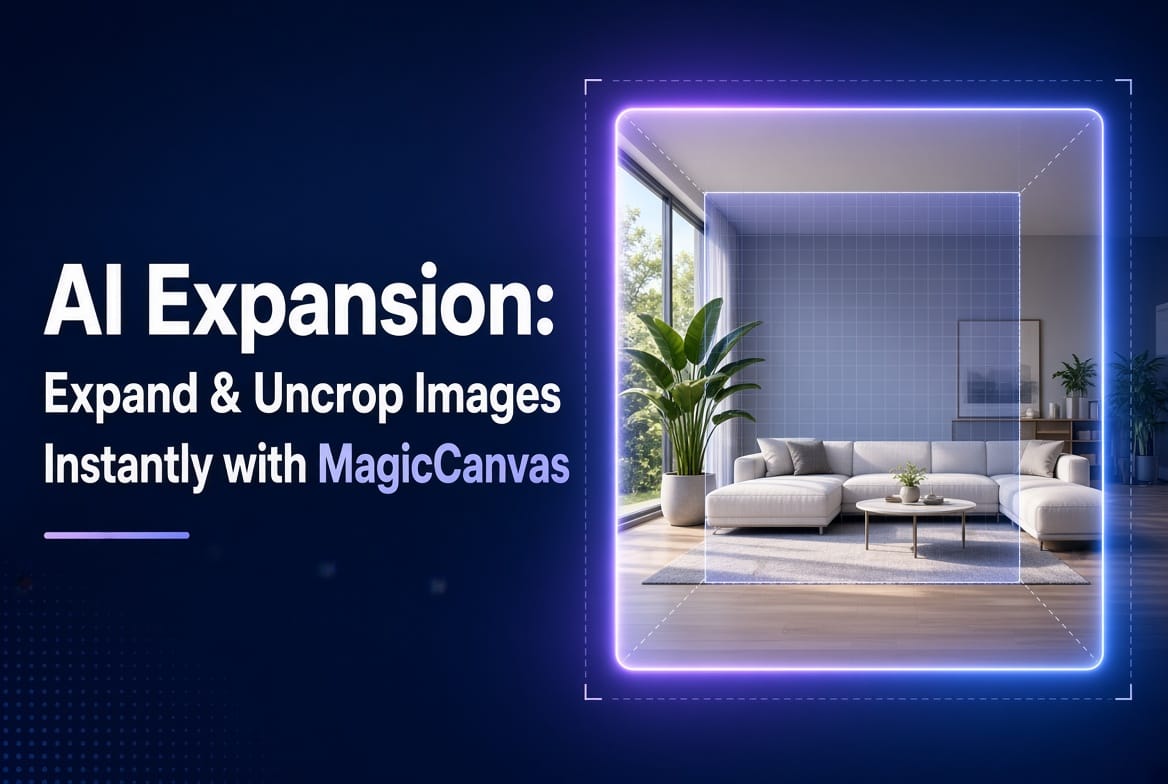
Need more space in a photo without reshooting or losing quality? AI Expansion (also called AI image expander, uncrop, or outpainting) lets you extend any image in any direction. Upload a photo, choose how far to expand the canvas, and AI fills in the missing parts so they match the original lighting, style, and details.MagicCanvas makes this process fast and precise. Whether you want to fix awkward cropping, turn a tight portrait into a wide banner, add room for text on product shots, or recover what was cut off the edge, the AI Expansion tool handles it in a few clicks.
Why AI Expansion Matters in 2026
Traditional cropping forces you to cut content. Stretching or simple resizing creates blur and distortion. Manual cloning or content-aware fill in older editors is slow and often looks artificial.AI Expansion solves this by analyzing the existing pixels and generating new content that continues the scene naturally. The result keeps the original subject sharp while the extended areas blend seamlessly.Common situations where this becomes essential:
- A vertical phone photo that needs to become a horizontal YouTube thumbnail or website banner
- Product images that feel too tight and need extra background space for promotional text
- Group photos where someone got partially cropped out
- Social media posts that must fit specific aspect ratios (1:1, 9:16, 16:9, 4:5)
- Interior or lifestyle shots that need a wider environment for storytelling
- Zoomed-in details that you want to pull back from without empty borders
In each case, the goal is the same: keep the important parts of the image and let AI intelligently complete the rest.
How AI Expansion Works on MagicCanvas
MagicCanvas combines several related capabilities under its expansion tools:
- AI Image Extender – Pushes the canvas outward in any direction and generates matching content
- AI Background Extender – Focuses on expanding clean or complex backgrounds while protecting the main subject
- AI Image Completion – Fills in missing or previously cropped areas
- AI Scene Expansion – Adds broader environmental context (for example, turning a close-up into a fuller scene)
The AI studies color, texture, lighting direction, and perspective from the original image. It then creates new pixels that feel consistent rather than pasted on. You can regenerate results if the first version is not perfect, giving you multiple options to choose from.
Step-by-Step: Expand an Image with AI on MagicCanvas
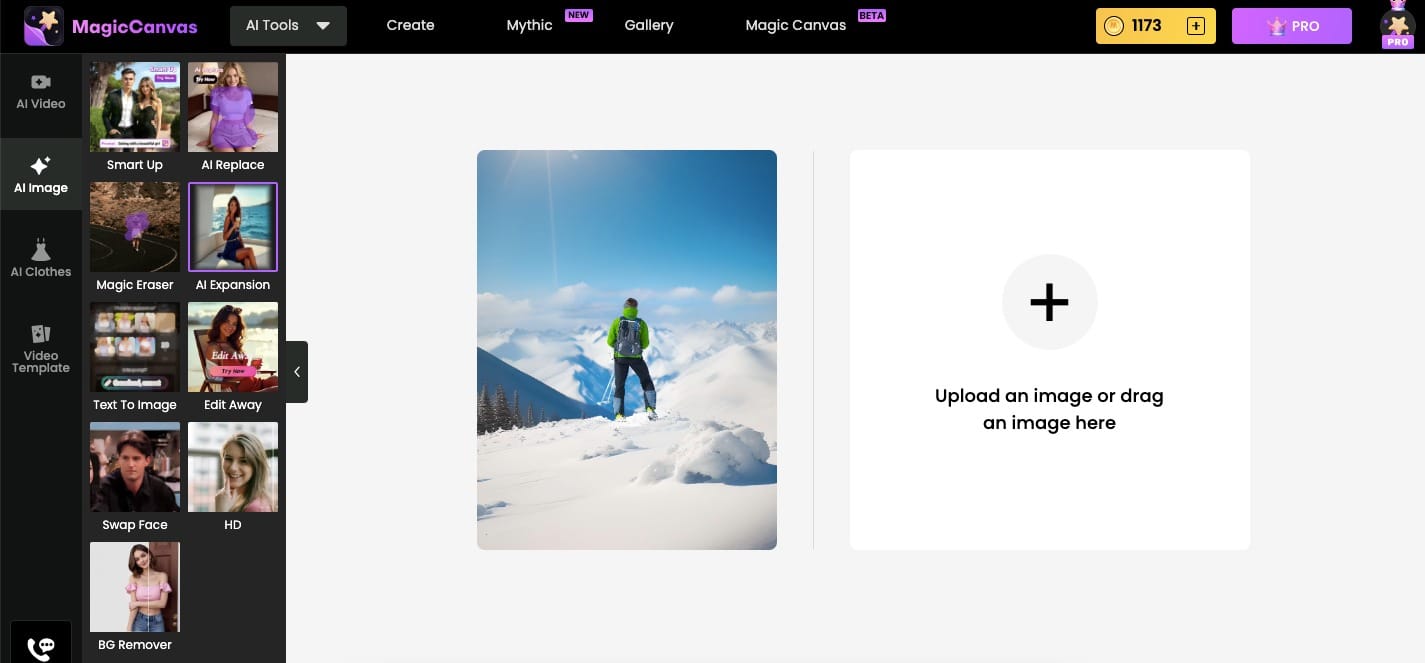
- Open MagicCanvas
Go to the platform in your browser. No heavy software install is required. - Upload your image
Drag and drop a JPG, PNG, or other supported file, or click to upload. The image appears on the canvas. - Select AI Expansion
Choose the AI Expansion (or Image Extender) tool from the AI Image tools panel. - Set the new canvas size or direction
Pick a preset aspect ratio (square, landscape, portrait, story, banner) or manually drag the edges to expand only the sides you need. You can also use freeform selection for precise control. - Generate
Click generate. In seconds the AI fills the new areas. Review the result. If needed, regenerate for alternative variations. - Refine and download
Make any extra adjustments with companion tools (Magic Eraser, AI Replace, upscale, etc.), then download the high-resolution version.
The whole process is designed to stay inside one workspace so you can move from expansion to other edits without switching apps.
Real-World Use Cases
Social media & content creators
Convert a vertical selfie or product shot into a horizontal cover image or carousel-friendly size without losing the subject. Add breathing room around the main element so text and stickers sit cleanly.
E-commerce & product photography
Many marketplace and ad formats demand specific dimensions. Instead of reshooting, expand the background of an existing product photo to create space for badges, prices, or lifestyle context while keeping the product sharp and centered.
Marketing & design teams
Turn a tightly framed photo into a full-bleed website hero, presentation slide, or print banner. The AI matches existing lighting and style so the expanded areas do not look like obvious additions.
Personal photos & recovery
Recover parts of a photo that were accidentally cropped. Expand a close-up portrait to show more of the environment, or fix a group shot where someone was cut off at the edge.
Interior and lifestyle imagery
Take a detail shot of a room or object and expand it into a wider scene that feels intentional and cinematic.
What Makes MagicCanvas Expansion Effective
- Style and lighting consistency – New content follows the original image’s color grade, shadows, and textures.
- Subject protection – The main person or product stays intact while only the surrounding area is generated.
- Multiple variations – Generate again to explore different completions of the same expansion.
- Workflow integration – Expansion sits alongside other AI tools (object removal, face swap, background replace, upscaling, video tools) on the same canvas.
- Browser-based speed – No large downloads or complex desktop software required.
These points address the most common complaints about early AI expand tools: unnatural edges, style mismatch, and slow iteration.
Tips for Better Expansion Results
- Start with the highest-resolution original you have. More detail gives the AI better information to continue.
- Expand gradually when possible. Extreme expansions in one step can sometimes produce less coherent results than moderate ones.
- Use clear subjects. Photos with a distinct main element and reasonably consistent background expand more cleanly.
- After expansion, check edges and regenerate if any area looks repetitive or off.
- Combine with other tools: expand first, then use Magic Eraser or AI Replace for fine cleanup if needed.
Start Expanding Images Today
Awkward framing and rigid aspect ratios no longer have to limit your visuals. With AI Expansion on MagicCanvas you can uncrop, extend backgrounds, and complete scenes in seconds while preserving the quality and style of the original photo.Upload an image, choose how far to expand, and generate. The missing parts appear as if they were always there. Try it on your next social post, product shot, or design project and see how much more flexible your existing photos become.
Frequently Asked Questions
What is AI Expansion / AI image expander?
It is a generative AI feature that extends an image beyond its original borders by creating new, matching content. It is also called uncrop, outpainting, or AI image completion.
Does AI Expansion reduce image quality?
No. The original pixels remain unchanged. Only the newly generated areas are created by AI. You can further upscale the final result if higher resolution is required.
Can I expand in only one direction?
Yes. You can drag a single edge or corner, or choose a preset that expands mainly left/right or top/bottom.
What file types are supported?
Common formats such as JPG and PNG are supported. Check the upload area for the latest limits on size and resolution.
Is the expanded content realistic?
Modern models produce highly coherent results that match lighting, perspective, and style in most everyday photos. Complex or highly detailed scenes may need a regenerate or light manual touch-up.
Do I need design experience?
No. The interface is built for quick use: upload, set the new size, generate, download.
Can I use the expanded images commercially?
Review the platform’s current terms for commercial usage rights on generated content. Most standard creative and marketing uses are supported.
How is this different from simple resizing or cropping?
Resizing stretches or shrinks existing pixels and often lowers quality. Cropping removes content. AI Expansion adds new content so the image can grow while keeping the important parts intact and sharp.