
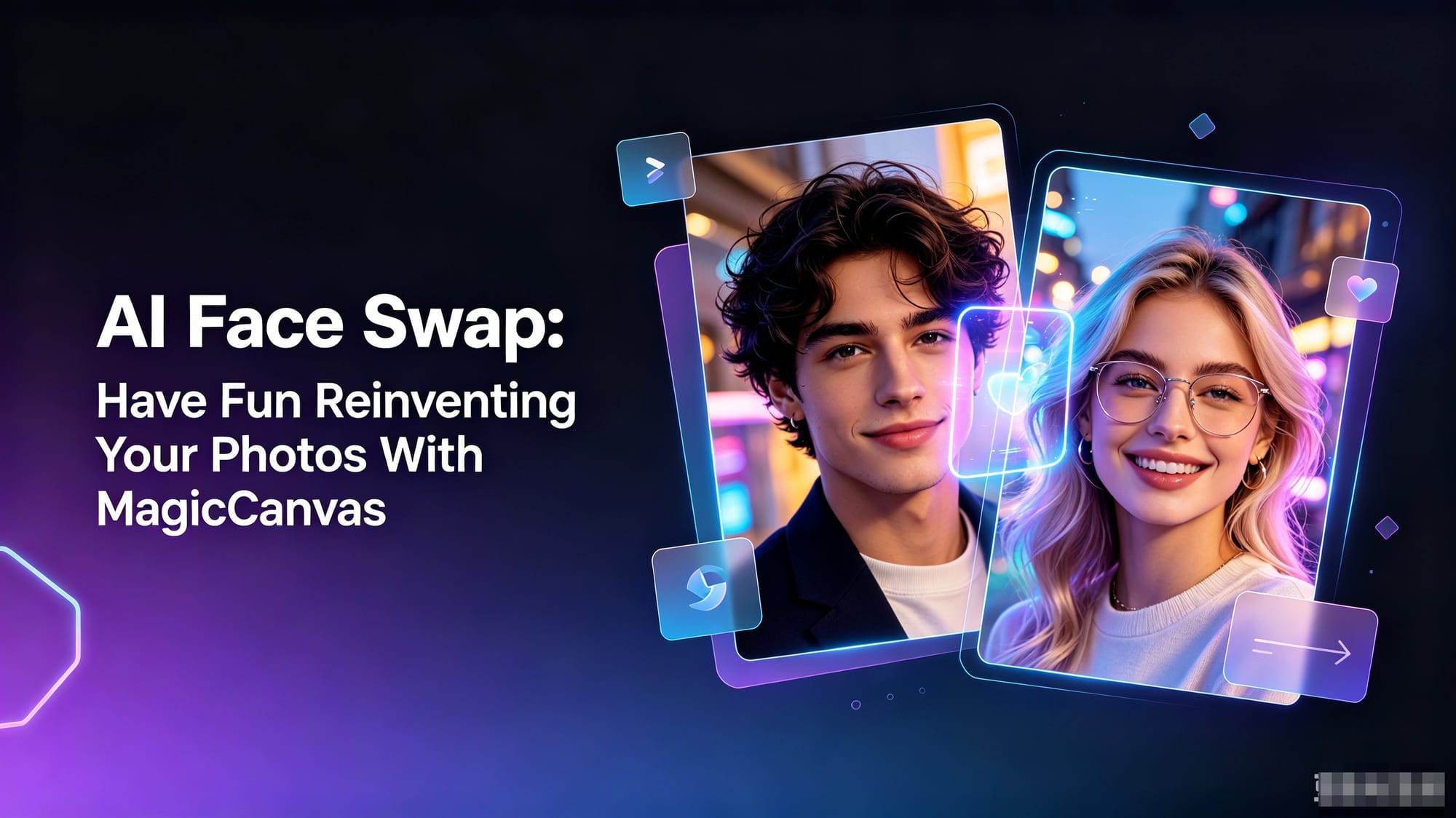
If you’ve ever sat scrolling social media and thought, “Man, I wish I could drop my face right into that iconic TV scene”, I’ve got fantastic news for you.AI face‑swap tools have exploded across TikTok, Instagram and Reels. But after testing dozens of options, most leave me frustrated: distorted uncanny‑valley faces, clunky workflows, intrusive watermarks, and paywalls that lock your final result before you can even save it.Recently I’ve been playing with MagicCanvas’s built‑in AI face swap, and it completely changed my experience messing around with photo edits. In this post, I’ll break down what it does, real‑world use cases, step‑by‑step workflow, how it stacks up against other tools, creative ideas, and important responsible‑use notes.
What Is AI Face Swap, And Why Most Tools Fall Short
At its core, face swap ai does one simple thing: take a face from one photo and seamlessly place it onto a person in another image. Sounds easy, right?In practice, most tools miss the mark. I’ve lost hours on outputs plagued by:
- Mismatched lighting and skin tones, making the new face look like a cheap sticker pasted on top
- Wonky eyes, smudged skin, and weird distorted facial features
- Confusing multi‑step workflows, desktop downloads, or heavy editing learning curves
- Forced watermarks or hidden fees just to export your picture
Lots of platforms promise instant magic, yet they force you to jump through hoops to get a usable shot. That’s exactly why MagicCanvas’s face swap feature stood out to me. It runs fully in‑browser, no software installs, and prioritizes natural‑looking blending with minimal manual tweaking.
Cool Things You Can Build With MagicCanvas AI Face Swap
This isn’t just a one‑trick meme generator. I’ve found plenty of practical and playful ways to use the feature.
🎉 Make scroll‑stopping social media content & memes
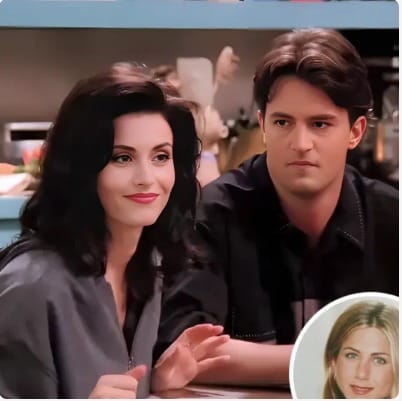
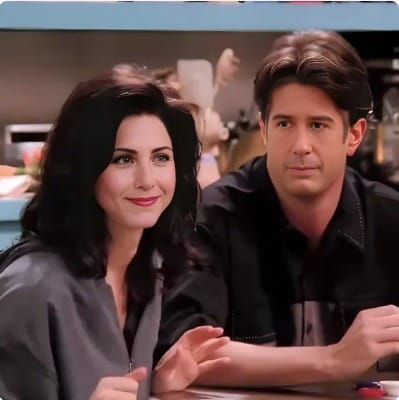
This is where face swap really shines. Drop your face into classic TV and movie screenshots — think that famous Friends coffee shop scene, blockbuster movie stills, viral trend templates. Swap faces with your friends for silly birthday memes, or even mess around with pet‑human swaps to blow up your group chat.Jump on viral social trends, test wild virtual hairstyles or fantasy outfits you would never wear IRL. Everything you make is ready to export and share straight to your feed.
Before
After
📸 Rescue your ruined great photos
We’ve all had this happen: you nail the perfect pose, background, and group composition — but your face comes out blurry, eyes half‑closed, or oddly distorted.Instead of deleting the whole picture, use face swap. Drop in a crisp, high‑quality face from another selfie or good portrait shot. You keep the original body, pose, and background, and swap in a sharp, clear face.No Photoshop masking, no manual layer blending. The AI handles all the heavy lifting. It’s perfect for polishing profile pictures, Instagram posts, and precious personal snapshots that would otherwise go to waste.
✨ Craft unique, eye‑catching profile avatars
Tired of boring, repetitive headshots across all your social accounts?Swap your face onto celebrity portraits, stylized character art, or cool stock‑photo portraits. You get a one‑of‑a‑kind profile icon without booking a photoshoot. For online creators, this is a fast way to build a memorable, bold visual identity.
Step‑by‑Step: How To Do Face Swap Inside MagicCanvas
The best part? The workflow is refreshingly simple. No confusing sliders, no endless settings. Here is exactly how I run my swaps:
- Upload your base target image Open MagicCanvas, upload the photo you want to modify. This is the picture with the body/scene where your new face will appear — TV screenshots, stock photos, group shots, anything works. The tool will automatically detect and mark the face region on your image.
- Upload your source face photo Head to the right‑side panel and click Upload Face Image. Pick the photo containing the face you want to paste over. It can be your selfie, a friend’s clear portrait, any well‑lit front‑facing face shot.
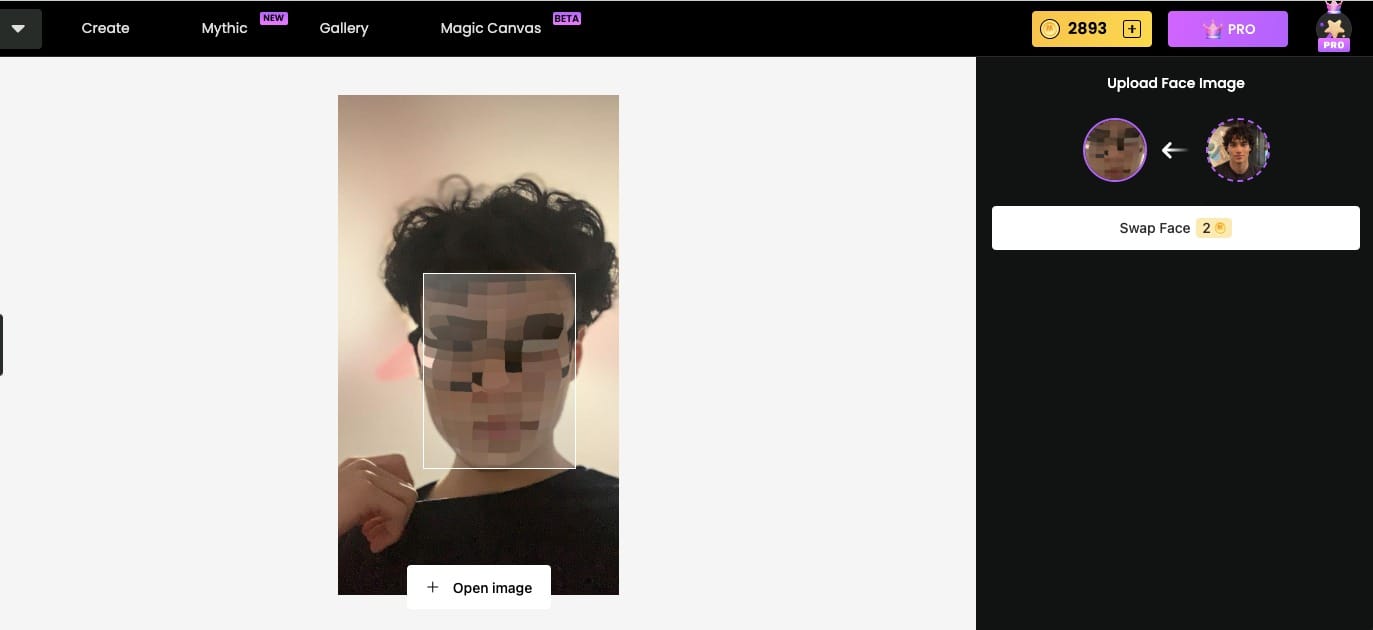
3.Run the swap Hit the Swap Face button. It uses a small amount of MagicCanvas in‑platform coins, then the AI kicks in. It automatically adjusts lighting, skin tone, perspective and colour grading to blend the new face naturally into the original image.
- Preview and download Check your output. If you are happy with the result, hit download, and your finished swapped image is ready to save, share or send.
That’s it. Four quick steps, and you’re done.
How MagicCanvas Compares To Other Popular Face‑Swap Tools
I’ve tested Canva and Pixlr, two big names in online AI editing, so let’s draw a quick real‑world comparison:
- MagicCanvas: Everything lives inside one clean web UI. The standout strength is automatic lighting & colour matching. Faces don’t look tacked‑on; they merge smoothly with the original photo’s shadows and highlights. Plus face swap sits alongside the platform’s other AI creative tools.
- Canva Face Swap: Great for quick social templates, but blending quality is hit‑or‑miss. Lighting and skin tone often mismatch, giving an obvious edited look.
- Pixlr AI Face Swap: Produces solid realistic results, but its dense editing interface can feel overwhelming if you’re not already familiar with photo‑editing software.
One huge bonus: face swap is not the only trick MagicCanvas has up its sleeve. Right inside the same workspace you get Mythic AI video generation, MagicCanvas image editing, gallery asset storage and more. I can finish a face‑swap edit, then turn that exact same image into an AI video, without opening half‑a‑dozen separate websites. That all‑in‑one workflow saves me tons of jumping between different AI tools.
Creative Ideas To Try Out
Stuck for inspiration? Give these a spin:
- Plop yourself into iconic vintage movie and TV scenes
- Make hilarious birthday memes by swapping faces with your friends
- Fix blurry or messed‑up faces from otherwise perfect photos
- Generate totally unique profile avatars for your social channels
- Test bold hairstyles and outfits without buying anything
- Make goofy pet‑human swap images for your group chats
Important Note: Use AI Face Swap Responsibly
As much fun as this tool is, a quick reality check matters. Only swap faces using your own likeness or faces from people who have given you clear, explicit permission. Never create misleading, harmful, or non‑consensual content. Play around, get silly, but always respect other people’s privacy and image rights.
Final Thoughts
If you’ve wanted to test ai face swap but got burned by janky outputs, complicated workflows, or annoying paywalls, MagicCanvas is well worth trying.You don’t need professional editing skills or fancy hardware. Grab two photos, upload them, hit swap face, and let the AI handle the hard work.Whether you’re chasing viral social content, salvaging precious photos, building fun avatars, or just messing around for a laugh — face swap opens up so many fun creative possibilities. Go give it a shot and see what wild images you can cook up.
FAQ
Q1: What is MagicCanvas AI face swap?
A: MagicCanvas AI face swap is an in‑browser face swap ai tool built into the MagicCanvas platform. It lets you take a face from one photo and seamlessly blend it onto another person in a target image. No desktop software or complicated photo‑editing skills required. Just upload two images, run the swap, and download your finished picture.
Q2: What image formats work for face swap? Are there any photo tips for best results?
A: Standard image formats like JPG and PNG are supported. For the most natural‑looking swap result, use front‑facing, well‑lit face photos. Try to avoid heavy shadows, side profiles, or heavily obscured faces. Matching the angle of your source face photo to your target image will greatly improve output quality.
Q3: Does MagicCanvas face swap cost money?
A: The face swap feature consumes small amounts of MagicCanvas in‑platform coins every time you run Swap Face. You can view your current coin balance on the top‑right corner of the interface. No hidden fees or forced watermarks on your exported swapped images.
Q4: Can I use face swap outputs for my social‑media posts?
A: Yes. Generated images are yours to use for personal social‑media content, memes, profile avatars and creative projects. Important reminder: Only swap faces of yourself or people who have given you explicit permission to use their likeness. Never create non‑consensual or misleading content.
Q5: What if my face‑swap result looks unnatural or distorted?
A: Uncanny, distorted outputs usually come from mismatched face angles, bad lighting, or partially covered faces. Try re‑uploading a clear, front‑on source face shot that better matches the head angle of your base target image. Retrigger the swap for a new generation.
Q6: Do I need to switch websites to use other MagicCanvas AI tools after face swap?
A: No. Everything lives on one platform. After finishing your face swap, you can keep working with Mythic AI video generation, MagicCanvas image editing and gallery storage without opening extra tabs or third‑party tools. You can even turn your swapped photo into an AI video directly.