

I’ve made enough AI videos to know that “one more generation” is usually a lie.You start with a solid idea. You write what feels like a reasonable prompt. You hit Generate.Thirty seconds later, your character has a different face, your product has grown three extra buttons, the camera has developed free will, and someone in the background is casually walking through a wall.Beautiful.AI video is magical right up until it isn’t.That’s why Seedance 2.5 caught my attention.Not simply because it can make prettier videos or longer clips. The more interesting part is the direction AI video is moving toward: from generating isolated clips to actually directing scenes.
If you wanna try out Seedance 2.5, click the button below:
What Is Seedance 2.5?
Seedance 2.5 is ByteDance’s latest AI video model, officially launched in July 2026. It is currently available on Jimeng AI, Dreamina, Doubao Pro, and via API.The model can generate a full 30-second coherent scene in a single pass — with multi-shot storytelling, consistent characters and products, controlled camera movement, and synchronized sound. It also supports multi-round extension, professional-level local editing, and native generation in more than 10 languages.Official project page: https://seed.bytedance.com/seedance2_5
Comparison: Seedance 2.5 vs Other Models
| Capability | Seedance 2.0 | Seedance 2.5 | Typical Other Models (Kling / Veo class) |
| Max native clip length | ~15 seconds | 30 seconds (single pass) | Usually 5–15 seconds |
| Reference inputs | Up to ~12 | Up to 50 (images + video + audio) | Significantly lower |
| Local / region editing | Re-generate whole clip | Redraw just that part | Limited or none |
| Video extension | Basic | Professional multi-round extension | Limited |
| Multilingual support | Limited | 10+ languages natively | Varies |
| Prompt adherence & control | Baseline | Stronger instruction following | Varies |
| Realism (light, performance, camera) | Good | Closer to real filming | Mixed |
Seedance 2.5 pushes video generation into a more industrial stage defined by longer narrative, stronger reference control, precise editing, and multi-language support.
Quality Improvements
The upgrades that matter most are not just longer duration, but better control and realism:
3.1 Light
Light direction stays highly consistent, and light falloff feels more delicate and natural — closer to real cinematography than previous versions.Check the video made in 2.0 and 2.5 and feel the differences
3.2 Camera Movement
Classic moves (push, pull, pan, tilt) are smoother. Complex combination moves (follow + rise + rotate) can now be executed with far less shaking, frame jumps, or path drift.
3.3 Performance / Expression
The model better understands a character’s emotional position in the story. Micro-expressions — a slight eye tremor, a soft press of the lips — appear more complete and natural.
3.4 Emotional Impact
Skin texture, hair gloss, and subtle facial movements feel closer to the real world. Emotional scenes gain stronger atmosphere and immersion.These improvements make the difference between “a nice-looking clip” and something that can actually support professional storytelling.
Use Cases
Stronger Model, More Creative Possibilities
Dreamina‑Seedance‑2.5 expands real‑world video‑production workflows with powerful multimodal reference support and native in‑video editing. Instead of purely text‑driven generation, it enables reference‑based creation, on‑clip adjustments, asset reuse, and cross‑market localization, greatly reducing manual post‑production overhead across multiple industries.
Film & Content Creation
Tailored for narrative creators, the model removes many traditional production bottlenecks. It delivers full 30‑second finished sequences in a single generation pass, preserving long‑take continuity, character appearances and camera language throughout. It also supports atmospheric concept short films and high‑fidelity 3D‑model storyboard pre‑visualization, locking in camera choreography and spatial relationships from reference inputs.Key creative capabilities:
- Multi‑character ensemble scenes: import multiple performer and environment references, maintain stable character identities across the full shot
- Motion transfer: map real‑world physical performances onto entirely new characters
- In‑place video adjustments: restyle visuals, relight entire scenes, modify actor expressions or apparent age
- Footage extension: turn short source clips into complete longer sequences
- Global‑ready delivery: derive multi‑lingual trailer variants from one master video asset
Advertising & E‑commerce
For brands and e‑commerce teams, the biggest advantage lies in reusable video assets. You can generate live‑action‑grade 30‑second brand spots as well as stylized 3D animated product commercials, with consistent product rendering across multiple scenes.Highlighted use‑case highlights:
- Repurpose successful viral video templates: retain original camera rhythm while swapping products, talent and backgrounds via multimodal references
- Batch‑generate videos for large SKU portfolios, reusing fixed scene layouts and camera work
- Cross‑border marketing outputs: multi‑lingual voice‑overs, localized visuals for overseas markets
- Practical product demos and interior / home‑lifestyle showcase clips
Knowledge & Education
Seedance‑2.5 turns abstract, hard‑to‑visualize ideas into approachable video explainers. It builds compact 30‑second clips for scientific principles, reconstructs historical and cultural scenes, and produces stylized course openers and step‑by‑step experiment demos.
- Visual structural breakdowns to illustrate complex mechanics and theories
- Multi‑lingual narrated content for museum guides, online courses and public education
Industrial & Manufacturing
This model supports both external‑facing visualization and internal technical‑material generation.
- Immersive first‑person drone flight footage, 3D‑driven assembly‑flow demos
- Robot‑interaction simulation clips
- Synthetic training‑data generation for robot simulation workflows
- Standardized SOP and equipment‑maintenance instructional videos
Diverse Creative Scenarios
Beyond mainstream verticals, it opens flexible creative possibilities for entertainment projects:
- Virtual‑idol / digital‑human performances, real‑person‑to‑IP‑character crossover content
- Dance motion transfer, stylized fan edits, holiday‑themed event videos
- Game CG and trailer‑style long‑form narratives; expand short clips into serialized content
Full Step‑by‑Step Guide to MagicCanvas Mythic (Seedance 2.5)
MagicCanvas Mythic delivers high‑quality video generation powered by strong semantic understanding and multimodal reasoning. Unlike basic video models, Mythic supports explicit image/video/audio references, on‑screen text rendering, and fine‑grained in‑video editing. This step‑by‑step guide walks you through core prompting rules, reusable prompt patterns, reference workflows, and video‑editing syntax directly from the official Mythic Prompt Guide.
Quick model glossary:
i2v‑*: Image‑to‑Video modelsquality / fast / mini: Seedance 2.0 variants2.5: Seedance 2.5 — improved character consistency, timeline control, longer clips, robust multi‑reference handling
3 Core Ground Rules (Official Quick Tips)
- Start with the core: Define subject + motion first. Add environment, camera, aesthetic, audio afterwards for stable outputs.
- Name every reference explicitly: Always label assets as
Image 1,Image 2,Video 1. Avoid vague phrases like “the one above”, “previous picture”. - For editing: define location first: When editing existing clips, specify timing / video portion before you describe what to add, remove or replace.
Step 1: Master the Basic Text Prompt Formula
Mythic follows natural‑language prompting structure. Combine components as needed.plaintext
Subject + Motion + Environment (Optional) + Camera / Shot + Audio (Optional) + Aesthetic Description (Optional)
- Subject + Motion: Foundation of your prompt. Tells the model who/what is acting and what action is performed.
- Environment + Aesthetics: Set scene, lighting, visual tone for the shot.
- Camera + Audio: Advanced layer; add camera movement and sound design for tighter audiovisual coordination.
✅ Good base example:
A young woman walks slowly through autumn forest, golden hour soft sunlight, slow tracking shot, warm cinematic color grade
❌ Bad example (reference mistake):
Make this character run fast, use the picture above for her look (vague reference name)
Good advanced example for:
Realistic nature documentary style, natural lighting and shadows. On a warm afternoon on a grassy forest slope, a chubby fluffy black‑and‑white panda cub with small round body clumsily rolls sideways down the grassy hillside, bending grass underneath. It rolls toward lower‑right frame and gradually comes to rest, shifting from side‑lying onto its belly, round face turning toward camera, front paws pressing into grass. It settles comfortably in foreground grass, bobbing its head gently and making soft humming sounds. Scene covered with grass, moss, clover, soil, small stones, dry branches and tiny yellow flowers, tall tree trunks and dense woods softly blurred in background. Low‑angle medium‑wide shot, slight handheld feel, stable framing always keeping panda in view, subtle camera follow‑movement toward lower right. Natural depth of field: slightly blurred foreground grass, sharp focus on panda, soft out‑of‑focus background forest. Natural environmental audio: wind, grass rustle, soft rolling plop sound. Warm, realistic, natural atmosphere.
Step 2: Use Multimodal References Correctly
Mythic supports references from image, audio, video. The model extracts key traits from your uploaded assets and merges them with text prompts. Always use explicit naming syntax.Standard reference syntax templates:plaintext
the framing should follow Image 1
the movement should follow Video 2
extract / combine subject from Image 1, Image 2, keep subject features consistent
reference the motion from Video 1, preserve the motion details
reference the camera movement from Video 1, preserve the camera behavior
Upload assets in sequence if order matters, then call them Image 1, Image 2, Video 1 in prompt text.
2.1 Multi‑Angle Subject Reference (Character / Product Consistency)
Use multiple reference images of the same subject (different angles/views) to lock appearance across video frames.Common pattern:
Reference / extract / combine the subject from Image n, generate the described shot, and keep the subject features consistent.
Product example prompt
Extract the camera from Image 1, Image 2, and Image 3. Place it on a clean white table against a white background. Start with a close‑up, then slowly rotate around the camera to clearly reveal the front, side, and back views.
Character example prompt
Reference the woman in Image 1, Image 2, and Image 3, and generate a scene of her sitting in a café while keeping her identity and features consistent across the shot.
2.2 Multi‑Image Reference (Logo / Multiple Subjects / Storyboard)
Apply for logo assets, multiple subjects, design elements, multi‑panel comic storyboards.Common pattern:
Reference / extract / combine / follow the target elements from Image n, generate the described shot, and keep those elements consistent.
Use‑case coverage:
- Logo reference
- Multiple independent subjects
- Mixed design‑element reference
- Multi‑panel storyboard / comic‑panel reference
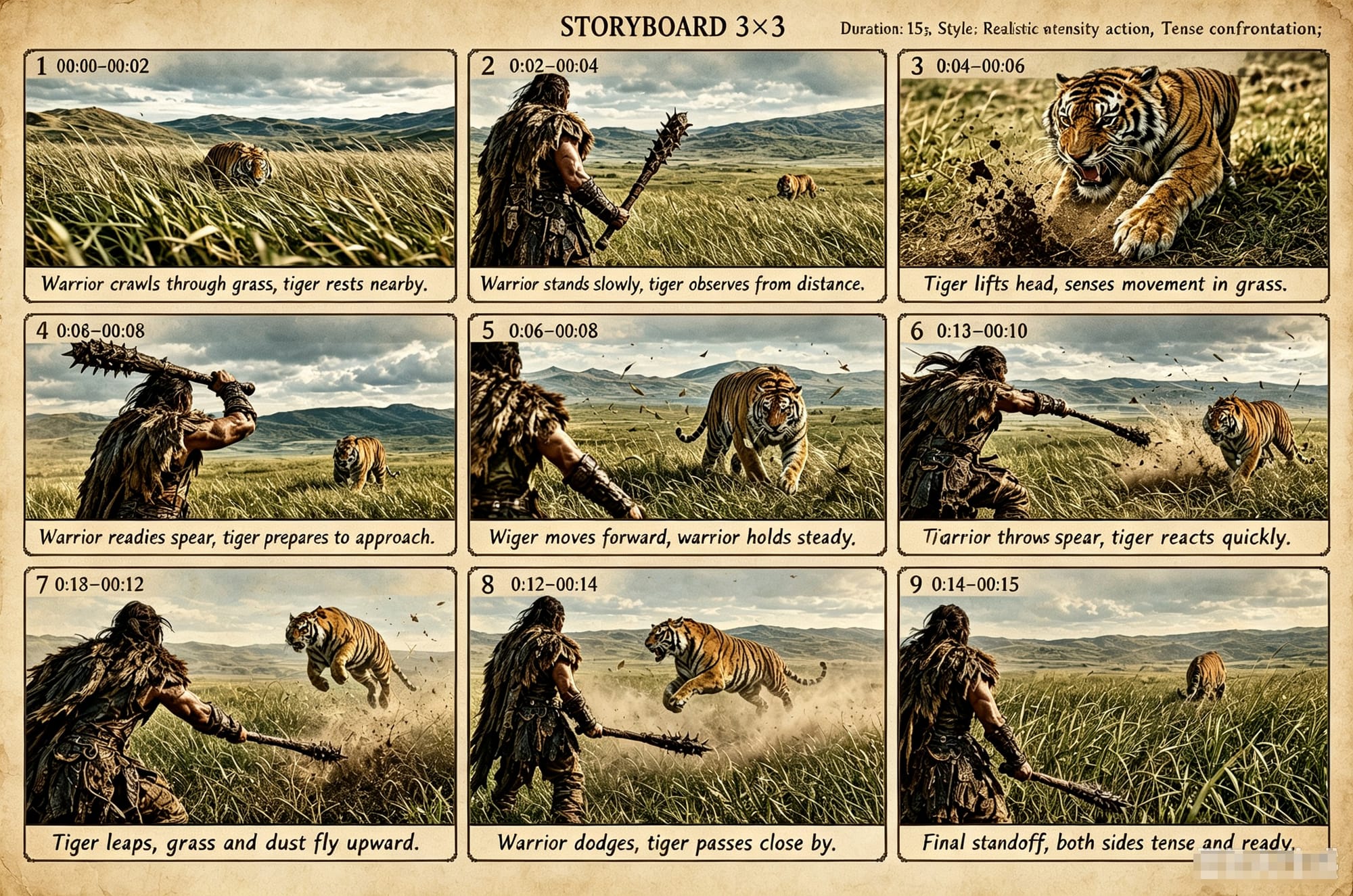
Avoid using too many panels: Multi-panel storyboards are currently better suited for 15 panels or fewer . Too many panels in a single input, such as an 18-panel storyboard, can lead to still frames or incorrect sequence order. Storyboards also constrain the model's creative output, so make sure the storyboard is accurate and logically structured.
Avoid noisy or over-sharpened storyboards: Do not use cluttered, over-sharpened AI-generated storyboards directly, and avoid adding too much text to the storyboard image.
Examples of unsuitable multi-panel storyboards:
2.3 Video Reference (Motion Reference & Camera Reference)
Two major video‑reference patterns:
- Motion Reference: Reuse action / movement from reference video
Pattern: Reference the motion from Video n, generate the described shot, and preserve the motion details.
- Camera Reference: Reuse camera movement language from reference video
Pattern: Reference the camera movement from Video n, generate the described shot, and preserve the camera behavior.
Upload clips in sequence, address them as Video 1, Video 2 inside prompt.
Step 3: Generate On‑Screen Text (Slogan / Subtitles / Speech Bubble)
Mythic supports native text rendering for T2V, I2V, R2V, V2V workflows.
Best‑practice note: Use common characters. Avoid obscure glyphs or special symbols.
3.1 Slogan
General formula:"Text content" + "timing" + "position" + "entrance behavior", text styling such as color or visual styleSample:
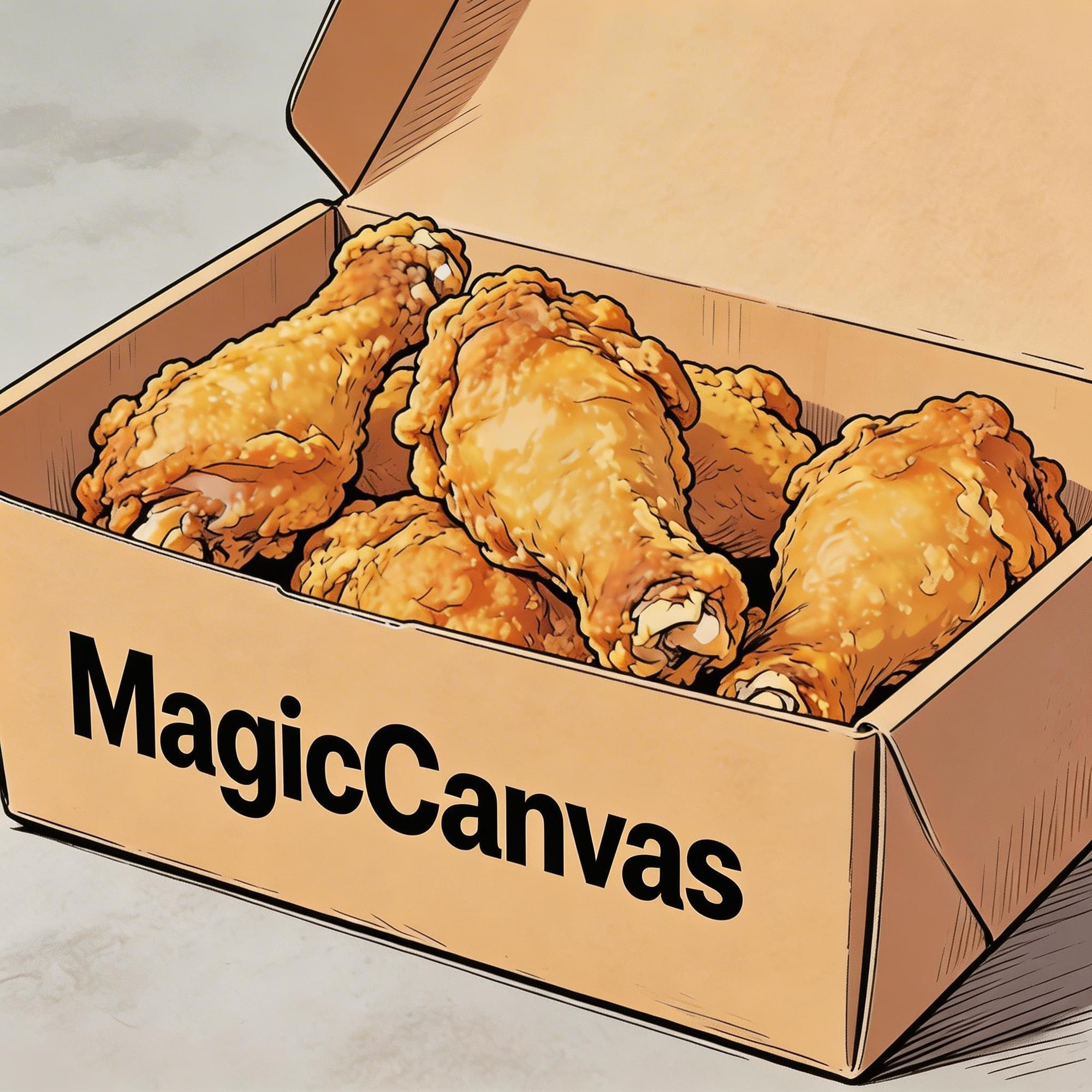
Illustrated comic style output. Three people sit together eating fried chicken from Image 1 in a warm and cheerful mood. As the scene gradually blurs, the text "Joy Lives in MagicCanvas" appears in the center of the frame.
3.2 Subtitles: Voice‑over & Dialogue
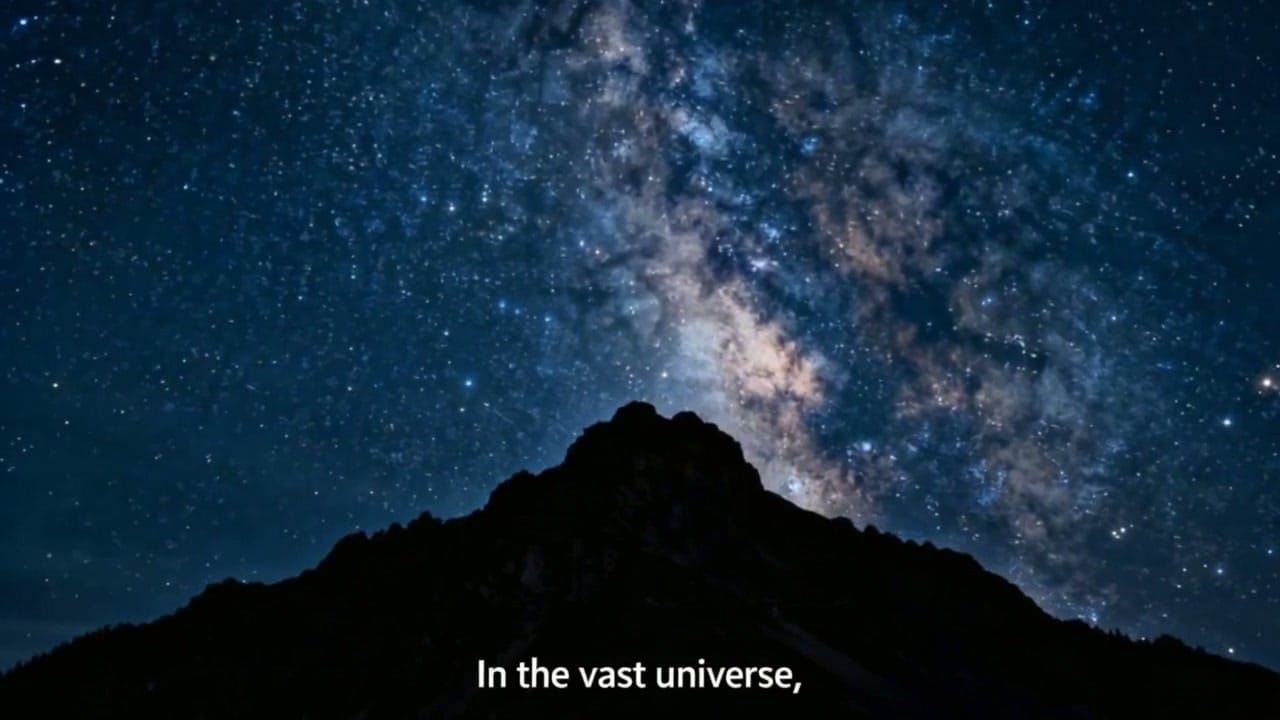
Base rule: Subtitles sit at frame bottom, must synchronize with audio rhythm.Voice‑over template
Generate a video with voice‑over narration. A deep, calm male voice says: "In the vast universe, our world is only a brief instant. Yet within it, life continues to flourish against all odds." The scene should slowly transition from night to dawn as stars fade away and the sun rises behind the mountains. Subtitles matching the narration should appear at the bottom of the frame.
Dialogue template
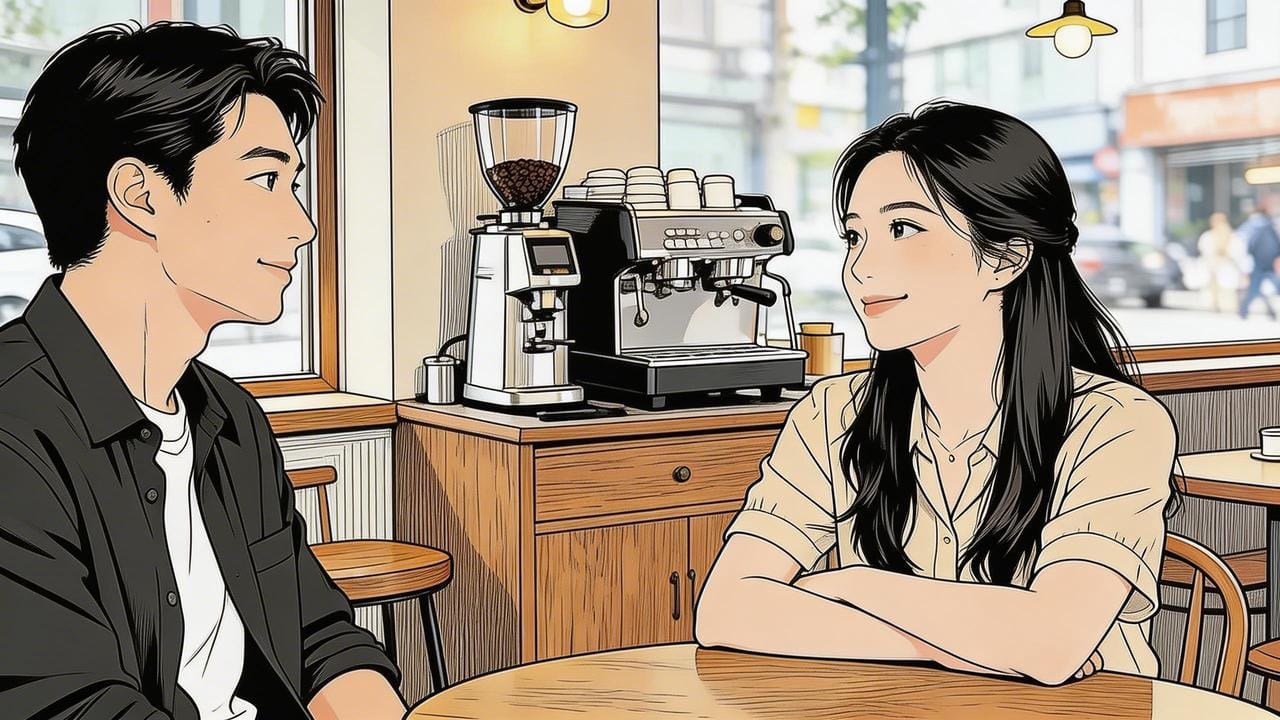
The two people from Image 1 are talking in an office. The woman speaks first and says, "You always cut it this close? Do you secretly enjoy arriving exactly on time." The man smiles and answers, "I have my own rhythm." Their conversation should feel casual and natural, with matching subtitles shown at the bottom of the frame.
3.3 Speech Bubble Text
Base pattern:"Character" says: "…" and a speech bubble appears near the character with the line written inside.Sample:
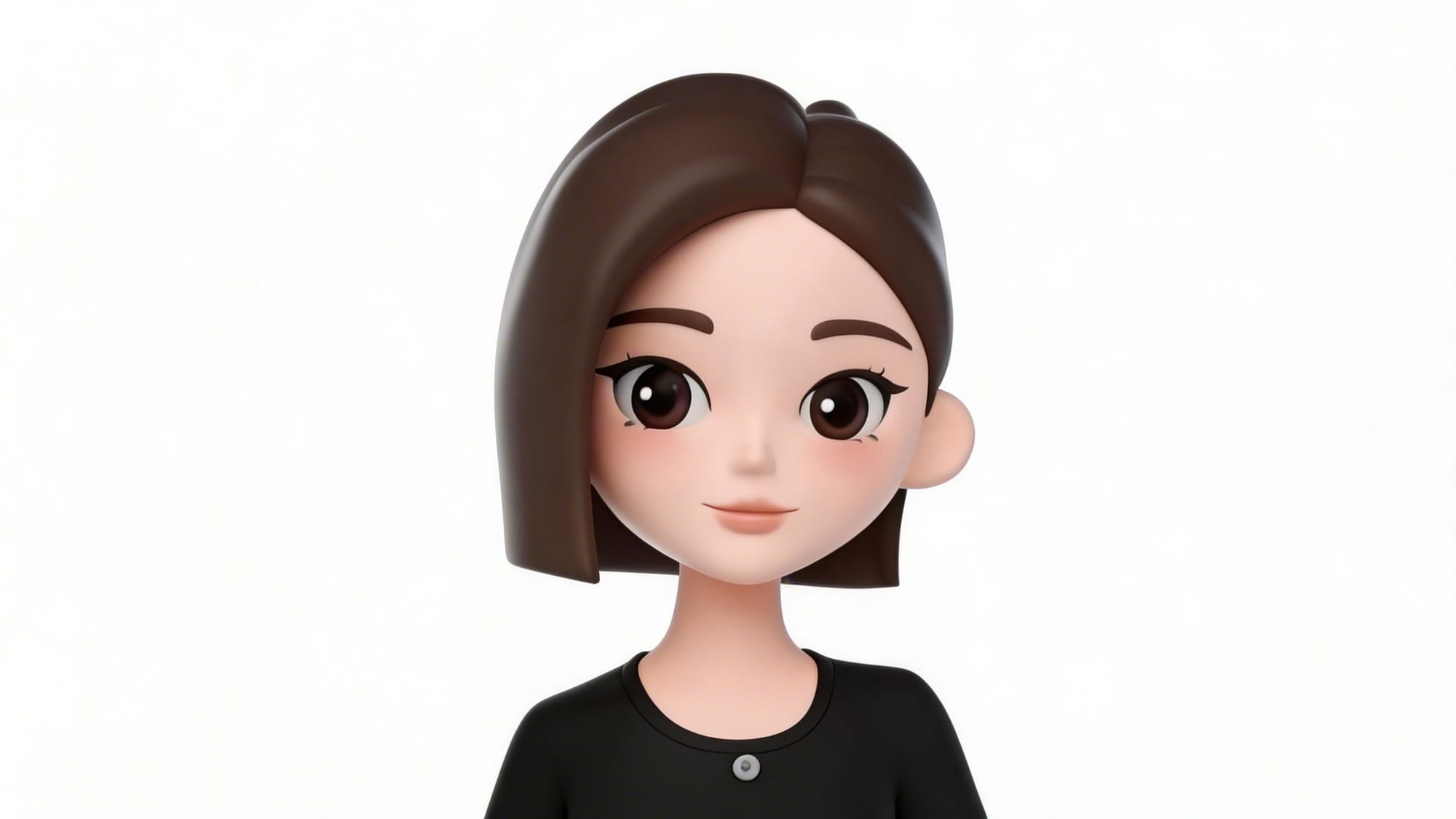
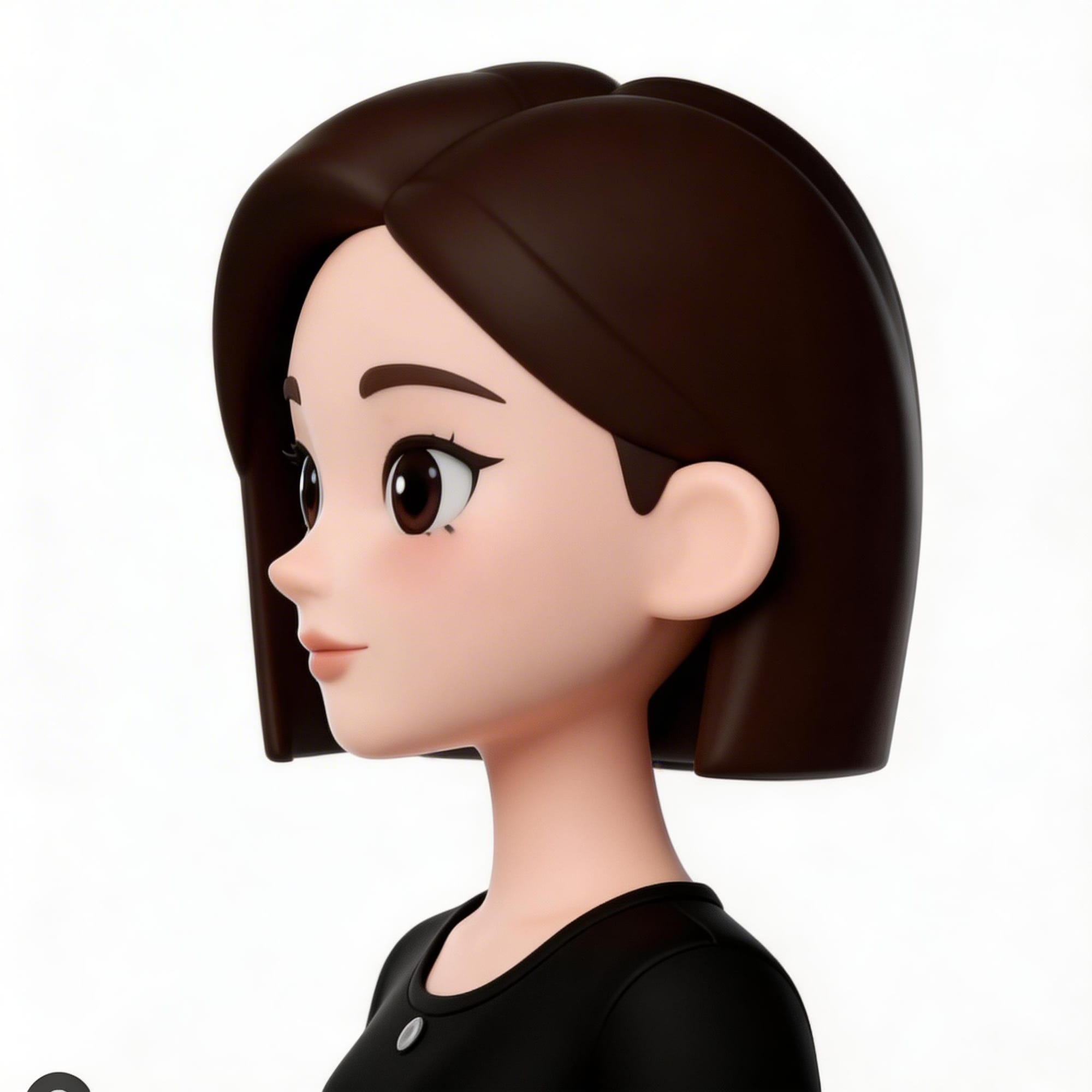
Use the girl from Image 1 and Image 2 in a strawberry field. She picks a berry, takes a bite, smiles, and says: "Perfect!". A speech bubble appears beside her with the exact line inside.
Step 4: Video Editing Prompt Syntax
Video Editing Prompt Syntax lets you modify specific time segments of an existing generated video. Instead of regenerating the whole clip from scratch, you specify target time ranges and describe add / remove / replace operations to adjust frames locally.
4.1 Basic editing syntax
Official rule: Specify video portion and timing position first, then describe add / remove / replace operations.
General editing structure:
At [X‑Y seconds] in this clip, [operation], add reference assets if needed
You can perform add, remove, replace, extend clip duration, and cross‑clip transitions.
4.2 At X‑Y seconds editing examples
Simple practical samples to demonstrate time‑based local modification.
Example 1: Local character action adjustment
At 2‑5 seconds in this clip, make the character slowly raise one arm, keep background environment unchanged.
Example 2: Extend video clip with seamless continuation
At 7‑11 seconds in this clip, extend the clip duration, the character keeps walking forward, maintain original lighting and camera track.
Example 3: Replace prop within a time window
At 4‑6 seconds in this clip, replace the handheld weapon with a wooden spear, keep character pose and camera unchanged.
Note: Mythic parses timestamps for editing existing footage only. Timestamps will not auto‑split a brand‑new generation into multiple independent shots. For multi‑shot narrative workflows, use reference‑to‑video generation.
4.3 Additional reference capabilities in Seedance 2.5
Beyond clip editing, Seedance 2.5 brings expanded reference‑driven generation features inherited from R2V. Subject, motion, audio and style references follow the same usage rules as Seedance 2.0. For full prompt samples, check the official Appendix: Prompt examples. Below are key new reference features introduced in Seedance 2.5.
4.3.1 3D clay‑model video reference and rendering
You can feed 3D clay‑model source videos to control motion, camera paths, movement trajectories and lighting shifts. Supplemental reference images for subjects, scenes or props can be attached to further tune final rendering outputs.
Coarse‑grained 3D clay‑model video
Best for early‑stage previsualization. Works optimally with simple geometry primitives representing humans, animals and objects. Complex highly‑detailed modeling may degrade output quality. Supported elements: shot cuts, camera movement, lighting changes.
Fine‑grained 3D clay‑model video
Built for complete‑model re‑rendering workflows. It “paints over” existing 3D clay‑model footage to deliver richer, polished visual results.
Best practice: supply clean, complete clay‑model source video. Remove distracting overlays such as trajectory lines, coordinate axes and camera cone previews.
Input: text
Render Video 1. No BGM; generate only environmental sounds and action sounds.Rendering requirements: The background is a nighttime cyberpunk city in deep blue and purple tones, filled with dense skyscrapers. Huge holographic billboards and neon lights glow between the buildings. Several flying vehicles move through the sky, flashing faint lights and producing subtle mechanical sounds. The character is a small raccoon dressed in a black stealth suit, appearing mostly as a silhouette. Its footsteps are cautious and quiet. The character moves across the rooftop of one of the skyscrapers.
Input: video
Output
4.3.2 High‑difficulty 3D clay‑model video previsualization
This workflow targets professional creative teams (filmmakers, advertisers, story artists). You can pre‑visualize complex blocking, actor movement, camera choreography and lighting schemes before final production.
4.3.3 Multi‑panel storyboard reference
Seedance 2.5 supports multi‑panel storyboard image references. Feed a grid‑format storyboard sheet to guide composition, scene layout and narrative progression across shots, helping preserve visual consistency throughout your sequence.
Final Thought
Seedance 2.5 isn’t interesting simply because the clips are longer or look better.The real shift is the workflow:
Assets + clear instructions + relationships + time → actual scene direction.That’s the difference between hoping for a good generation and starting to direct one.