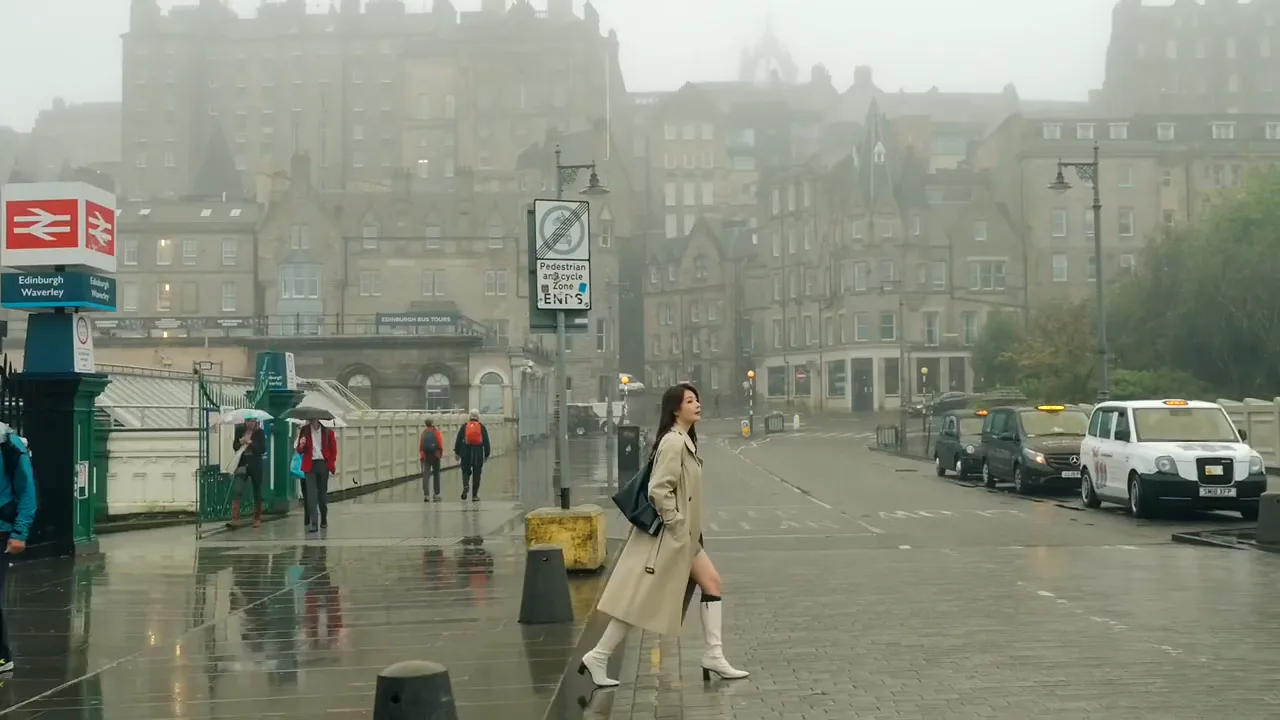
Omni Reference
Create consistent AI videos using multiple reference images, characters, objects, and visual elements. Preserve identity, style, appearance, and key details across scenes.
The page could not load. Please refresh to try again.
This is taking longer than expected. You can keep waiting or refresh the page.
Create, Edit, and Transform Images and Videos with 30+ AI Tools and 16+ leading AI models in One Powerful Visual Canvas
Explore leading AI models for video, image, speech, and audio — all in one workspace.
 Seedance
 Wan
 HappyHorse
 MiniMax H3
 Kling
 Gemini Omni
 Google Veo3
 QwenSeedream
 GPT Image
 Nano BananaOmniHuman
 MultiTalk
 InfiniteTalk
 MiniMaxSeed TTS
 ElevenLabs
From first idea to final asset, create and refine in one visual workspace.
Create consistent AI videos using multiple reference images, characters, objects, and visual elements. Preserve identity, style, appearance, and key details across scenes.
Turn any image into a dynamic AI-generated video with realistic motion, camera movement, and cinematic effects.
Generate high-quality AI videos from simple text prompts describing scenes, characters, actions, camera movement, or style.
Edit existing videos with natural-language prompts. Change scenes, objects, characters, styles, backgrounds, and more.
Extend clips beyond their original duration while maintaining visual continuity, motion, characters, and scene consistency.
Make characters in images or videos speak naturally with AI-generated voice and synchronized facial movement.
Remove video backgrounds automatically and isolate people, products, or objects without a green screen.
Swap faces in videos while preserving expressions, movement, lighting, and facial details for natural-looking results.
Enhance and upscale videos for sharper details, improved clarity, and higher resolution.
Everything you need to create, edit, and enhance — all in one place.
Start creating in a few simple steps.
In the top navigation, choose Video, Image or Audio, depending on what you want to create.
Each section shows what's available. Pick based on your goal, or start with the default.
Select a model and enter a prompt describing what you want to create.
Upload a reference image if the model supports it.
Choose settings such as duration, aspect ratio, or resolution.
Click Generate. Your generation appears in Conversation when it's done.
Chain AI tools into one pipeline, then save your workflow as a template to reuse on new photos or videos.
MagicCanvas brings 30+ AI tools and 16+ leading models into one visual canvas, so you can create, edit, and turn ideas into polished images and videos faster.
MagicCanvas is organized into image, video, and audio categories. Within each category, models are grouped into families, and each family has a distinct strength and use case. Image models include Qwen, Seedream, GPT Image, and Nano Banana. Video models include Seedance, Wan, HappyHorse, MiniMax, Kling, and Gemini.
Choose Image, Video or Audio in the top navigation. Select a feature and model, enter a prompt, and upload a reference image if supported. Adjust settings such as duration, aspect ratio, or resolution, then click Generate. Your generation appears in Conversation when it's done.
Yes, commercial use rights are included in every plan tier.
Yes. Users can earn free credits by signing up and completing tasks, then use those credits to access AI photo tools.
Yes. MagicCanvas can edit photos and videos using AI tools such as image editing, video editing, background removal, face swap, HD enhancement, and more.
The node-based workflow canvas lets you chain multiple AI tools into one pipeline, then save it as a template to repeat the same edit on new photos or videos.
MagicCanvas combines 30+ AI tools and 16+ leading models into one platform, so you don't need to switch between different platforms.