
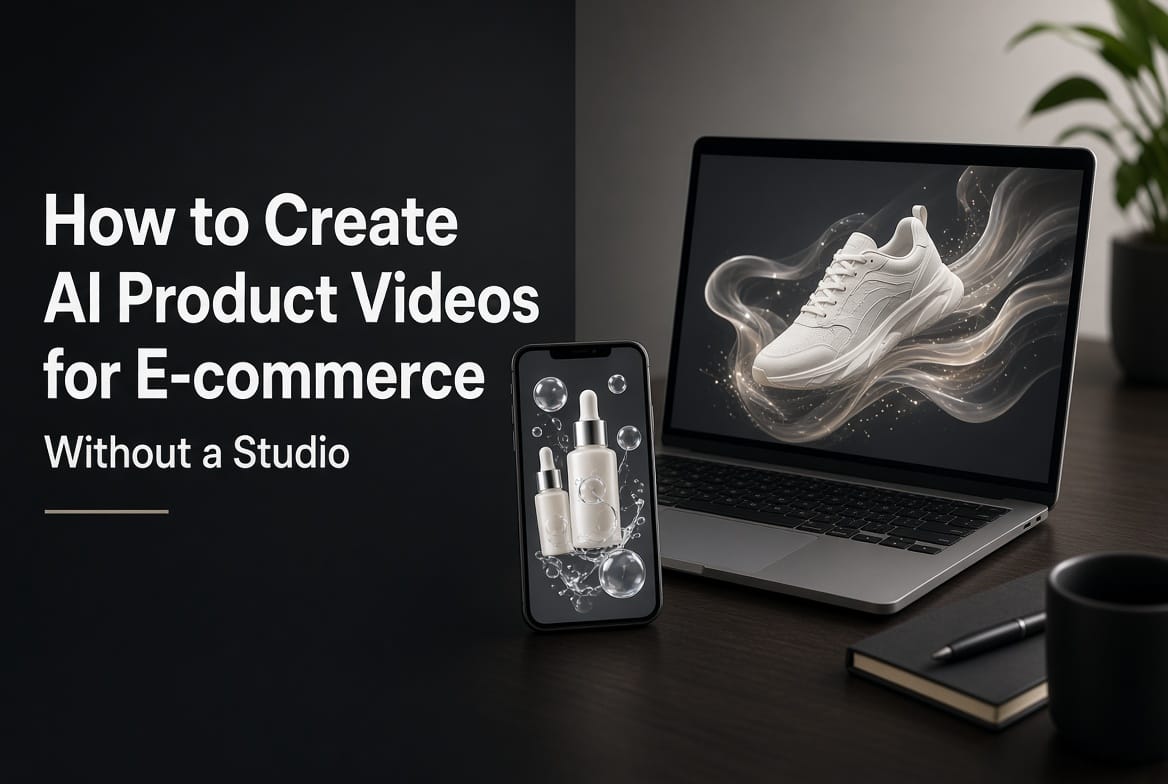
Creating product videos used to mean booking a studio, arranging lighting, preparing props, filming multiple takes, and spending hours editing everything into something you could actually use in an ad.
That still makes sense for some brands. But what if you’re running a small Shopify store, testing a new product, or managing ten different products and need fresh video creatives for all of them?
You probably don’t want to organize a full production every time you need a new ad.
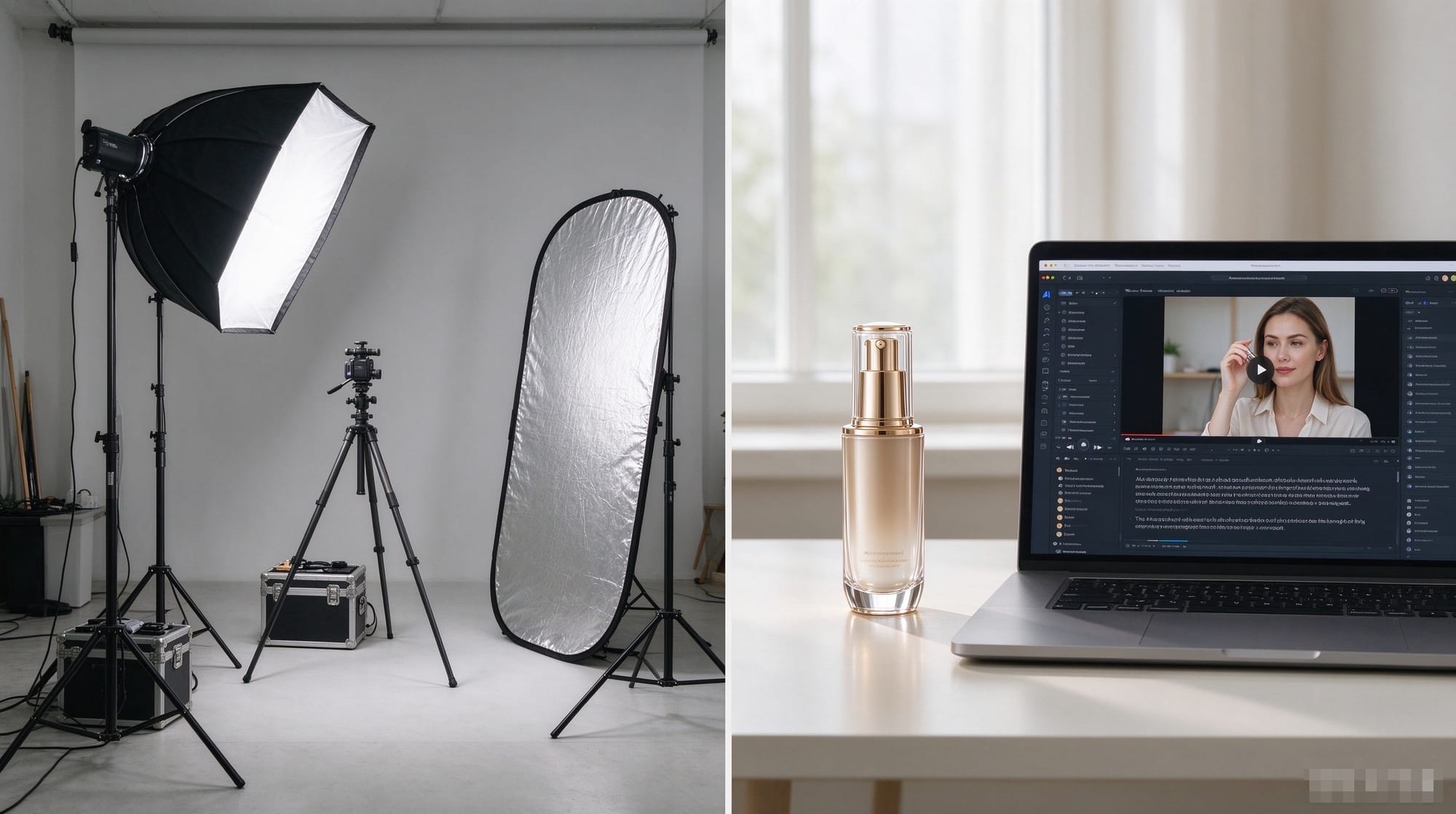
That’s where AI video generation comes in.
With MagicCanvas, you can use Text to Video to turn a written description into a video, without having to film every scene yourself. Instead of starting with a camera, you start with an idea: what your product looks like, where it should appear, how the camera should move, and what kind of mood the video should create.
In this guide, we’ll walk through how to create AI product videos for e-commerce, how to write prompts that produce more useful results, which video models you can try in MagicCanvas, and how to turn a single creative idea into several different advertising concepts.
No studio booking required. Just a product, a good idea, and a little experimentation.
Why E-commerce Brands Are Turning to AI Product Videos
Product photography is still useful. A clean image on a white background can do a great job showing customers exactly what they’re buying.
But video gives you something a static image can’t: movement.
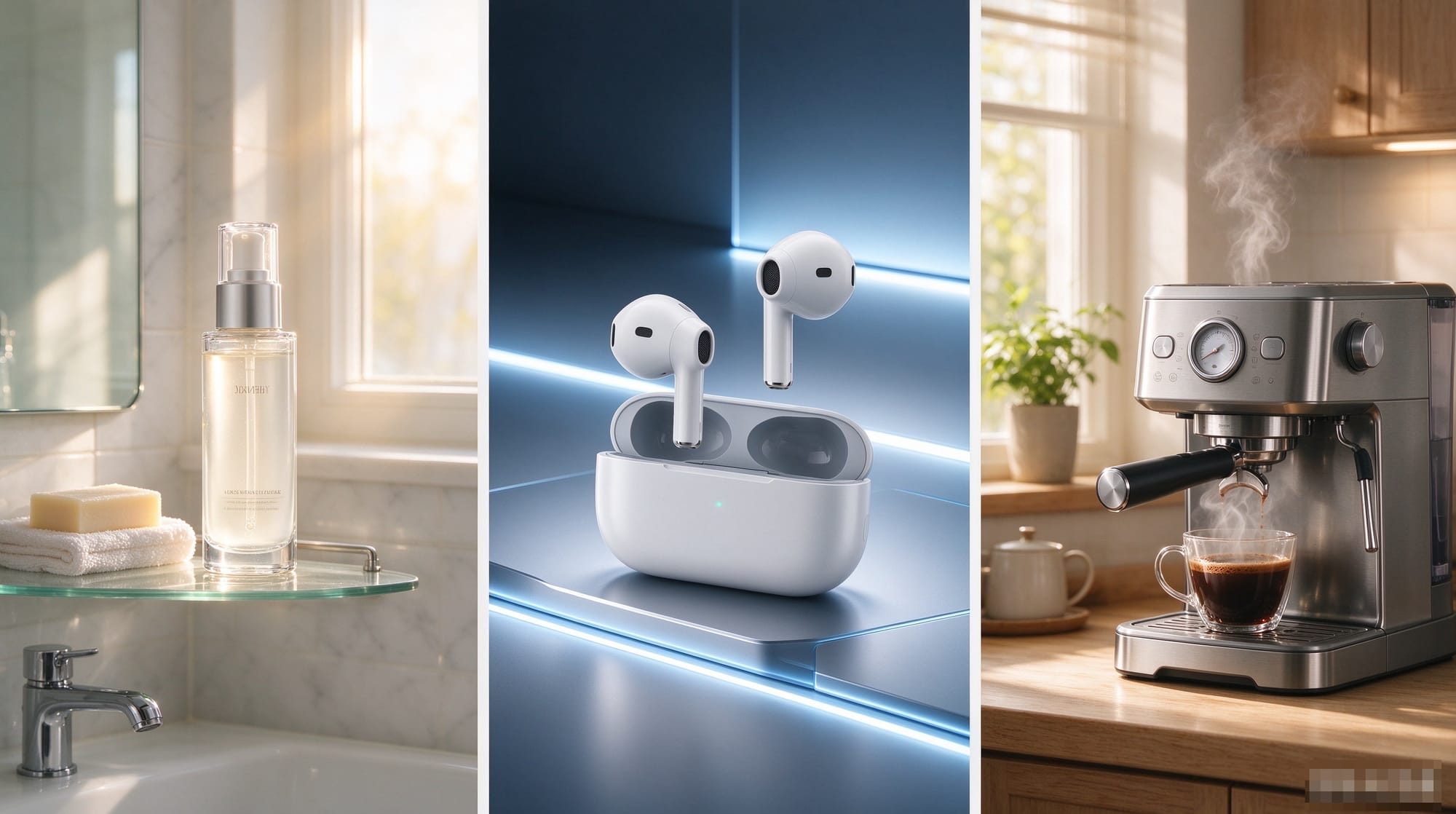
A skincare bottle can appear on a sunlit bathroom shelf. A pair of headphones can be showcased in a futuristic environment. A coffee maker can sit in a cozy morning kitchen while steam rises from a fresh cup.
These scenes help communicate a product’s atmosphere and the kind of experience a customer might associate with it.
The problem is that producing this kind of content traditionally takes time and money.
AI video generation gives e-commerce teams another option. Rather than arranging a physical shoot for every creative concept, you can describe a scene in text and let an AI model generate a video based on your instructions.
Here’s where that can be useful.
1. You Can Test More Creative Ideas
Imagine you sell a perfume.
You could create a luxury campaign with dark backgrounds and dramatic lighting, a fresh summer concept with sunlight and flowers, or a minimalist product showcase with slow camera movement.
Traditionally, each concept might require a different setup. With text-to-video generation, you can test these ideas by changing your prompt and generating new versions.
Not every result will be perfect, of course. But you can explore more directions before committing to a full production.
2. You Don't Need to Film Every Scene
Some product concepts are difficult to shoot in real life.
Maybe you want a product floating in the air, a dramatic macro shot, or a cinematic scene in a location you can't easily access.
AI video generation can help you explore these visual ideas without building a physical set or organizing a complicated shoot.
It's especially useful when your goal is to create an eye-catching visual rather than document a real product demonstration.
3. You Can Create Content for Different Campaigns
A product launch, a seasonal promotion, and an evergreen social media ad don't necessarily need the same creative direction.
You might want warm autumn colors for one campaign and bright, energetic visuals for another.
By experimenting with different prompts and video models, you can create variations that fit different campaigns while keeping the same overall product concept.
The key is to treat AI video generation as a creative testing tool, not a magic button that automatically produces a winning ad.
How to Create AI Product Videos with MagicCanvas Text to Video
Let's get practical.
For this example, imagine you're selling a premium skincare serum. You want a short product video for your online store and social media ads, but you don't have a studio, a camera crew, or a collection of professionally filmed clips.
Here's how you can approach it with MagicCanvas.
Step 1: Start with a Clear Product Concept
Before opening a video generator, decide what you want the video to communicate.
Don't start with something vague like:
"Make a beautiful video of skincare."
That doesn't tell the AI much about the scene, the camera, or the visual style.
Instead, ask yourself three questions:
- What should the viewer notice first?
- What kind of atmosphere fits the product?
- What should happen during the video?
For a premium skincare serum, you might want the bottle to remain the main subject, with soft sunlight, reflective glass, and a slow cinematic camera movement.
Your concept could be as simple as:
"A premium skincare serum showcased in a minimalist bathroom, with soft morning sunlight and elegant reflections on the glass bottle."
That's already a much more useful starting point.
Step 2: Open MagicCanvas and Select Text to Video
Go to MagicCanvas and open its video generation tools.
Select Text to Video.
This is the workflow to use when you want to generate a video from a written prompt rather than begin with an existing product photo.
MagicCanvas provides several video models, including Seedance, Google Veo, Wan, MiniMax, Kling, and HappyHorse. Different models can produce different visual interpretations of the same prompt, so choosing a model is part of the creative process.
If you already have a product photograph and want to animate that particular image, Image to Video is the alternative workflow. We'll focus on generating scenes from text here.
Step 3: Choose a Video Model
MagicCanvas features a selection of models, including three Featured models:
- Seedance 2.0 Fast
- Seedance 2.0 Mini
- Google Veo 3 Fast
The All models selection also includes Seedance, Wan, HappyHorse, Google Veo, MiniMax, and Kling.
So, which one should you choose?
There's no single model that's automatically best for every product video. Your choice should depend on the visual result you're trying to achieve, the options available for that model, and how well its output follows your prompt.
If you're not sure where to start, try one of the Featured models first. Then test another model using the same prompt and compare the results.
Pay attention to a few things:
- Does the product remain recognizable throughout the clip?
- Does the camera movement look natural?
- Does the lighting fit the product?
- Does the video match the mood you described?
- Are there any distracting distortions or unexpected objects?
A model that creates beautiful cinematic scenes might not be the best choice for a particular product shot. The output matters more than the model name.
Step 4: Write a Product Video Prompt
This is where you can make a big difference to the final result.
A useful prompt should describe more than the product itself. It should explain how the scene looks and how the video unfolds.
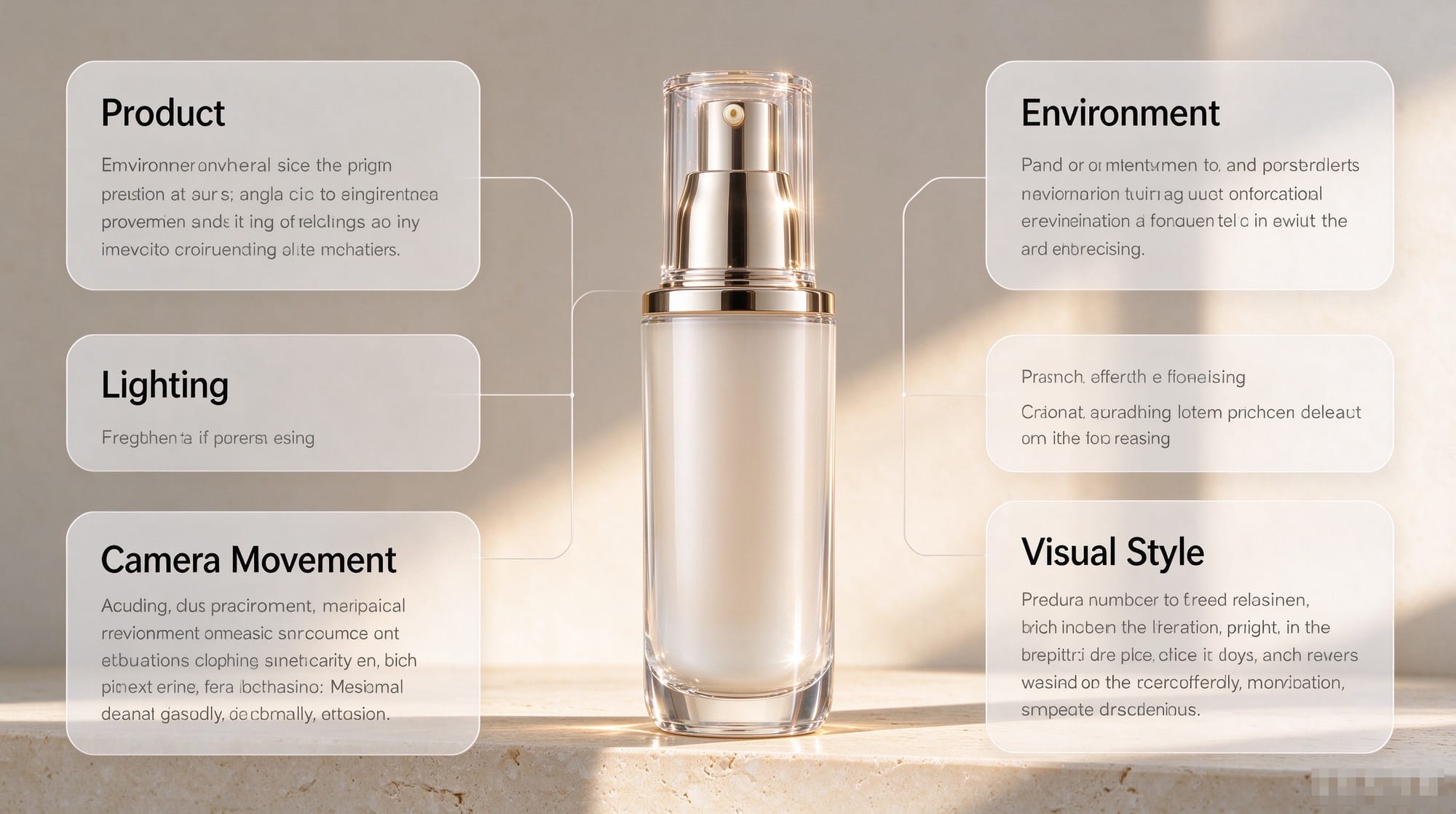
For e-commerce videos, you can build your prompt around five elements:
Product + Environment + Lighting + Camera Movement + Visual Style
Let's use our skincare serum again.
Here's an example prompt you can adapt in MagicCanvas:
Example Prompt: Luxury Skincare Product Video
"A premium glass skincare serum bottle standing on a polished beige stone surface in a minimalist luxury bathroom. Soft morning sunlight enters through a large window, creating delicate reflections on the glass and gentle shadows across the stone. The camera slowly pushes in toward the bottle, with a subtle cinematic orbit that reveals its elegant shape. A few water droplets glisten on the surface nearby. Warm neutral tones, refined beauty campaign aesthetic, realistic materials, clean composition, soft depth of field, smooth camera movement. Keep the serum bottle as the main subject throughout the shot."
Notice how this prompt describes both the scene and the movement.
It tells the model where the product is, how it's illuminated, what the camera should do, and what the overall video should feel like.
You can use the same structure for other products, too.
For headphones, replace the bathroom with a modern desk setup and use cool lighting. For coffee accessories, try a warm kitchen scene with morning sunlight. For fashion accessories, consider a minimalist editorial set.
One important detail: if the exact appearance of your product matters, a text-only prompt may not reproduce its real packaging, logo, or label accurately. Check the generated result carefully before using it in a commercial campaign.
Step 5: Generate the Video and Review the Result
Once your prompt is ready and you've selected a model, generate the video using the available settings in MagicCanvas.
When the result appears, don't judge it only by whether it looks attractive.
Ask whether it actually works as a product advertisement.
Is the product visible enough? Does the movement draw attention to the right details? Does the video feel appropriate for your brand? Are there any visual inconsistencies that might confuse customers?
If something isn't working, adjust the prompt and generate another version.
For example, if the camera moves too quickly, explicitly request slower movement. If the background is too busy, ask for a cleaner composition. If the product is too small in the frame, describe a closer shot.
You don't need to rewrite everything each time. Often, changing one or two details makes it easier to understand which instructions improve the output.
Step 6: Prepare the Video for Your Store or Ad Campaign
Once you have a result you're happy with, check the available export options and make sure the video fits the placement where you intend to use it.
A video for a product page might benefit from a clean, uninterrupted product showcase. A social media ad may need a more attention-grabbing opening. A campaign for a premium product may call for slower movement and more restrained visuals.
Before publishing, review the video for incorrect product details, strange movements, distorted text, or other artifacts.
If you need to preserve the appearance of an actual product, compare the generated footage against your original product images. AI-generated visuals can be excellent for creating atmosphere, but they shouldn't misrepresent what customers will receive.
4 AI Product Video Ideas You Can Try
Once you've created your first video, you can use the same product concept to explore different creative directions.
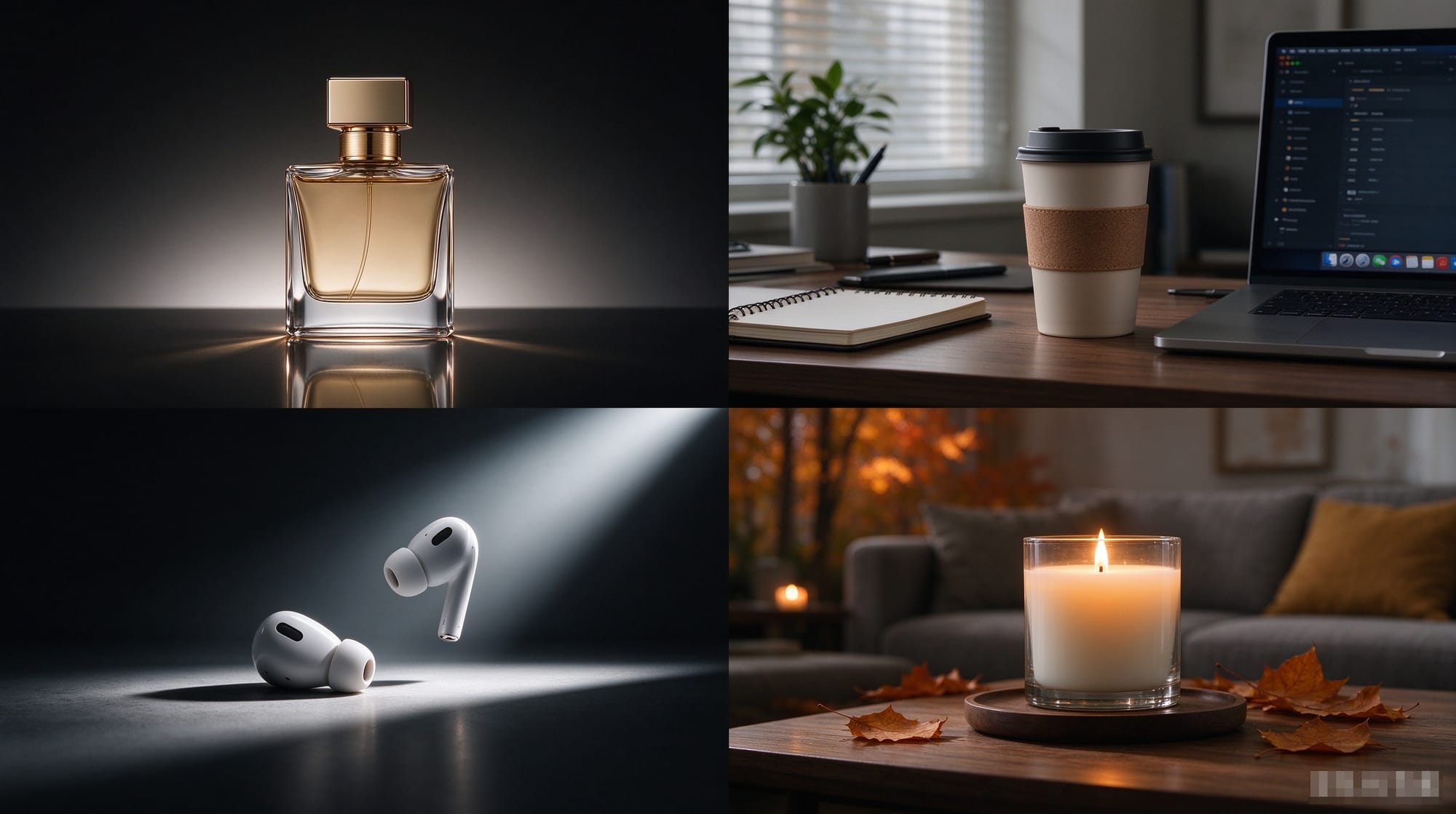
Here are four formats worth testing.
1. The Premium Product Showcase
<PRIVATE_PERSON> is not needed in this format; the product itself should carry the scene.
Think of a perfume bottle on a reflective surface, a skincare product surrounded by soft light, or a luxury watch presented against a dark background.
Prompt example:
"A premium perfume bottle displayed on a glossy black surface in a dark, elegant studio environment. Soft directional lighting creates subtle reflections along the glass edges. The camera makes a slow, smooth push-in toward the bottle, revealing its shape and details. Sophisticated luxury advertising aesthetic, restrained composition, deep shadows, realistic materials, cinematic lighting."
Best for: Beauty, fragrance, jewelry, watches, and premium accessories.
The main goal is to make the product feel desirable without overwhelming the frame with unnecessary elements.
2. The Lifestyle Product Video
Sometimes customers need to imagine how a product fits into everyday life.
A desk lamp can appear in a cozy home office. A travel mug can be showcased during a morning commute. A skincare product can sit on a bathroom counter in soft daylight.
Prompt example:
"A minimalist insulated coffee tumbler placed on a wooden desk beside a notebook and an open laptop in a bright home office. Warm morning sunlight falls across the desk. The camera slowly slides from left to right, bringing the tumbler into focus while the background remains softly blurred. Natural colors, realistic textures, relaxed lifestyle commercial aesthetic."
Best for: Home goods, kitchen accessories, office products, travel items, and everyday lifestyle products.
Lifestyle scenes give your advertising a more contextual feel than a product floating against a plain background.
3. The Dramatic Product Reveal
A product reveal is designed to create a little anticipation.
Instead of showing everything immediately, you can describe a scene that gradually reveals the product through lighting, movement, or composition.
Prompt example:
"A sleek pair of wireless headphones emerging from a shadowy minimalist environment. A narrow beam of cool studio light gradually illuminates the headphones as the camera moves closer. Subtle reflections reveal the contours of the ear cups. Clean futuristic aesthetic, smooth controlled movement, high contrast, premium electronics advertising style."
Best for: Consumer electronics, gaming accessories, new product launches, and products with distinctive designs.
Keep the concept simple. Too many dramatic effects can distract from the product itself.
4. The Seasonal Campaign Video
Seasonal campaigns give you an easy way to explore new visual styles without changing the product.
For example, the same candle could appear in a warm autumn setting, a festive holiday scene, or a bright spring-inspired composition.
Prompt example:
"A scented candle displayed on a wooden table in a cozy autumn living room. Warm amber light illuminates the candle and nearby autumn leaves, while a soft background glow creates a relaxed seasonal atmosphere. The camera gently moves toward the candle, highlighting the flame and the texture of the glass jar. Warm earthy colors, natural materials, inviting seasonal advertising aesthetic."
Best for: Gifts, candles, home decor, seasonal collections, and limited-time promotions.
You can use this approach to brainstorm different campaign concepts before deciding which ones deserve more production time.
How to Choose Between MagicCanvas Text to Video Models
MagicCanvas offers multiple models because different creative projects call for different results. Rather than assuming that one model is best for every e-commerce video, start with the kind of output you need.
Here's a practical way to approach the available selection.
| Model selection | How to approach it |
|---|---|
| Seedance 2.0 Fast | Try it as a starting point when exploring product video concepts. |
| Seedance 2.0 Mini | Test it as an alternative to compare the generated result with other Featured models. |
| Google Veo 3 Fast | Try it when exploring another model's interpretation of your product scene. |
| Seedance | Explore the available Seedance options for your specific prompt and desired output. |
| Wan | Experiment with different scene descriptions and visual directions. |
| HappyHorse | Compare its output with other available models using the same creative brief. |
| Google Veo | Explore the available model options for your project. |
| MiniMax | Test it against your preferred visual style and product requirements. |
| Kling | Compare its output for your chosen scene, composition, and camera movement. |
This is a starting guide, not a ranking of model quality. Model availability, settings, and results can vary, so it's worth checking the current options in MagicCanvas before you generate.
Here's a simple testing method: write one strong prompt, run it through two or three available models, and compare the results using the same criteria.
Look at product visibility, composition, motion, visual consistency, and how closely the output follows your instructions.
That gives you a more useful comparison than choosing a model based on its name alone.
Text to Video vs. Image to Video: Which Should You Use?
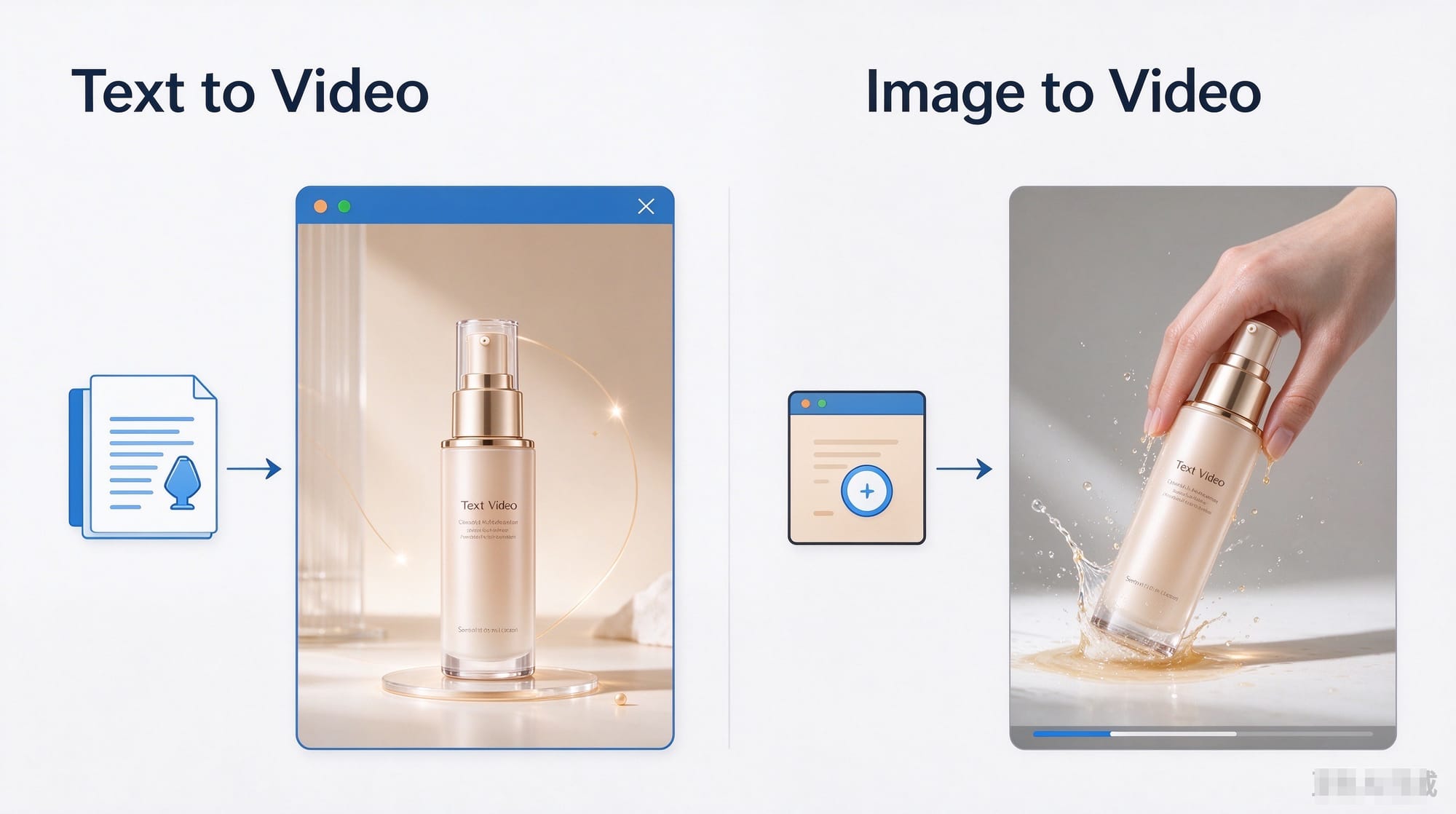
MagicCanvas also offers Image to Video, which is useful when you already have a product photograph and want to animate it.
The two workflows solve slightly different problems.
| Your situation | Better starting point |
|---|---|
| You want to explore a new advertising concept from scratch. | Text to Video |
| You want to describe a scene without starting from an existing image. | Text to Video |
| You already have a product image you want to animate. | Image to Video |
| Your product's real packaging and appearance need to remain recognizable. | Consider Image to Video and carefully review the output. |
| You want to compare several creative directions before a shoot. | Start with Text to Video, then use reference images where appropriate. |
For example, suppose you sell a skincare serum and have no lifestyle footage.
You could use Text to Video to explore a luxury bathroom scene, a minimalist studio concept, and a seasonal campaign.
Once you have a direction you like, you can consider using Image to Video with an existing product photo to build a more image-led concept.
Neither workflow replaces the other. They give you different starting points depending on how much visual material you already have.
If you want a more detailed walkthrough of animating existing images, see our separate guide on turning a single photo into a video for TikTok, Reels, and Shorts.
5 Tips for Getting Better AI Product Videos
Even with a capable video model, the quality of your instructions and your review process matter.
Here are five practical tips to keep in mind.
1. Give Each Video One Main Purpose
Don't try to fit a product introduction, five features, a lifestyle scene, and a dramatic reveal into one short clip.
Choose one clear idea for each generation. You can combine different clips during editing if you need a more complete advertisement.
2. Be Specific About Camera Movement
Words like "cinematic" and "beautiful" can help communicate a general style, but they don't explain what should happen on screen.
Try phrases such as:
- Slow camera push-in toward the product.
- Gentle side-to-side camera movement.
- Close-up shot revealing surface details.
- Smooth orbit around the main subject.
- Static camera with subtle environmental movement.
Specific instructions give the model a clearer direction.
3. Keep the Scene Relatively Simple
A product video doesn't need ten objects, multiple characters, dramatic weather, and three different camera movements to look interesting.
In many cases, one product, one environment, and one deliberate movement produce a cleaner result.
Start simple. Add complexity only when it serves the creative idea.
4. Generate Variations Before Settling on a Final
Your first generation is a starting point, not a guarantee of the final result.
Try changing the lighting, environment, camera movement, or overall style. Keep track of which prompt variations work best so you can reuse those ideas in future campaigns.
5. Check Product Accuracy Before Publishing
This is particularly important for e-commerce.
If the AI changes a logo, invents a product feature, alters the packaging, or creates a misleading demonstration, the result may not be suitable for a product advertisement.
Use generated scenes responsibly, and rely on accurate product imagery and verified information wherever the details matter.
Common Mistakes to Avoid
A few common mistakes can make AI product videos look less convincing than expected.
Writing prompts that are too vague. "Make a cool product ad" leaves too many creative decisions open. Describe the scene, lighting, camera movement, and style.
Adding too many actions. A short clip may struggle to communicate several complex events in sequence. Give the scene one main action and build from there.
Expecting exact packaging from text alone. A model may interpret labels, logos, and small design details incorrectly. Check these elements against the real product.
Choosing a model without comparing results. Different models can interpret the same instructions differently. Test a few options rather than assuming the first result is the best.
Publishing without reviewing the video. Check for artifacts, unexpected visual changes, and any details that could mislead customers.
The goal isn't to make every generation perfect. It's to develop a repeatable process for finding useful creative directions and refining them before publishing.
Final Thoughts: Create More Product Video Concepts with MagicCanvas
You don't always need a studio, professional camera equipment, and a full production team to explore new e-commerce video ideas.
With MagicCanvas Text to Video, you can start with a written description, choose from available video models, and experiment with different environments, lighting styles, and camera movements.
That makes it easier to explore product showcases, lifestyle concepts, seasonal campaigns, and other advertising directions before committing to a traditional shoot.
The important part is knowing what you want the video to communicate. A clear creative idea, a well-written prompt, and a careful review process will take you much further than simply asking AI to make something look cool.
And if you already have a product photo, MagicCanvas Image to Video offers another way to approach the same challenge.
Ready to experiment with your next product video? Visit MagicCanvas and try Text to Video to turn your next advertising idea into a visual concept.
Start with one product, test a few creative directions, and see what works for your brand.